

How RBAC Works
RBAC operates on a simple but powerful principle: roles are defined at the organization level, but applied at the workspace level. This means you can create a set of roles once for your organization and reuse them across all your workspaces, while still maintaining workspace-specific access control.Role Definition (Organization Level)
Roles belong to your organization and can be used across all workspaces. You have two options:- Default Roles: System-provided roles available to all organizations (
Contributor,Publisher,Developer,Admin) - Custom Roles: Organization-specific roles you create to match your team’s needs
Role Application (Workspace Level)
When you assign roles to workspace members, you’re granting them specific permissions within that workspace. A user can have different roles in different workspaces, and can even have multiple roles in the same workspace. When a user has multiple roles, their effective permissions are the combination of all permissions from their assigned roles. For example, if Alice has bothContributor and Publisher roles in Workspace A, she can edit prompts and deploy them to production. But if she only has the Contributor role in Workspace B, she can edit prompts there but cannot deploy them.
Default Roles
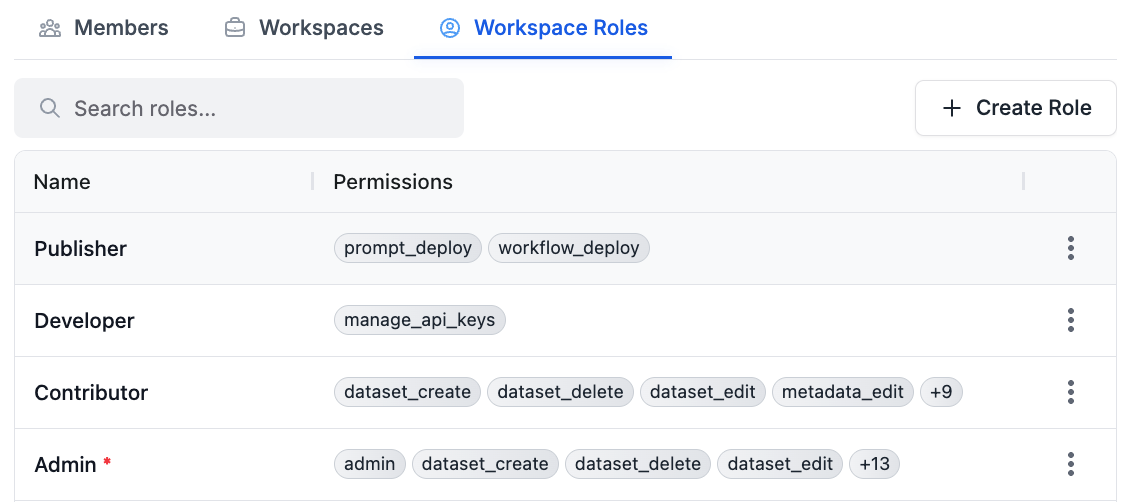
Contributor
What they can do: Create and edit content- Prompt templates and versions: Create, update, rename, delete, move, and duplicate prompt templates and versions
- Workflows: Create, update, rename, delete, move, and duplicate workflows and workflow versions
- Datasets: Create, update, rename, delete, move, and duplicate datasets and dataset groups
- Reports: Create, update, rename, delete, move, and duplicate reports and evaluations
- Metadata: Edit metadata associated with requests and entities
Publisher
What they can do: Deploy changes to production- Create and manage prompt labels
- Deploy prompt changes through changelogs
- Create and manage workflow labels
- Move labels between versions
Contributor for users who need both editing and deployment capabilities.
Developer
What they can do: Manage API access- Create, view, and delete API keys
Admin
What they can do: Everything- All permissions from other roles
- Manage workspace member roles and permissions
- Approve protected label changes
- Full administrative access
Custom Roles
Beyond the default roles, you can create custom roles tailored to your organization’s specific needs. Custom roles are defined at the organization level and can be reused across all workspaces. Only organization owners can create custom roles. When creating a custom role, you select which permissions to include, allowing you to create roles that match your team’s workflow exactly. For example, you might create a “QA Tester” role that can only edit reports and datasets, or a “Deployment Manager” role that combinesPublisher and Developer permissions.
Creating a Custom Role
RBAC must be enabled for your organization before you can create or view
custom roles. Only organization owners can create custom roles.
- Go to your organization settings
- Select your organization to open its details
- Open the Workspace Roles tab
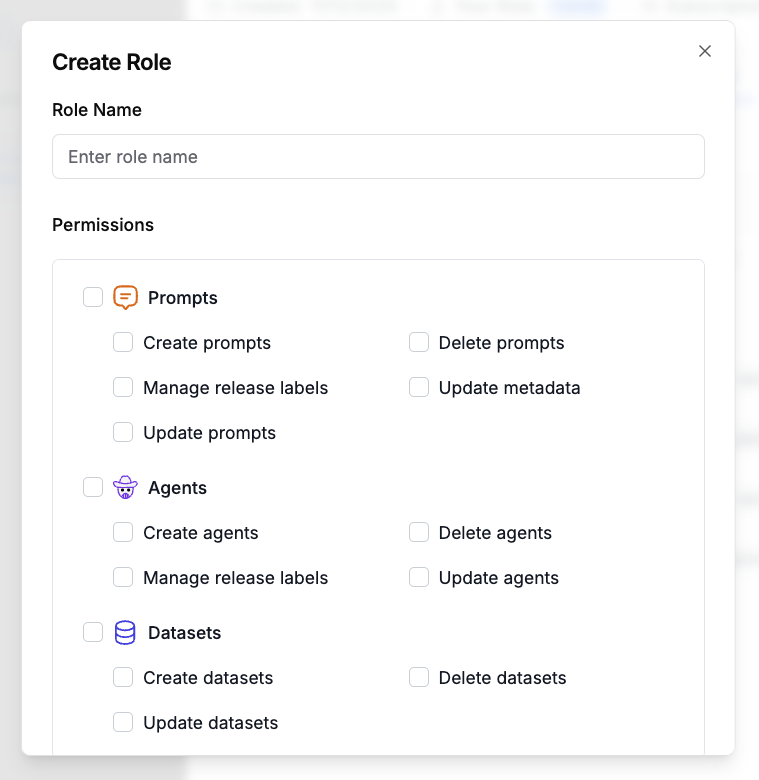
- Click + Create Role in the top right
- Enter a Role Name that describes the role’s purpose (e.g. “QA Tester”)
- Select the permissions to include, grouped by resource (Prompts, Workflows, Datasets, Evaluations, Workspace)
- Click Create Role to save
Permissions
RBAC uses fine-grained permissions that control specific actions:PROMPT_CREATE: Create and duplicate prompt templatesPROMPT_EDIT: Edit prompt templates, create versions, modify metadataPROMPT_DELETE: Delete prompt templatesPROMPT_DEPLOY: Create labels, deploy changes, move labels between versionsWORKFLOW_CREATE: Create and duplicate workflowsWORKFLOW_EDIT: Edit workflows, create versions, modify structureWORKFLOW_DELETE: Delete workflowsWORKFLOW_DEPLOY: Create workflow labels, deploy workflow changesDATASET_CREATE: Create and duplicate datasets and dataset groupsDATASET_EDIT: Edit datasets and dataset groupsDATASET_DELETE: Delete datasets and dataset groupsREPORT_CREATE: Create and duplicate reports and evaluationsREPORT_EDIT: Edit and run reports and evaluationsREPORT_DELETE: Delete reports and evaluationsMETADATA_EDIT: Edit metadata associated with requestsMANAGE_API_KEYS: Create and delete API keysADMIN: Full administrative access, including managing member roles
Enabling RBAC
RBAC is enabled per organization. When RBAC is disabled, all workspace members receive default permissions (all permissions exceptADMIN) automatically. When RBAC is enabled, workspace members have no permissions by default and must be explicitly assigned roles to gain access.
This secure-by-default approach ensures that when RBAC is enabled, users only get the permissions they need, following the principle of least privilege.
Enterprise Identity automatically enables RBAC when turned on for an organization (and disables it when Enterprise Identity is turned off). IdP group mappings assign the default roles documented above—custom roles cannot be assigned through Directory Sync in the current release.
Managing Roles
Users with theADMIN permission in a workspace can assign roles to members of that workspace. Organization owners can assign roles to members in any workspace within their organization.
To manage a member’s roles:
- Go to your organization settings
- Select your organization to open its details
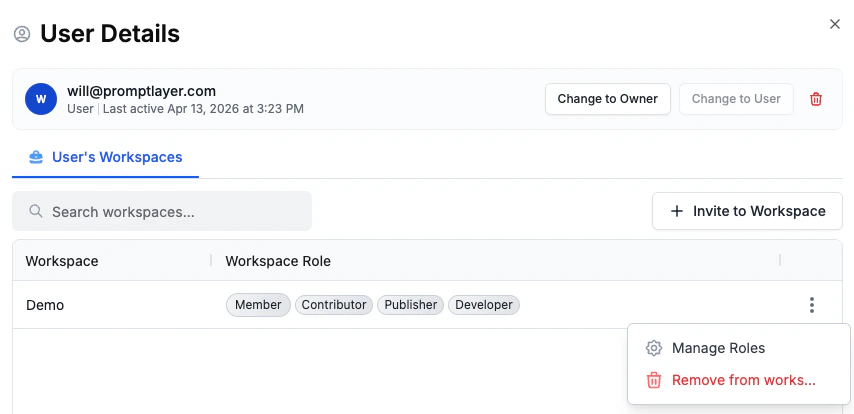
- On the Members tab, click the member you want to manage
- In the User Details panel, open the User’s Workspaces tab
- On the workspace row you want to update, open the row actions menu
- Choose Manage Roles
- Roles are assigned to workspace members (not directly to users)
- Effective permissions are the union of all permissions from assigned roles
- Role assignments are workspace-specific
Best Practices
- Start with default roles: The default roles cover most common scenarios. Use them before creating custom roles.
- Follow least privilege: Only grant the minimum permissions needed for each team member to do their job.
- Combine roles strategically: Assign multiple roles when users need permissions from different roles (e.g.,
Contributor+Publisherfor someone who edits and deploys). - Review regularly: Periodically review role assignments to ensure they still match your team’s needs as roles and responsibilities evolve.
- Use custom roles thoughtfully: Create custom roles when you have a recurring pattern that doesn’t fit the default roles, not for one-off cases.