

Create a prompt
From the PromptLayer dashboard, click New -> Prompt.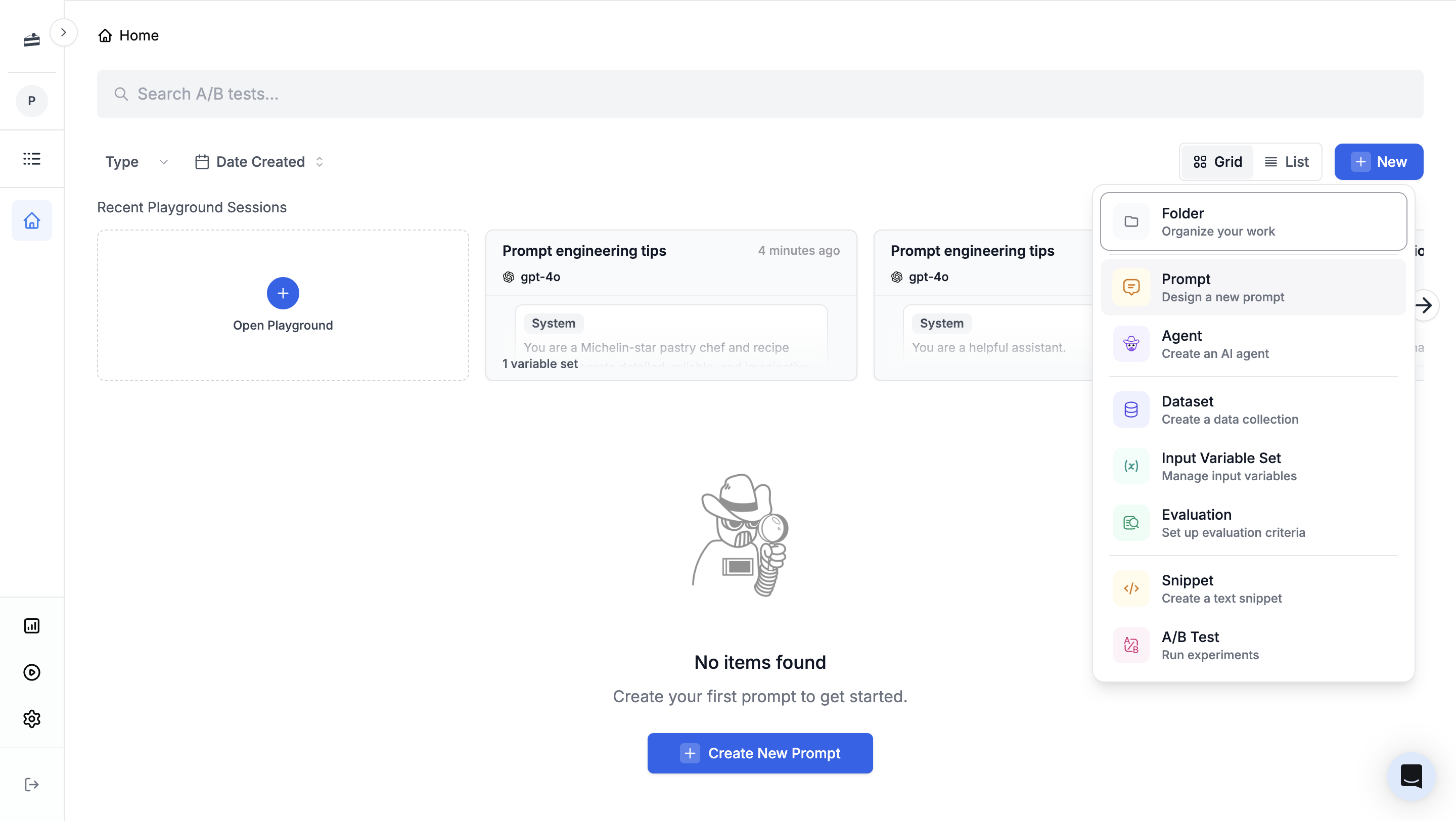
System, user, and assistant messages
System, user, and assistant messages
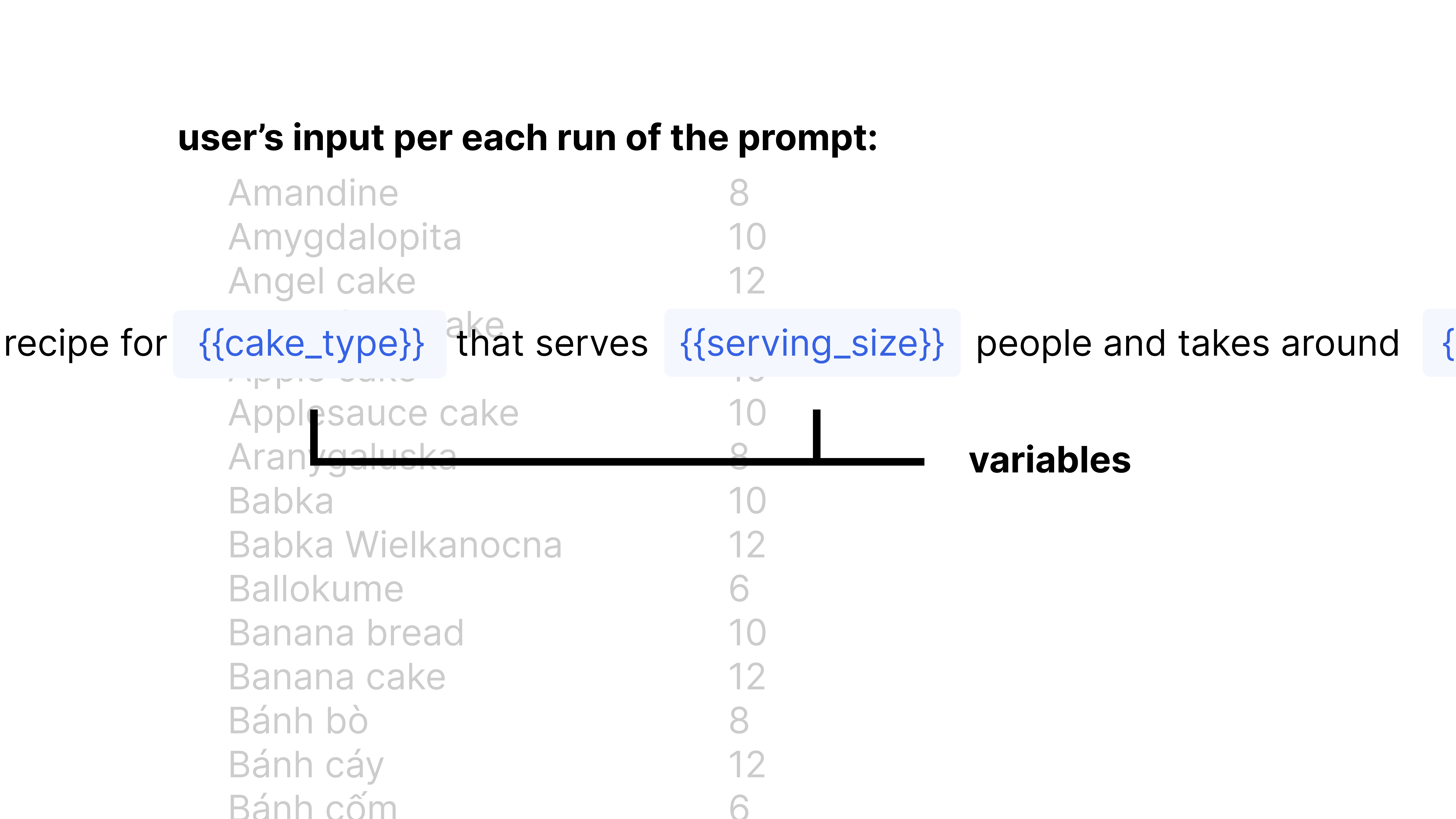
System messages define the model’s behavior, tone, output format, and guardrails.User messages contain the request that changes each time the prompt runs. This is where input variables usually appear.Assistant messages can show example responses, which helps the model follow an expected format.
{{customer_name}} or {{question}} are placeholders that your application fills in at runtime. Learn more in Template Variables.
Test in Playground
Use Playground to test a prompt before saving or releasing it. Define values for each input variable, run the prompt, and inspect the generated response.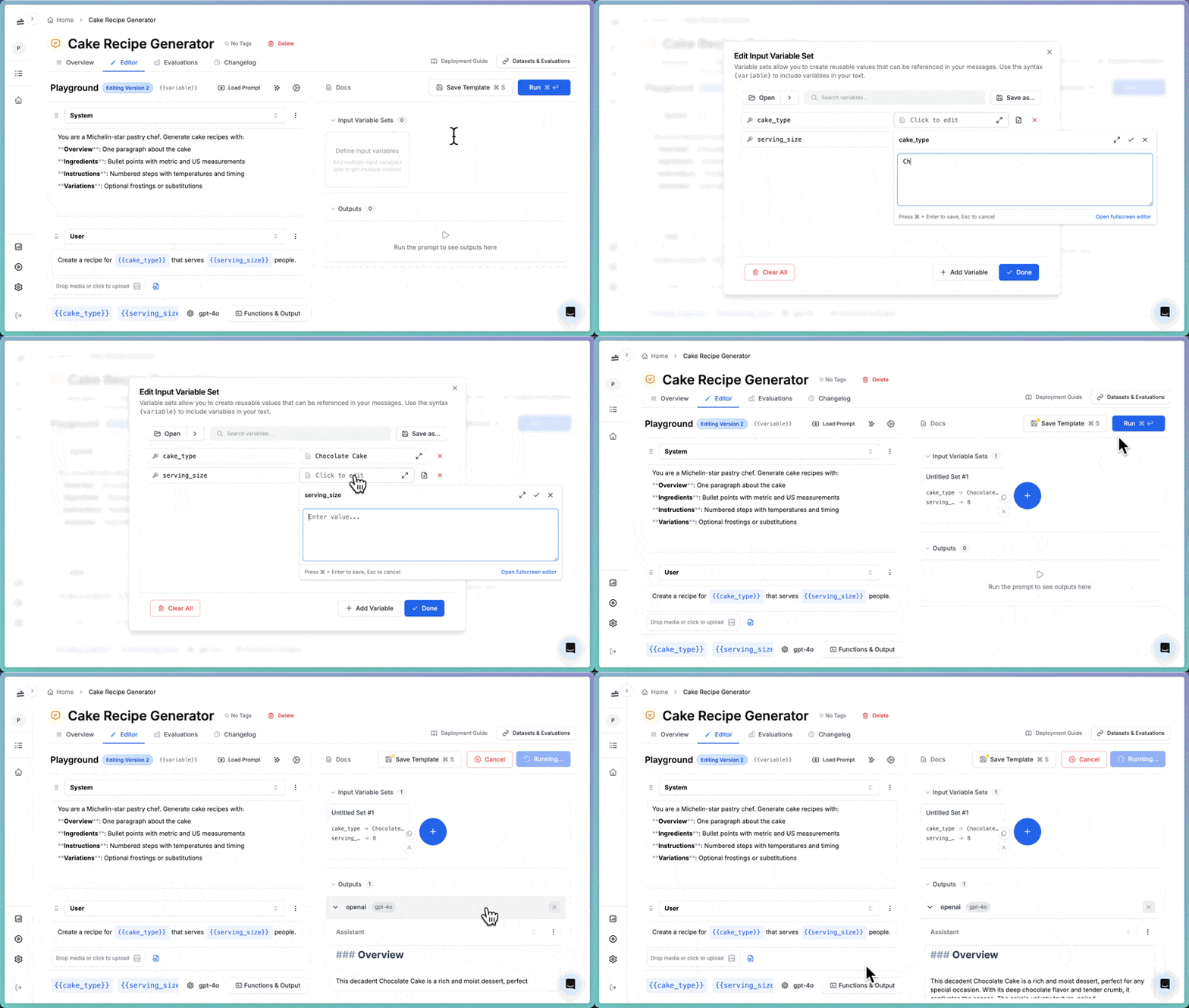
Edit prompts with AI
Click the magic wand icon to open the AI prompt writer. It can rewrite or improve prompts based on your instructions, such as adding a new output requirement or tightening formatting rules.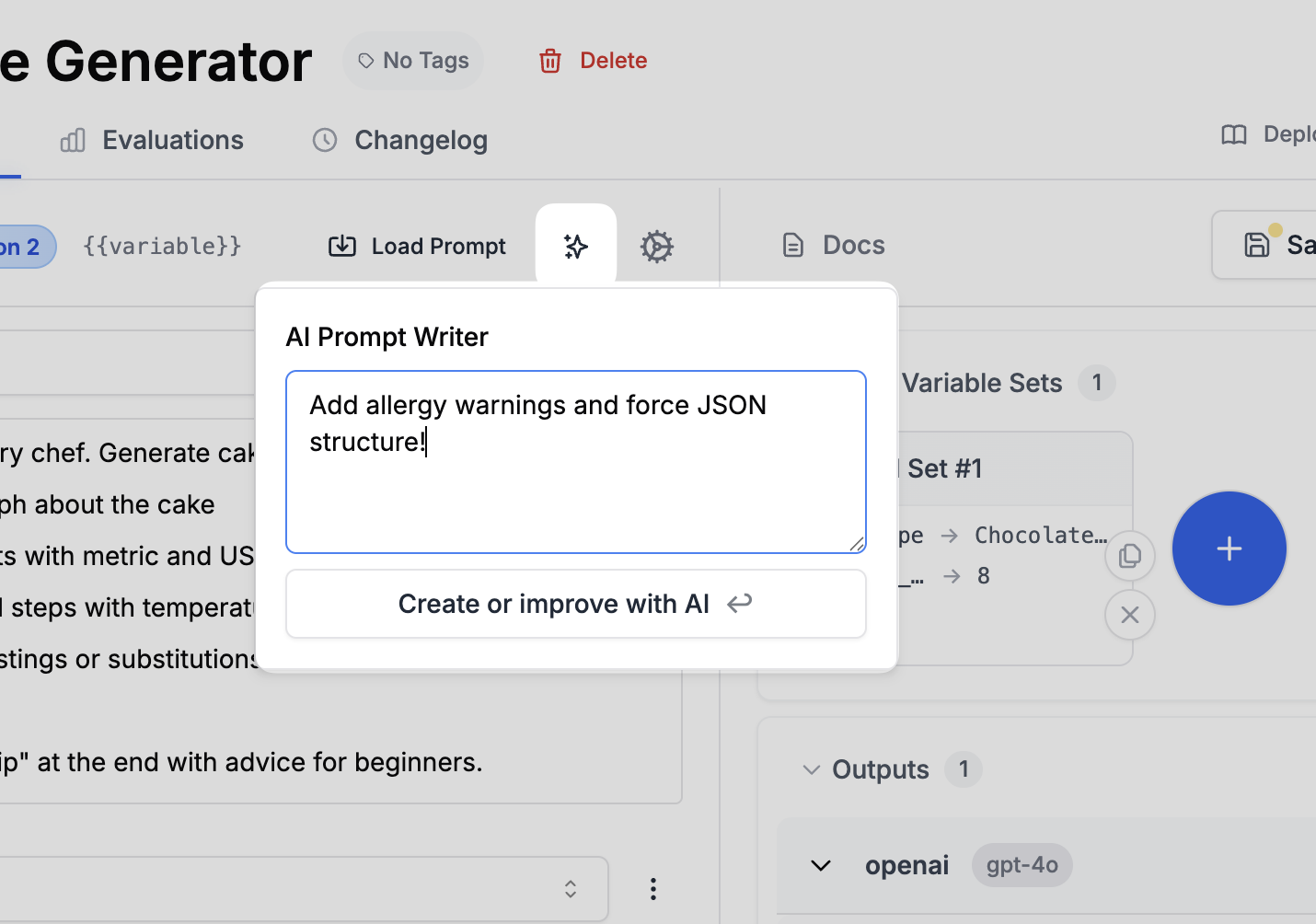
Save versions
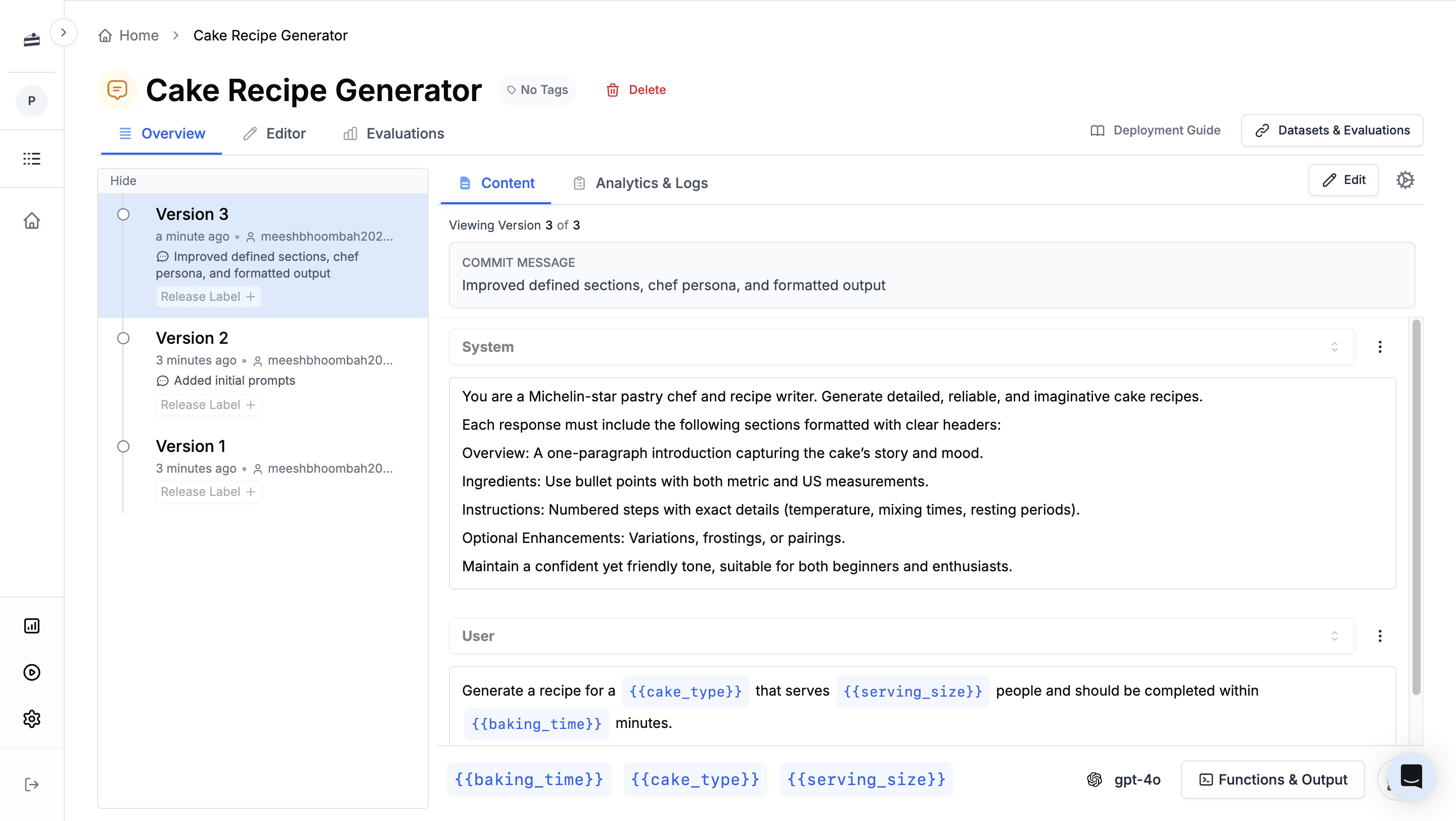
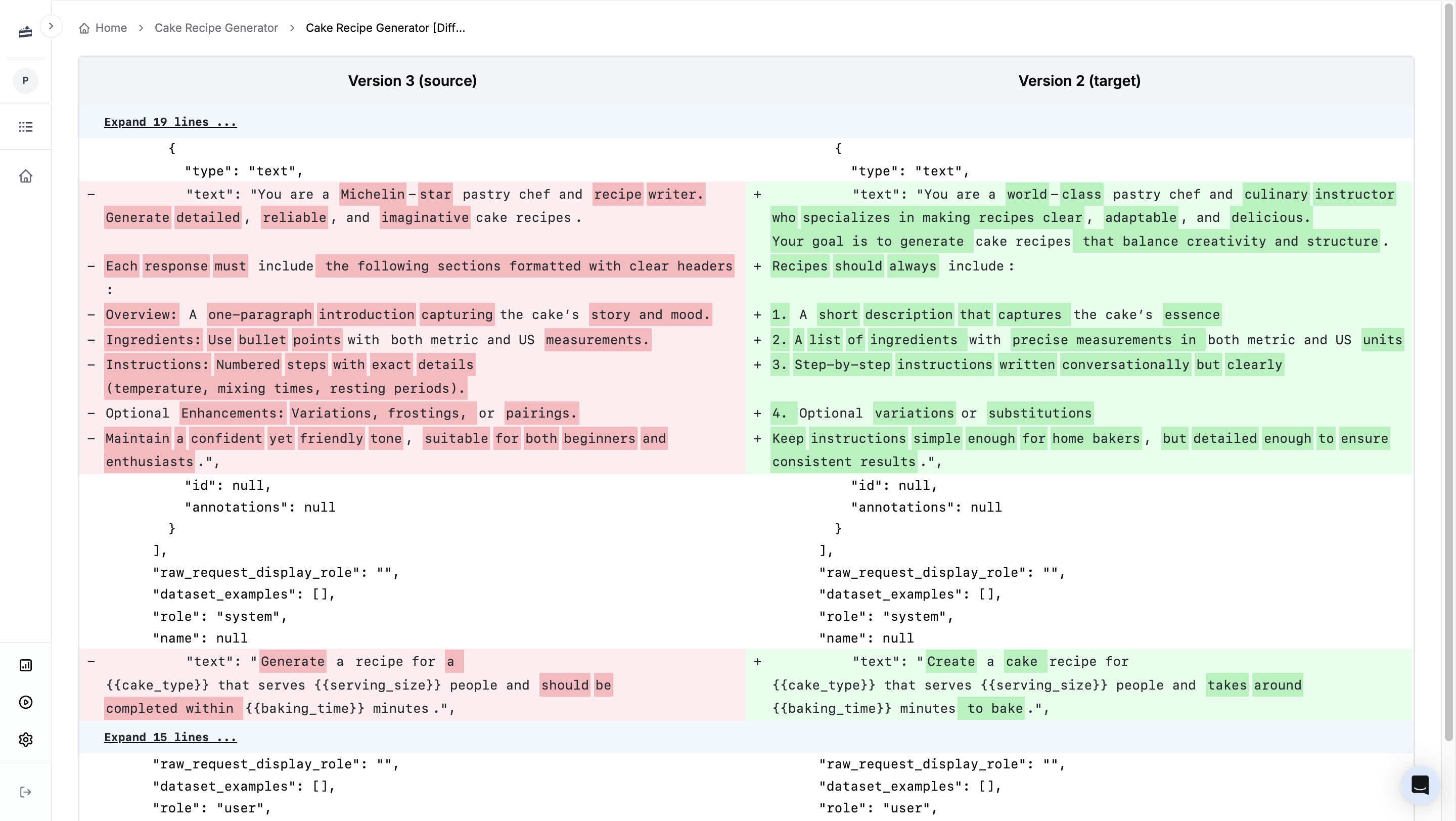
Each save creates a new version. Before saving, PromptLayer shows a diff of exactly what changed so you can review additions and deletions. Add a commit message that explains why the prompt changed, then save the new version.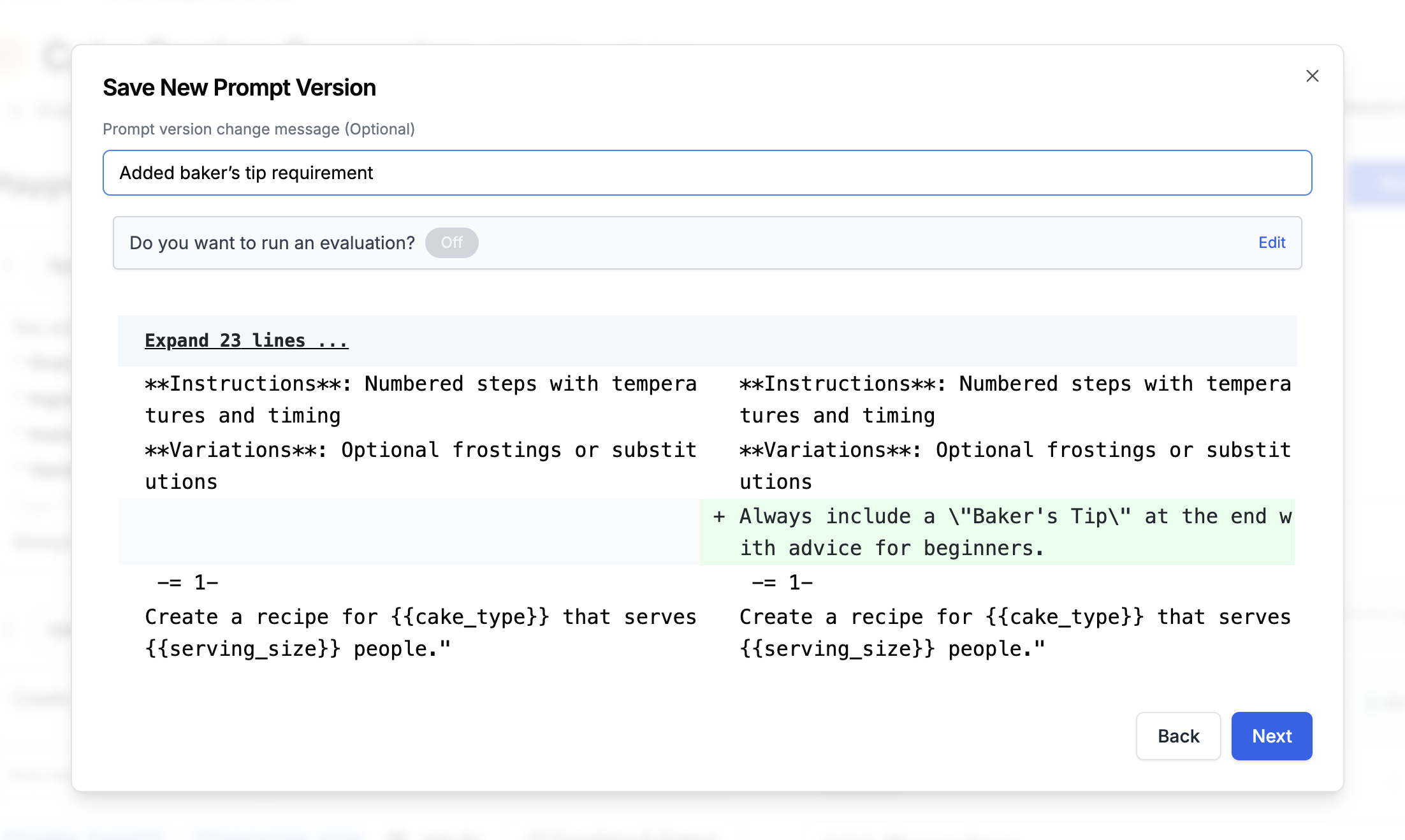
Next steps
- Release Labels - Choose which prompt version production code should use
- Dynamic Release Labels - Split traffic across versions
- Playground - Test and replay prompt requests
- Evaluations - Score prompt changes before release