

Supported Providers & APIs
Image generation is available through three distinct paths:OpenAI Images API
The OpenAI Images API is a dedicated endpoint for image generation. In PromptLayer, it uses a completion template — you write a text prompt and the model returns one or more generated images.Setting Up in the Playground
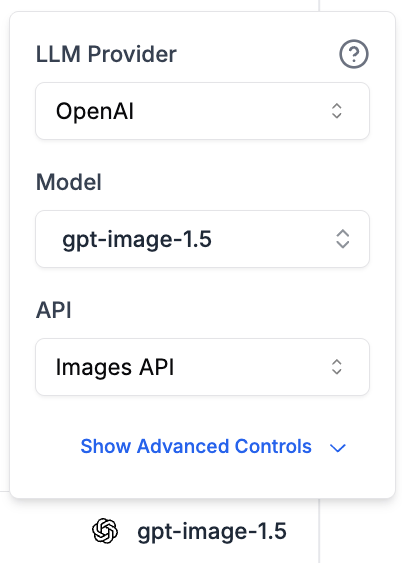
- Open the Playground or Prompt Registry
- In the model settings panel, select OpenAI (or OpenAI Azure) as the provider
- Change the API dropdown to Images API
- Select an image model (e.g.
gpt-image-1,dall-e-3) - Write your image prompt in the text area
- Click Run
Parameters
The following parameters are available for the Images API:Using with pl.run()
When you save a prompt template with the Images API configuration, you can run it via the SDK:
Pricing
GPT Image models (gpt-image-1, gpt-image-1-mini, gpt-image-1.5, gpt-image-2) use token-based pricing — cost is calculated from input and output tokens, just like text models. PromptLayer automatically tracks these tokens and calculates cost.
DALL-E models (dall-e-2, dall-e-3) use per-image pricing based on the image size and model. PromptLayer tracks this automatically.
The Images API uses a completion template (single text prompt in, image(s) out).
OpenAI Responses API — Image Generation Tool
The OpenAI Responses API includes a built-in Image Generation tool that the model can invoke during a conversation. Unlike the Images API, this works within a chat context — the model decides when to generate images based on the conversation.Setting Up in the Prompt Registry
- Open your prompt in the Prompt Registry
- Set the provider to OpenAI and the API to Responses API
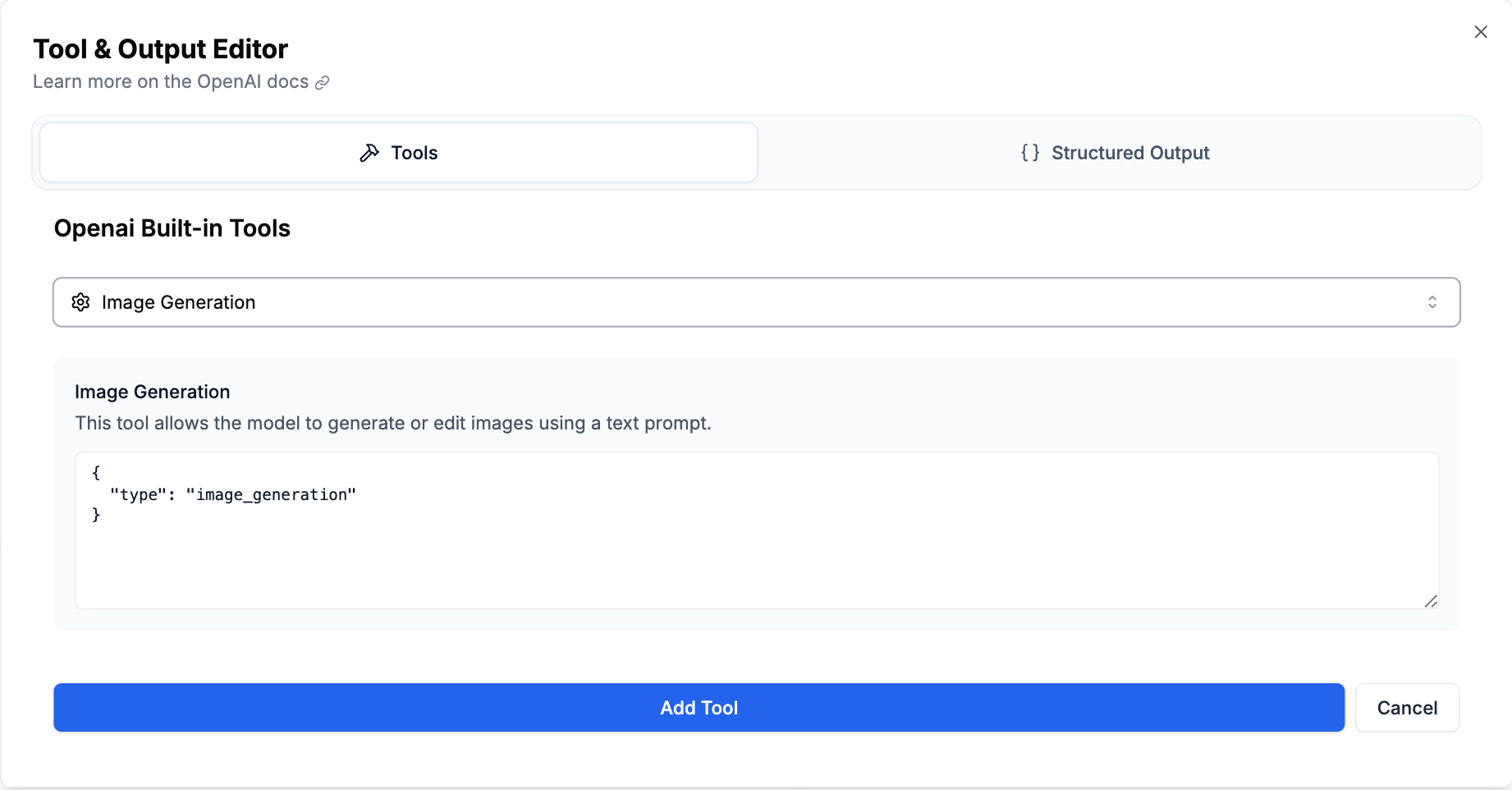
- Click the Functions & Output button
- Click Built-in tools and add Image Generation
- Save and run your prompt
How It Works
When theimage_generation tool is enabled:
- The model receives your messages and decides if an image should be generated
- The model invokes the
image_generationtool with an optimized prompt - The generated image appears in the response as an
output_mediacontent block - The model may also return text alongside the image (e.g., describing what was generated)
- Revised prompt — The optimized prompt the model used for image generation (collapsible in the UI)
- Parameters — Size, quality, background, and output format used
- Image ID — Unique identifier for the
image_generation_call
Multiple Images
The model can generate multiple images in a single response. When this happens, consecutiveimage_generation_call items are grouped into a single assistant message in PromptLayer’s display. Each image shows its own revised prompt and parameters.
Using with pl.run()
Google Gemini — Native Image Generation
Gemini image models (e.g.,gemini-2.5-flash-image, gemini-3-pro-image-preview) can generate images natively as part of their response. This works with both the Google provider and Vertex AI provider.
Setting Up in the Playground
- Open the Playground or Prompt Registry
- Select Google (or Vertex AI) as the provider
- Choose a Gemini image model (e.g.,
gemini-2.5-flash-image) - PromptLayer automatically configures
response_modalities: ["TEXT", "IMAGE"]when an image model is selected - Write your prompt and click Run
Image Configuration
You can configure image generation parameters in the model settings:
These parameters are set via the
imageConfig in the model parameters panel.
How It Works
When a Gemini image model generates an image:- The image data is returned as
inline_datain the Gemini response - PromptLayer converts this into an
output_mediacontent block for consistent display - The image is displayed in the same card format as OpenAI-generated images
- Image metadata (aspect ratio, image size) is shown in the parameters block
Using with pl.run()
Output Media Format
All image generation results in PromptLayer use a unifiedoutput_media content type, regardless of the provider:
Provider Metadata by Provider
OpenAI (Images API & Responses API):revised_prompt— The model’s optimized version of your promptsize— Image dimensionsquality— Quality levelbackground— Background setting (GPT Image models)output_format— Image format
aspect_ratio— Configured aspect ratioimage_size— Configured image size
Viewing Generated Images
Generated images are displayed in PromptLayer with a rich card format:- Header — Shows “Image Generation” label (with the tool call ID for Responses API)
- Parameters block — Displays generation parameters (size, quality, format, etc.)
- Revised prompt — Collapsible accordion showing the optimized prompt (when available)
- Image preview — The generated image with download/copy support
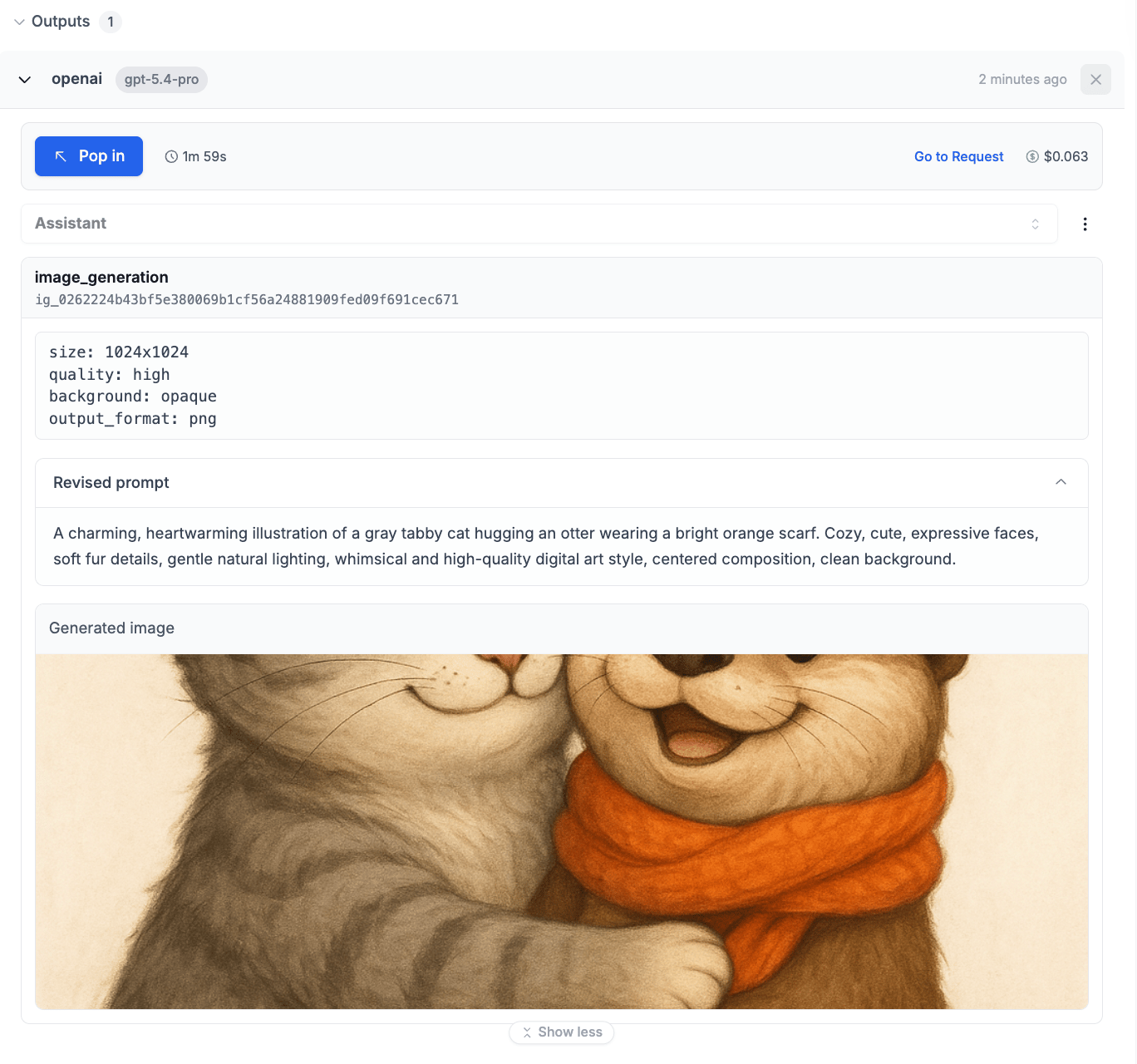
Image Storage
PromptLayer automatically handles image storage for generated images:- Base64 images are uploaded to cloud storage and replaced with a URL reference
- URL images are stored as-is
- This keeps request logs compact and ensures images remain accessible
- Images are available in the dashboard, evaluations, and API responses
Logging Image Generation Requests
If you’re making image generation calls with your own client, you can log them to PromptLayer usinglog_request. PromptLayer recognizes the following function names for image generation:
openai.images.generateopenai.OpenAI.images.generateopenai.AzureOpenAI.images.generateopenai.responses.create(when using theimage_generationtool)
Evaluations
Image generation outputs work with PromptLayer’s evaluation system. Generated images flow through evaluation pipelines asoutput_media content — you can use LLM Assertion columns to evaluate image quality using vision-capable models, or chain with other column types for custom analysis.