

Open history
Click History in the Table toolbar to open the version history panel.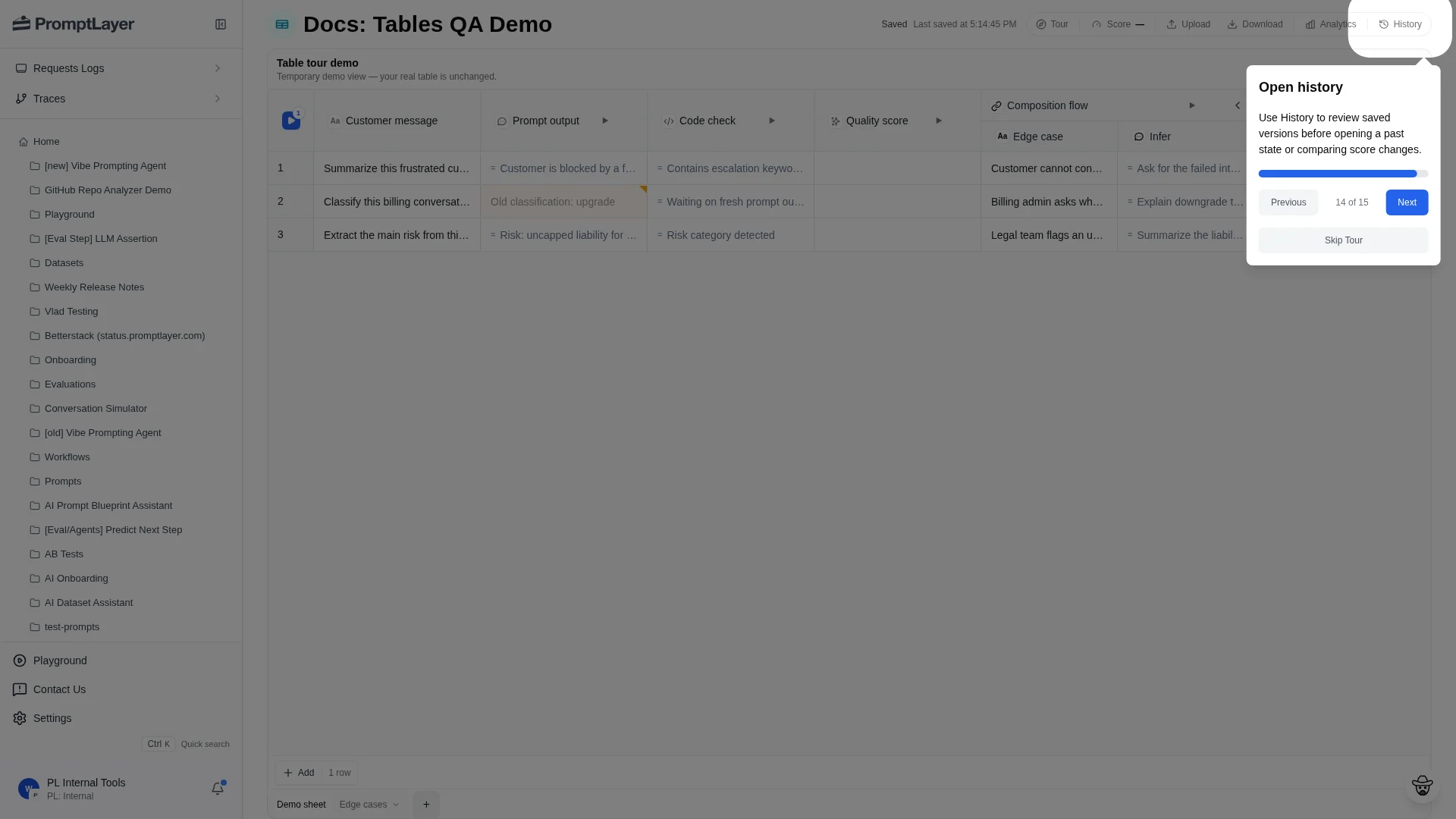
Version history
Version history keeps checkpoints, score history, preview and diff views, and restore controls in one panel.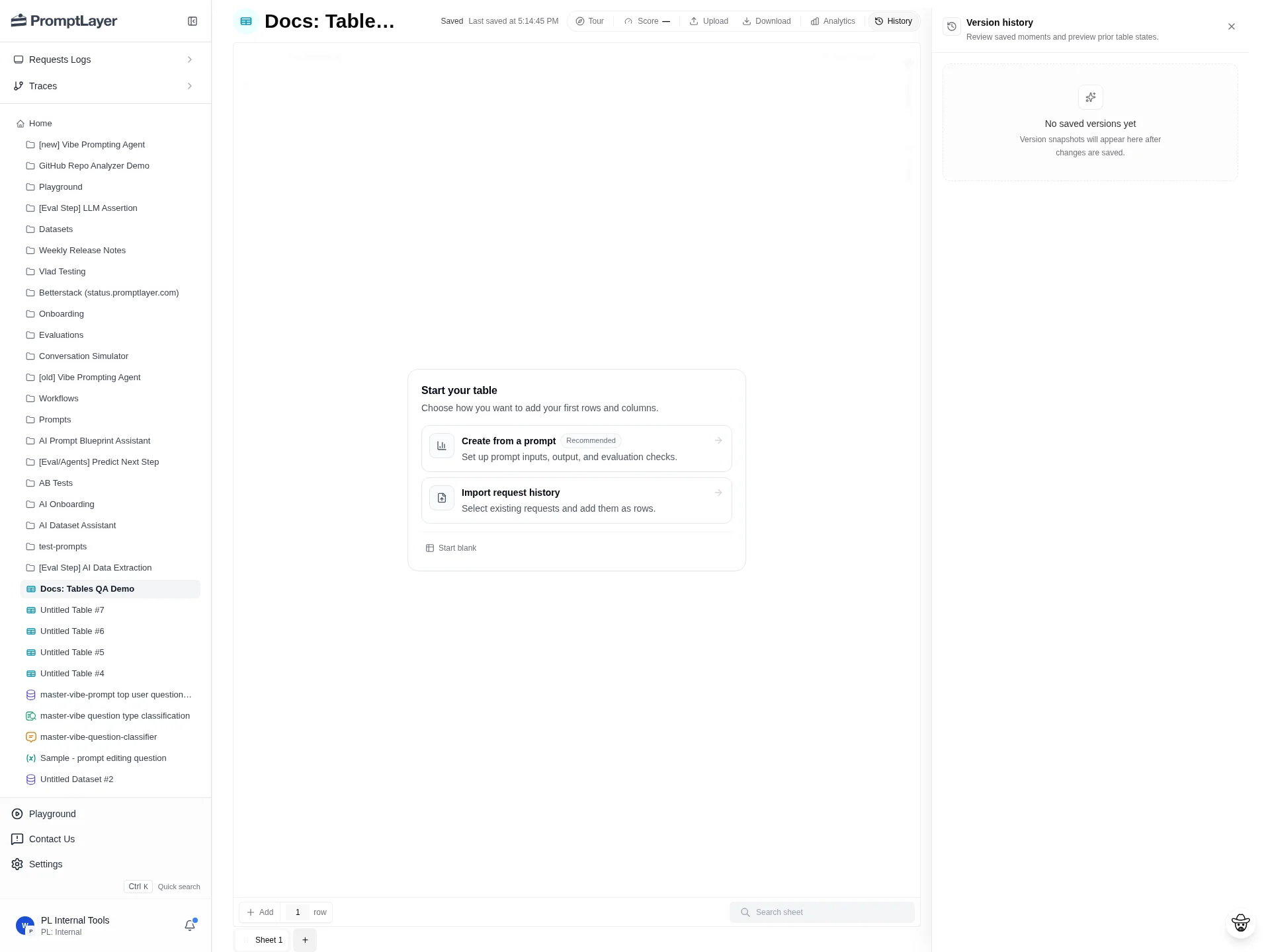
When to save versions
Save a version before or after:- Importing a new dataset or request-history sample.
- Changing a Prompt Template column.
- Editing source mappings.
- Adding or removing score columns.
- Rerunning a large sheet.
- Migrating a legacy Evaluation or Dataset workflow.
- Sharing results with another teammate.
Use score history
Score history shows how quality changes over time. Use it to compare prompt versions, model or provider changes, assertion logic, dataset changes, bug fixes, and scoring configuration updates. Score history is most useful when versions are saved at stable checkpoints.Preview and diff older versions
Use version previews to inspect what changed. Diff views can show before and after values for cells and configuration changes. Use this when a score drops or a rerun produces unexpected outputs. Start from the score history change, open the related version, then inspect changed columns or cells.Restore a version
If an older version is the correct state, use the restore action from version history. The current version cannot be restored into itself. Older versions can be restored after confirmation. Use restore carefully when other teammates may be using the Table.Open analytics
Click Analytics in the Table toolbar to inspect request-level data for work generated by the sheet. Analytics opens with filters locked to the current Table and sheet, so request data stays scoped to the work you are reviewing.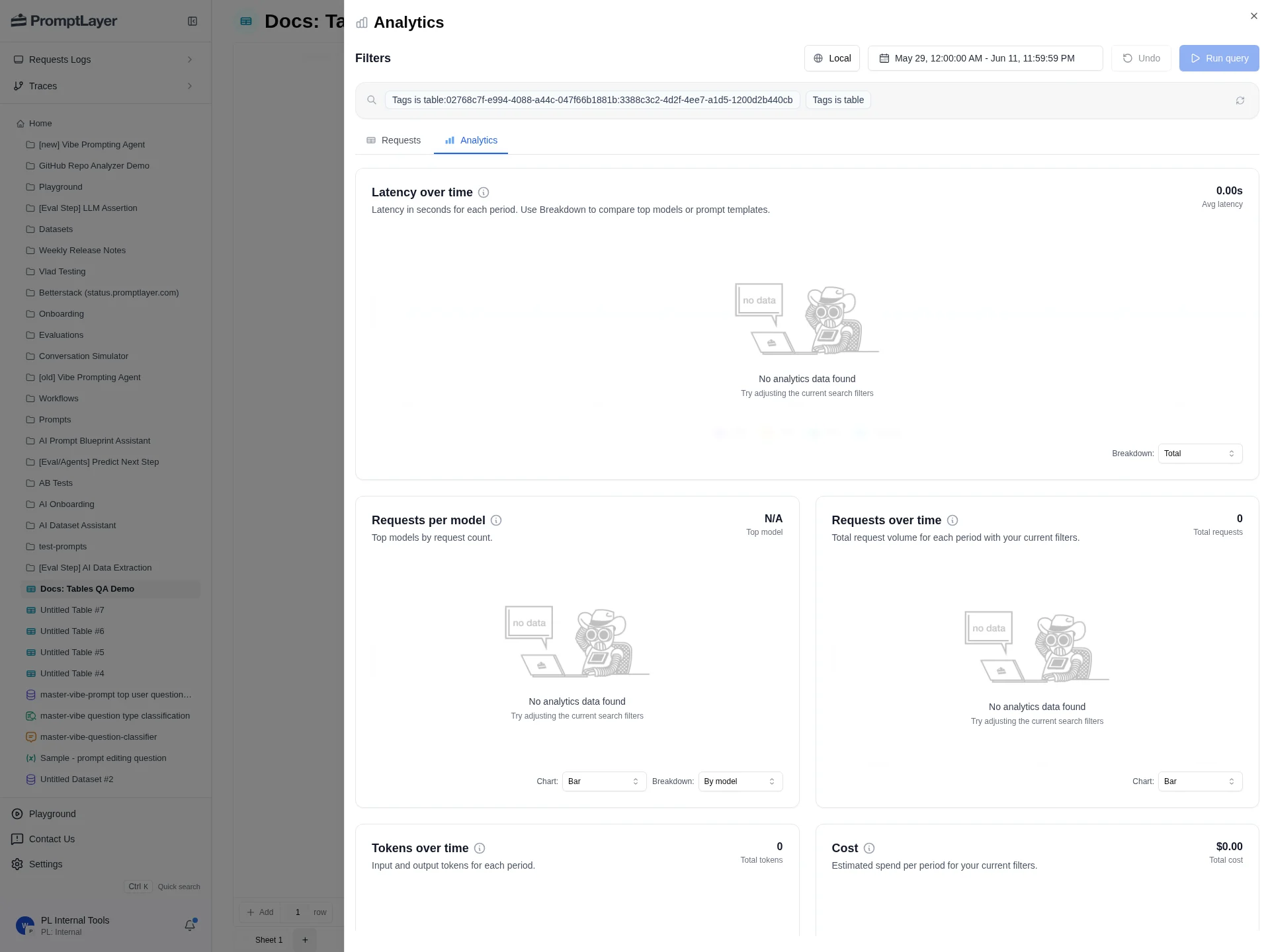
Analytics drawer
Use Analytics to debug what happened behind a computed cell, trace a prompt request, or inspect request behavior for the current sheet.Column analytics
Some computed columns support request-log analytics directly from column or version preview controls. Use column analytics when you want to inspect the requests created by one computed column rather than the entire sheet.Review workflow
A typical review loop:- Run the sheet or selected stale work.
- Open Score to confirm the summary result.
- Save or inspect a version in History.
- If the score changed unexpectedly, preview or diff the relevant version.
- Use Analytics to inspect request logs for the sheet or column.
- Fix inputs, mappings, prompts, code, or scoring, then rerun.
API references
List versions
List saved versions for a sheet.
Create version
Save a version checkpoint.
Get version
Read a saved version.
Score history
Read score history for a sheet.