

JIT provisioning
When JIT provisioning is enabled in Sign-in policy, a user who successfully authenticates via SSO for the first time automatically receives:- A PromptLayer user account (if one did not exist)
- An organization membership row for your org
- Workspace access according to group mappings and the default workspace
JIT provisioning creates the account—it does not bypass workspace authorization. A new user with no group mappings and no default workspace lands on the no workspace access screen.
Group mappings
Group mappings connect IdP directory groups to workspace roles. When Directory Sync adds a user to a mapped group, PromptLayer grants the corresponding workspace role. When they leave the group, identity-managed role grants are recomputed.Creating a mapping
Under Organization Settings → Enterprise Identity → Group mappings: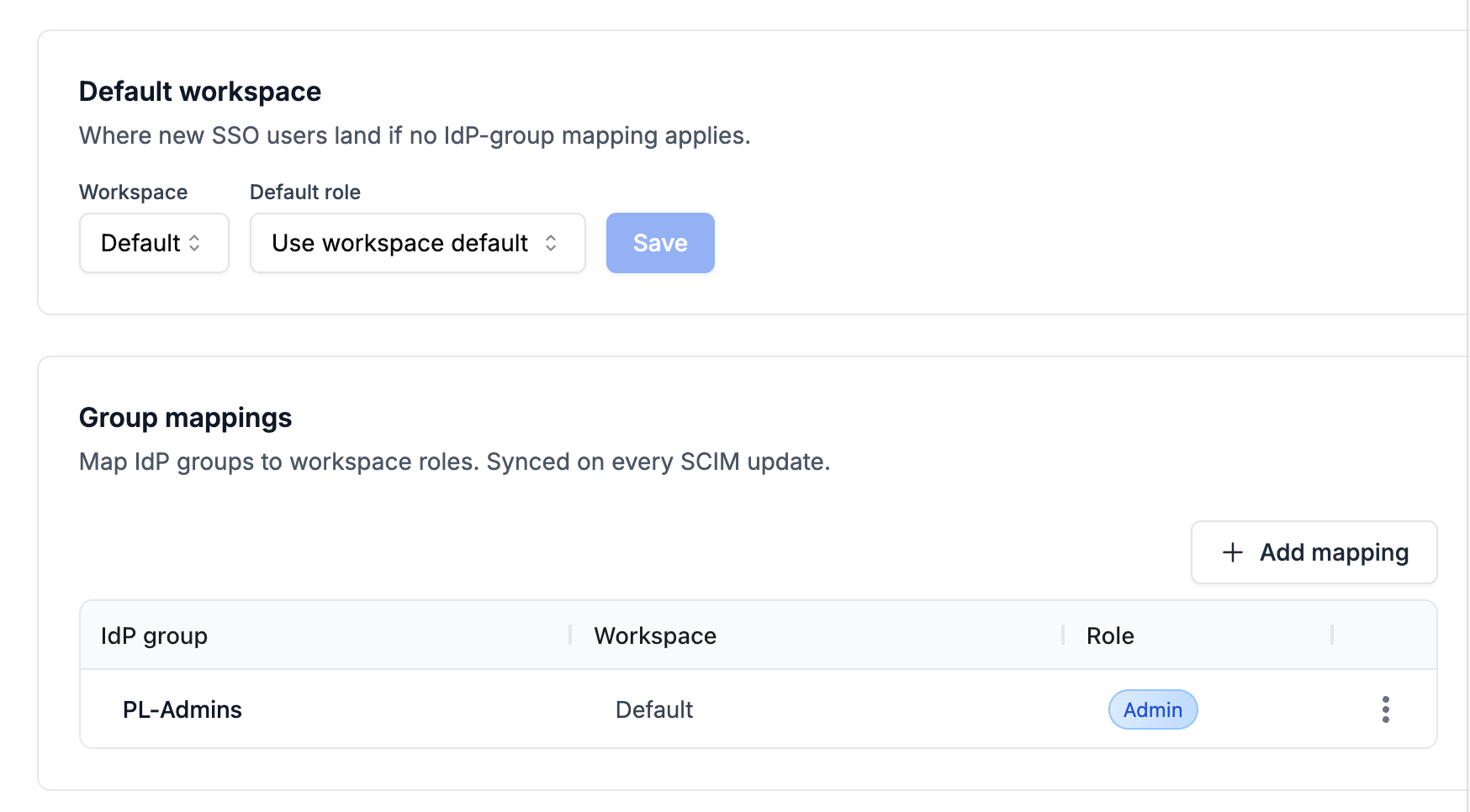
- Click Add mapping.
- Select an IdP group (synced via Directory Sync).
- Select a workspace in your organization.
- Select a role.
Assignable roles
Group mappings can assign these default workspace roles only:AdminContributorPublisherDeveloper
Multiple groups and workspaces
- A user can belong to multiple IdP groups, each mapped to different workspaces or roles.
- If multiple mappings apply to the same workspace, PromptLayer uses the most privileged role (by role rank) for that workspace.
- Manual Admin grants are preserved during group recompute—only roles created by identity sync are identity-managed and subject to automatic removal.
Last Admin protection
PromptLayer blocks group mapping changes that would remove the last Admin from a workspace. These blocked attempts appear in the audit log asgroup_mapping_blocked_last_admin.
Default workspace
The Default workspace section configures where JIT-provisioned users land when no group mapping applies:- Workspace — target workspace in your org
- Role — workspace role to grant (from roles available in that workspace)
No workspace access
When a user signs in via SSO but has no active workspace memberships, PromptLayer shows a dedicated No workspace access page instead of the main app.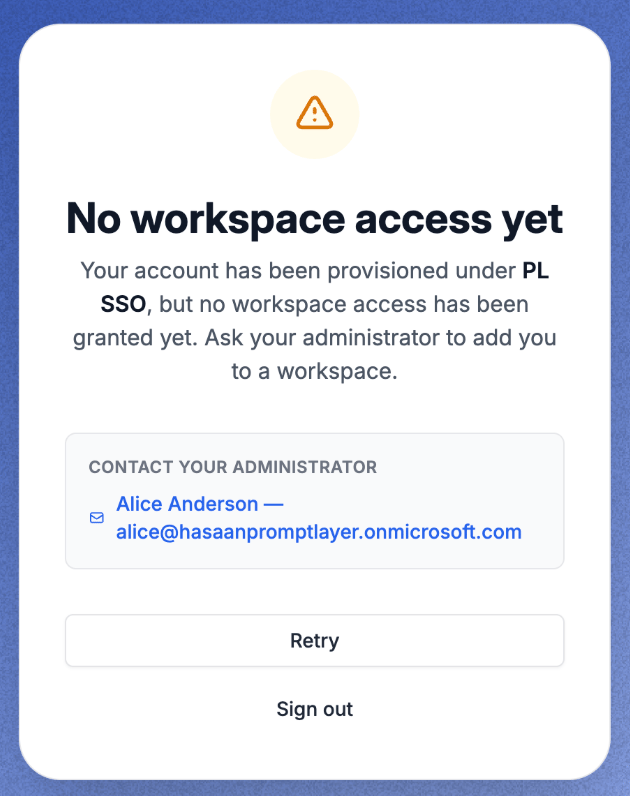
- Your organization name
- Contact information for an org Owner (when available)
- Pending workspace invitations the user can accept inline
Directory Sync lifecycle
User created or updated
SCIM create and update events sync profile fields (email, display name, username, active flag) into PromptLayer’s external identity record. Group membership events add or remove directory group links.User deactivated
When your IdP deactivates a user (or removes them from the SCIM application), PromptLayer:- Soft-deletes org membership for that organization (
deleted_atset)—the user slot remains occupied; the same IdP identity cannot be re-provisioned under the original external ID. - Soft-deletes workspace memberships in that org and revokes identity-managed workspace roles.
- Invalidates active sessions for the deactivated user.
- Runs workspace Admin continuity if the user was the only Admin (see below).
Deprovisioning is organization-scoped. If a user belongs to multiple PromptLayer organizations, losing access in one enterprise-managed org does not deactivate their account globally or affect other orgs.
Reactivation
Deprovisioned external identities cannot be reactivated through SSO or SCIM under the same IdP external identifier. A new PromptLayer user (different email / new identity path) is required. Reactivation attempts are logged asreactivation_attempt_rejected.
Workspace ownership on deprovision
When a deprovisioned user was the only Admin on a workspace, PromptLayer promotes a replacement Admin using this chain:fallback_owner_user_idon the workspace (if configured and the user is still an active member)- Oldest org Owner who is a current workspace member
- Oldest workspace member by membership creation time
Workspace fallback owner
For each workspace, you can designate a fallback owner—the first user in the ownership transfer chain when an Admin is deprovisioned. Configure this from Organization Settings → Workspaces when Enterprise Identity is enabled. Choose an active member who should inherit Admin responsibility if the current sole Admin is removed by SCIM.Manual access alongside SCIM
Owners can still invite users, assign roles manually, and manage workspaces in the dashboard. Manual Admin grants survive group recompute. Use manual assignment for exceptions; use group mappings for directory-driven access at scale.Manual remove from workspace
In enterprise-managed organizations, Remove from workspace (or Leave workspace) is a workspace-level action—it does not remove org membership. When an Owner removes a member from a workspace:- The user’s organization membership is preserved — they remain visible under Organization Settings → Members.
- Their workspace membership is soft-deleted — they lose access to that workspace immediately and no longer see it in the sidebar.
- Identity-managed workspace roles for that workspace are revoked.
- If the removed workspace was their default, PromptLayer clears the default workspace until they gain access elsewhere.