

What it provides
- Single sign-on (SSO) — Sign in through Okta, Microsoft Entra ID, Google Workspace, or any SAML/OIDC IdP supported by WorkOS.
- Directory Sync (SCIM) — Provision and deprovision users and groups from your IdP without manual PromptLayer admin work.
- Group-to-role mappings — Map IdP groups to workspace roles so access stays in sync with your directory.
- Sign-in policy — Optionally require SSO for all org members while preserving an emergency access path for one Owner.
- Audit log — Org-scoped record of SSO events, SCIM changes, mapping updates, and access grants.
How it fits with RBAC
Enterprise Identity builds on RBAC (Role-Based Access Control):- Enabling Enterprise Identity automatically enables RBAC for that organization. Group mappings assign workspace roles (
Admin,Contributor,Publisher,Developer), and deprovisioning respects role grants marked as identity-managed. - Disabling Enterprise Identity also disables RBAC for that organization, returning it to the pre-enterprise state. Re-enable RBAC independently with your usual admin tools if you still need it.
Architecture at a glance
PromptLayer does not host a custom SCIM endpoint. Directory events are delivered through WorkOS webhooks and processed into PromptLayer’s org, workspace, and role tables.Who can configure it
Only organization Owners see the Enterprise Identity tab under Organization Settings. Members and non-Owners rely on SSO sign-in and IdP-driven access once the feature is configured.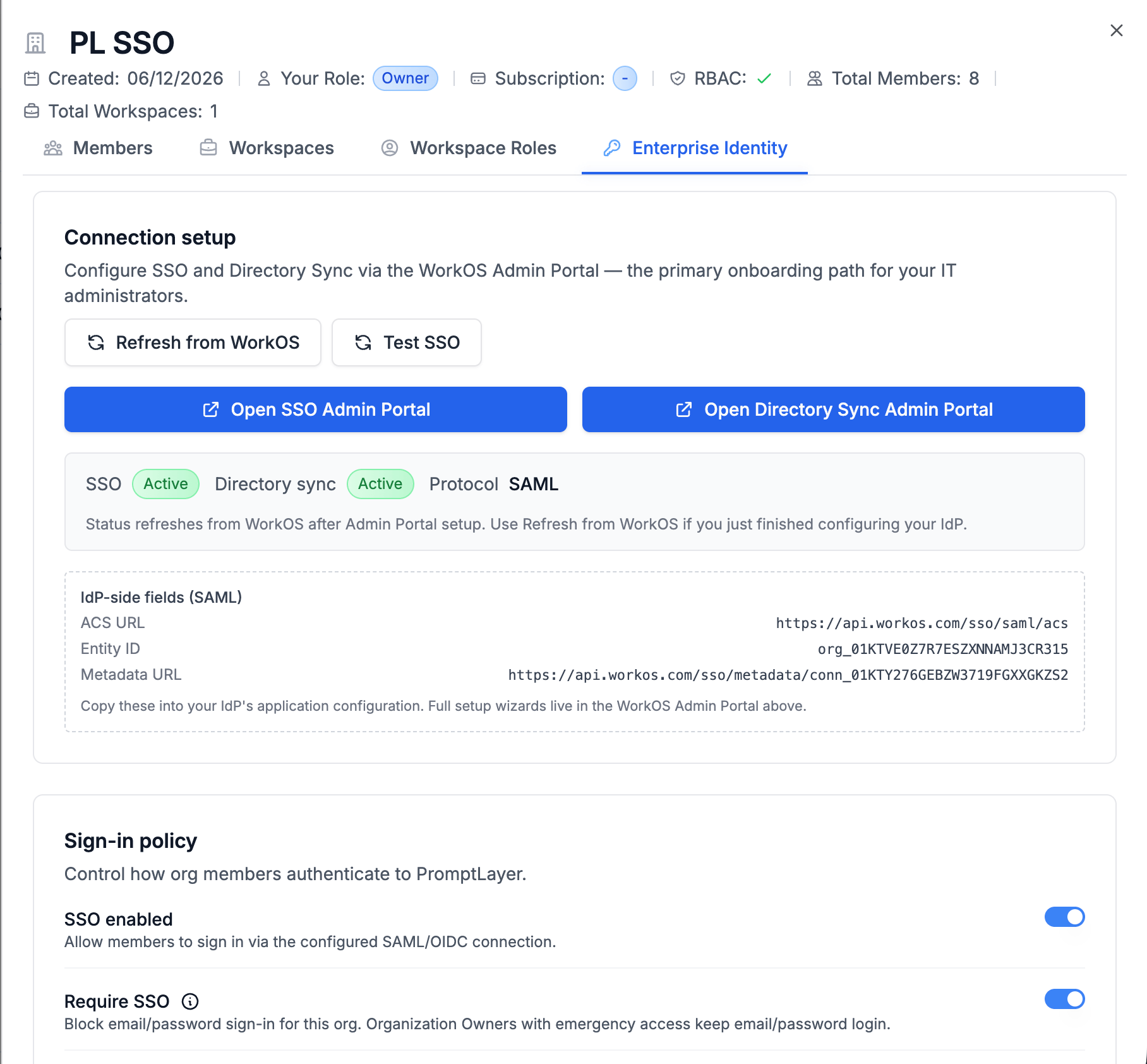
Enabling Enterprise Identity
Enterprise Identity is toggled per organization by PromptLayer operators (cloud) or your platform team (self-hosted). It is not a self-serve dashboard toggle. When enabled for an organization:- PromptLayer creates identity settings for the org and links a WorkOS organization.
- RBAC is turned on if it was off.
- An emergency access Owner is auto-designated if none exists.
- Existing sessions may be invalidated when sign-in policy changes (see Sign-in policy & break-glass).
Self-hosted deployments need WorkOS API credentials configured in the backend environment. Contact PromptLayer support for the required variables and webhook endpoints for your environment.
Typical rollout
1
Enable Enterprise Identity
PromptLayer or your platform team enables the feature for your organization.
2
Connect SSO
Open the WorkOS Admin Portal from Organization Settings → Enterprise Identity, configure your IdP, copy Service provider details from PromptLayer into your IdP, and run Test SSO. See Setup.
3
Configure sign-in policy
Enable SSO, decide on JIT provisioning, and designate emergency access before turning on Require SSO. See Sign-in policy & break-glass.
4
Connect Directory Sync
Enable SCIM in the WorkOS Admin Portal and assign groups in your IdP.
5
Map groups to workspace roles
Create group mappings so IdP group membership grants the right workspace access. See Provisioning & access.
6
Set a default workspace (optional)
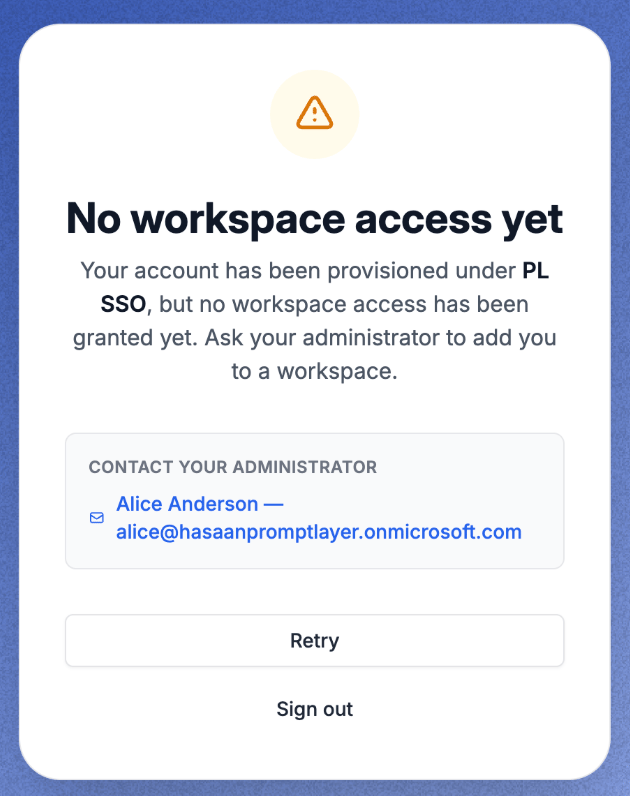
Choose where JIT-provisioned users land when no group mapping applies.
7
Monitor the audit log
Review SSO and SCIM events under Enterprise Identity → Audit log.
User-facing flows
Related documentation
Setup
WorkOS Admin Portal, SAML/OIDC connection, service provider details, Directory Sync, and Test SSO.
Provisioning & access
JIT provisioning, group mappings, default workspace, and deprovisioning.
Sign-in policy & break-glass
Require SSO, IdP MFA, emergency Owner access, and session invalidation.
Audit log
Event types and operational triage.
RBAC
Workspace roles and permissions that group mappings assign.
Organizations
Org structure, Owners, and billing context.