Turning It On
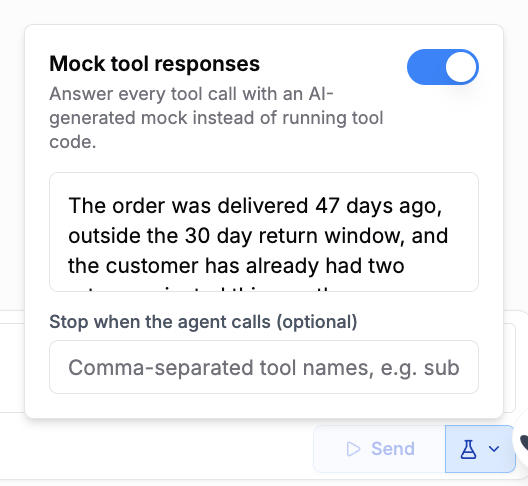
Open a prompt with tools in the Playground, switch to chat mode, and enable Mock tool responses in the chat controls. While the toggle is on, each message you send runs the full tool call loop with mocks: the LLM calls a tool, PromptLayer generates a plausible response, feeds it back, and the loop continues until the model produces a final answer. Mocking applies to every tool in the prompt: registry tools, inline function tools, even tool names the model invents. Mock mode is chat only; Output mode is disabled while the toggle is on.How Mocks Are Generated
Each tool call is answered by an LLM that sees the tool’s definition, the call’s arguments, and the conversation so far. Because the generator reads the conversation history, mocked values stay consistent across turns: an order id invented in turn one is the same order id the return flow sees in turn four, just like a real backend.Response Schemas
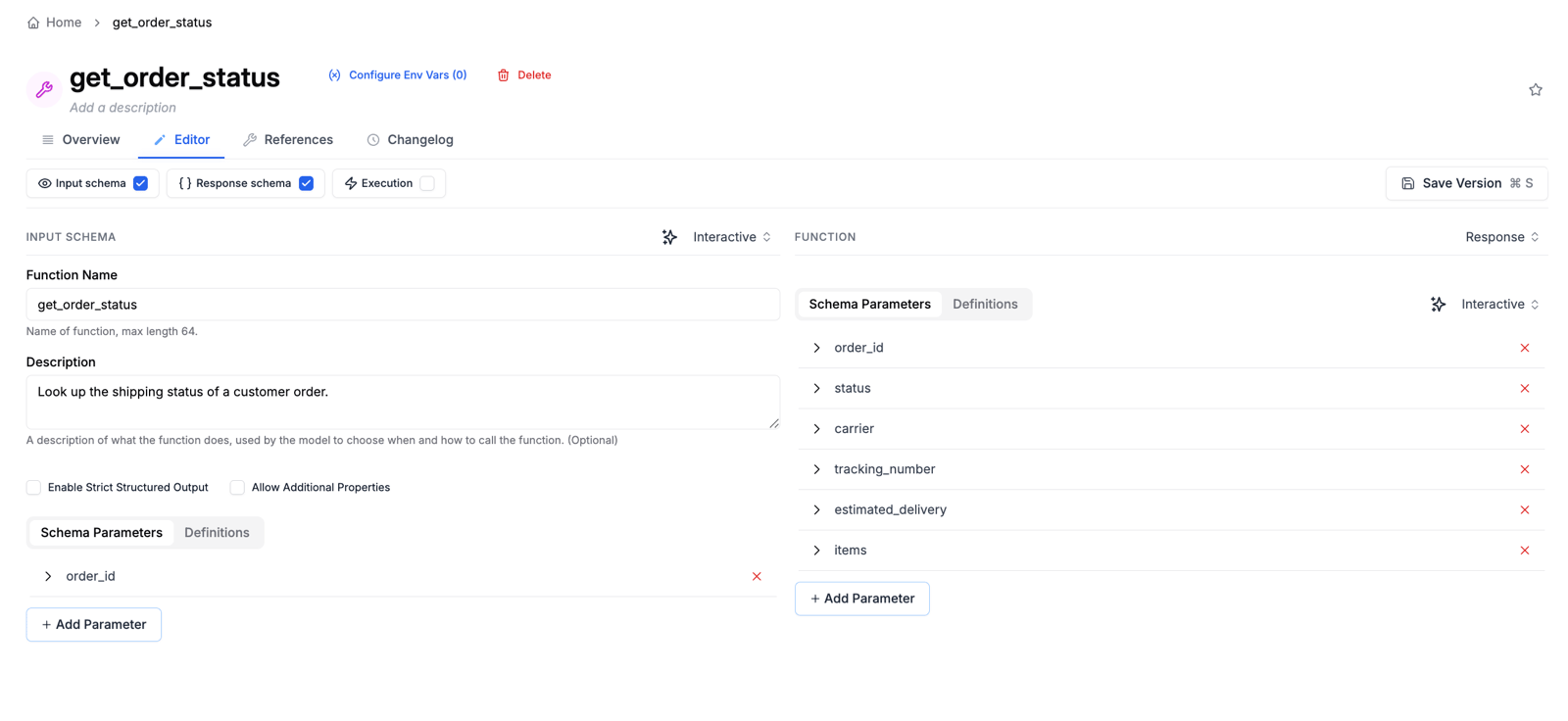
Tools in the registry can define a response schema, a JSON Schema describing the tool’s return value. When a tool has one, its mocks are generated against it: correct field names and types, valid enum values, realistic ids and amounts. Add a schema from the Response schema panel in the tool editor, or passresponse_schema when creating a tool or tool version through the API. Schemas are optional; tools without one still get sensible free form mocks.
Steering With Scenarios
The scenario field accepts a plain English description of the situation you want to test, and the mocks play along. Leave it empty for a happy path run, or force the awkward cases:Stop Conditions
List tool names (comma separated) under Stop when the agent calls. When the agent calls one of them, the run halts right before that call is answered and the response panel opens, so you write that tool’s response yourself. Everything before the stop is still mocked automatically. This is how you keep a human in the loop for exactly the calls that matter, like a payment or an irreversible write, while the routine lookups around them stay automatic.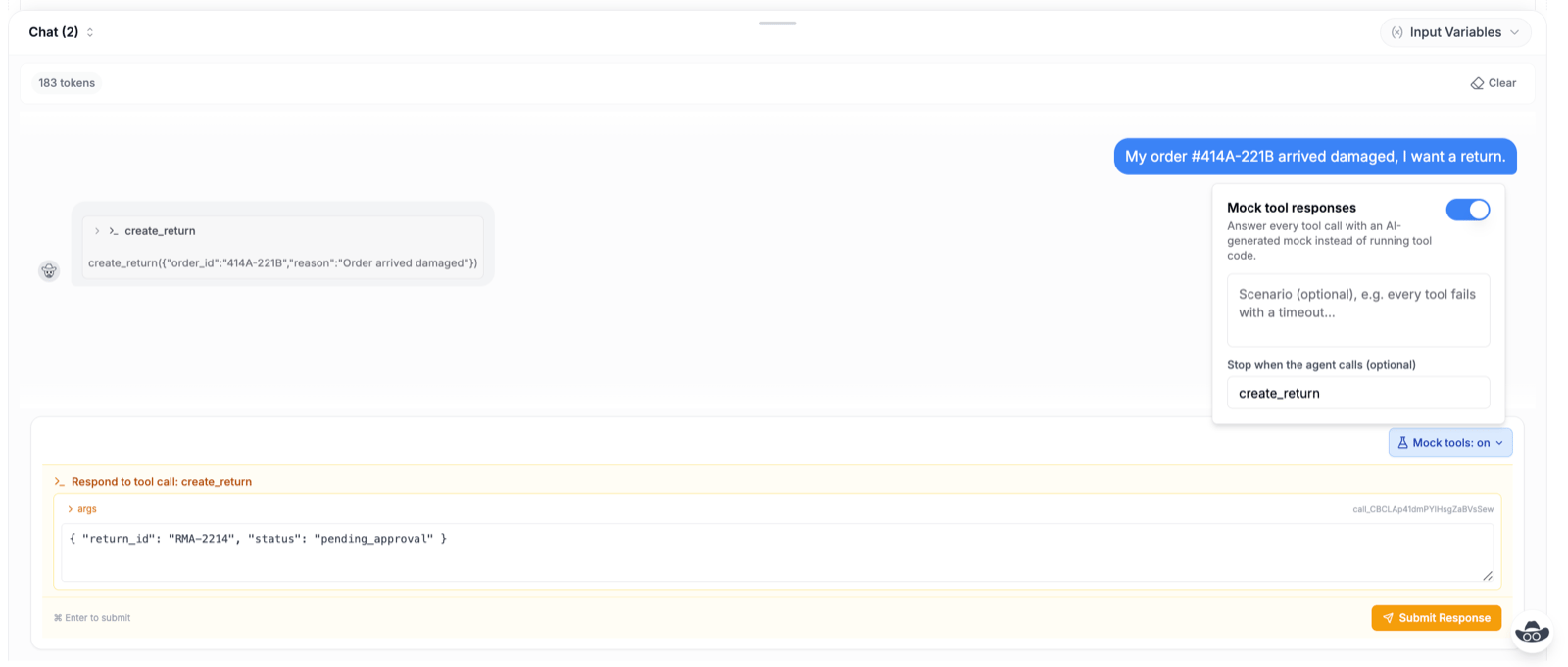
Every Conversation Becomes a Trace
Each mocked conversation is captured as a single trace. Every LLM turn and every mocked tool call, with its arguments and generated response, appears in one timeline, so you can review exactly how the agent behaved. Open it from the trace button on any request in the conversation.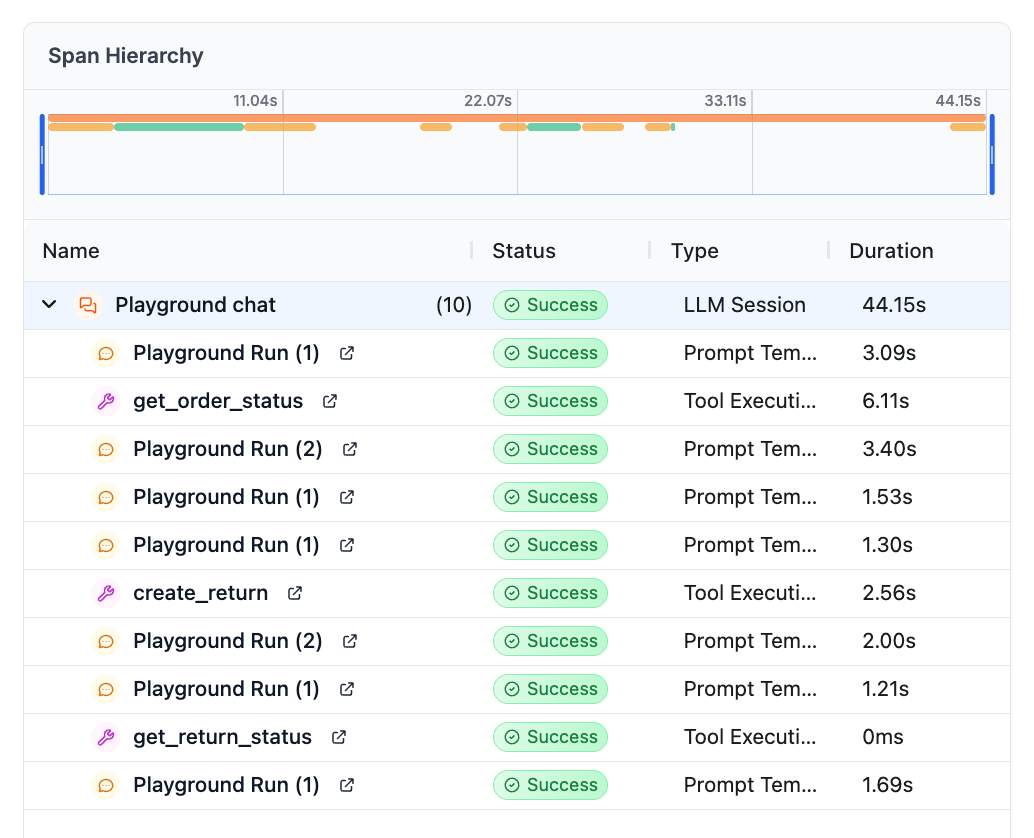
Mocking in Tables
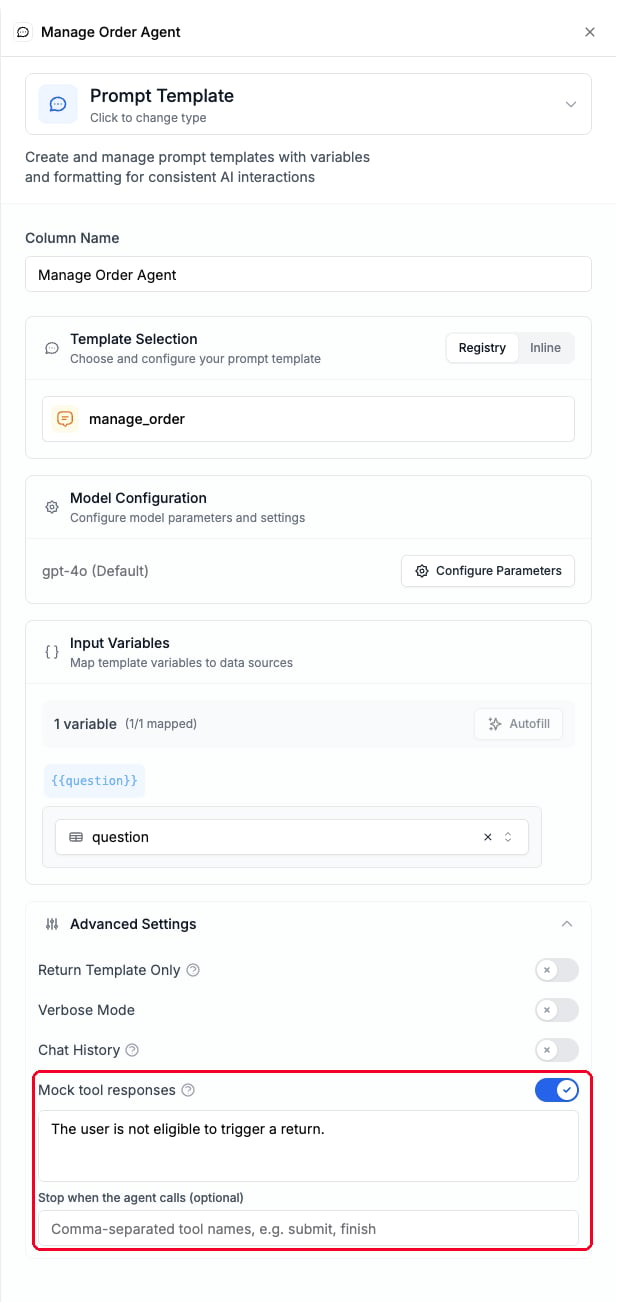
Prompt columns in Tables support the same toggle. Enable Mock tool responses in the column configuration and every cell runs its agent loop with mocks, at table scale. Mocked cells display the run’s trace directly in the cell, and downstream columns can read the run’s data for scoring or extraction.