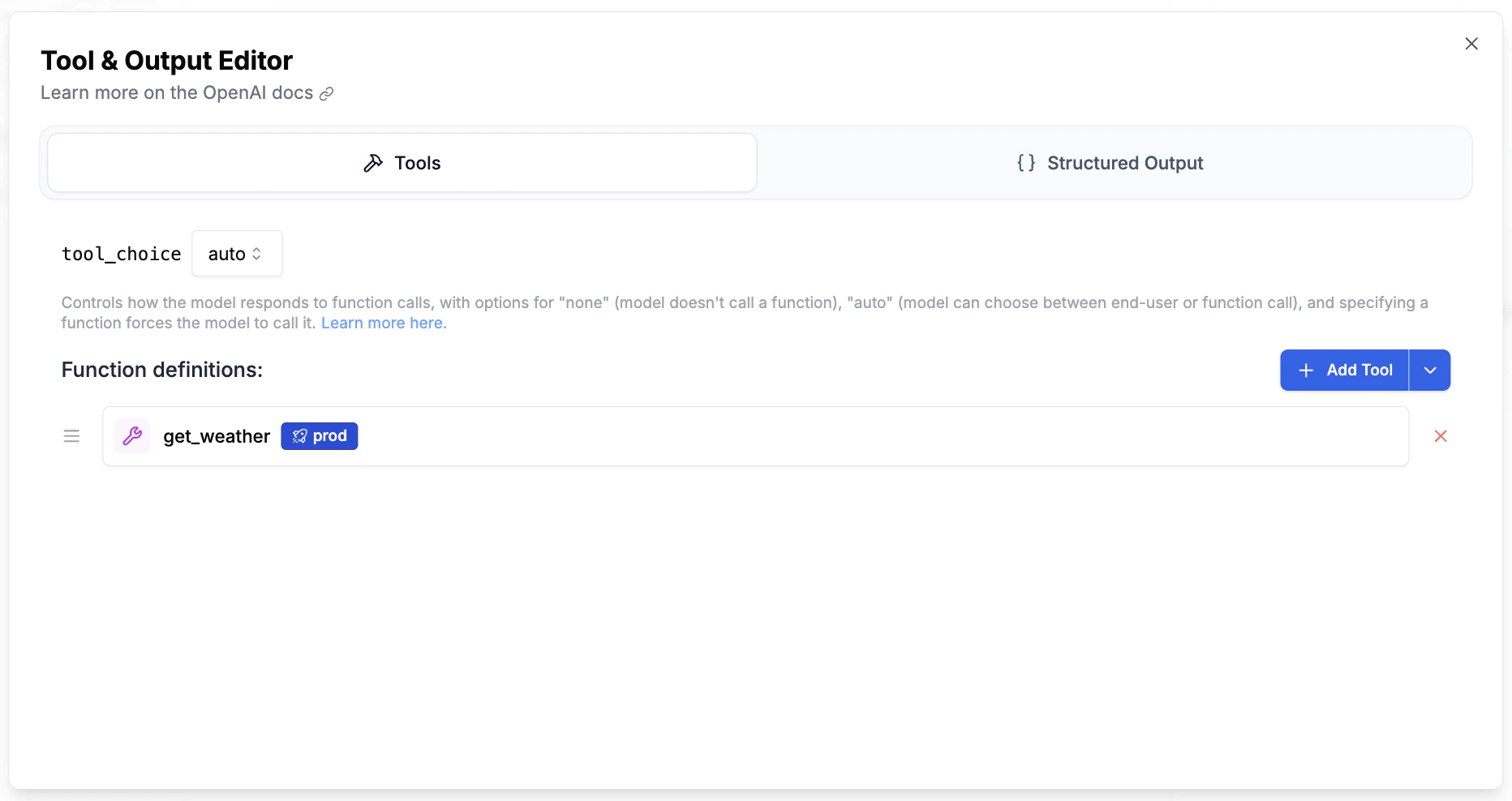
Registry tools can be added to any prompt in the Playground. Instead of defining tool schemas inline, you reference them from the registry — keeping prompts clean and tool definitions centralized.
- Open a prompt in the Playground
- Click + Add Tool → From Registry
- Browse or search for the tool you want
- Select a version or release label (e.g., “production”)
- The tool is added as a reference
The tool appears in your functions list with the tool name and label badge (if you selected one).
The LLM never sees registry references. At render time, they’re transparently replaced with the resolved function definitions.
What Gets Stored
Your prompt template doesn’t store the full tool definition. It stores a lightweight reference:
When the prompt is fetched via the API, this reference is replaced with the actual function definition. This means:
- Updating the tool in the registry updates all prompts using it
- Moving a label to a new version takes effect immediately
- No prompt edits or redeployments needed
Running in the Playground
Registry tools work seamlessly in the Playground. When you click Run, the tool definitions are resolved from the registry and sent to the LLM. The LLM sees standard function definitions — it has no concept of the registry.
Auto Execution
If the referenced tool has an execution body attached, PromptLayer runs it in a sandbox between LLM turns. The LLM emits a tool_call, the body runs, the result is fed back, and the LLM is called again. Your application receives the final answer without writing a tool-call loop. See Auto Tool Execution for the full behaviour.
If the tool is schema-only (no body), nothing changes. The tool_call is returned to your application like a normal function tool.
When you delete a tool from the registry:
- A warning dialog shows all affected prompts
- The tool reference is removed from all prompt templates
- The tool is soft-deleted
Deleting a tool removes it from all prompts that reference it. Check the References tab first to understand the impact.
API
See the API Reference for the full list of endpoints, or check the Overview page for common curl examples.