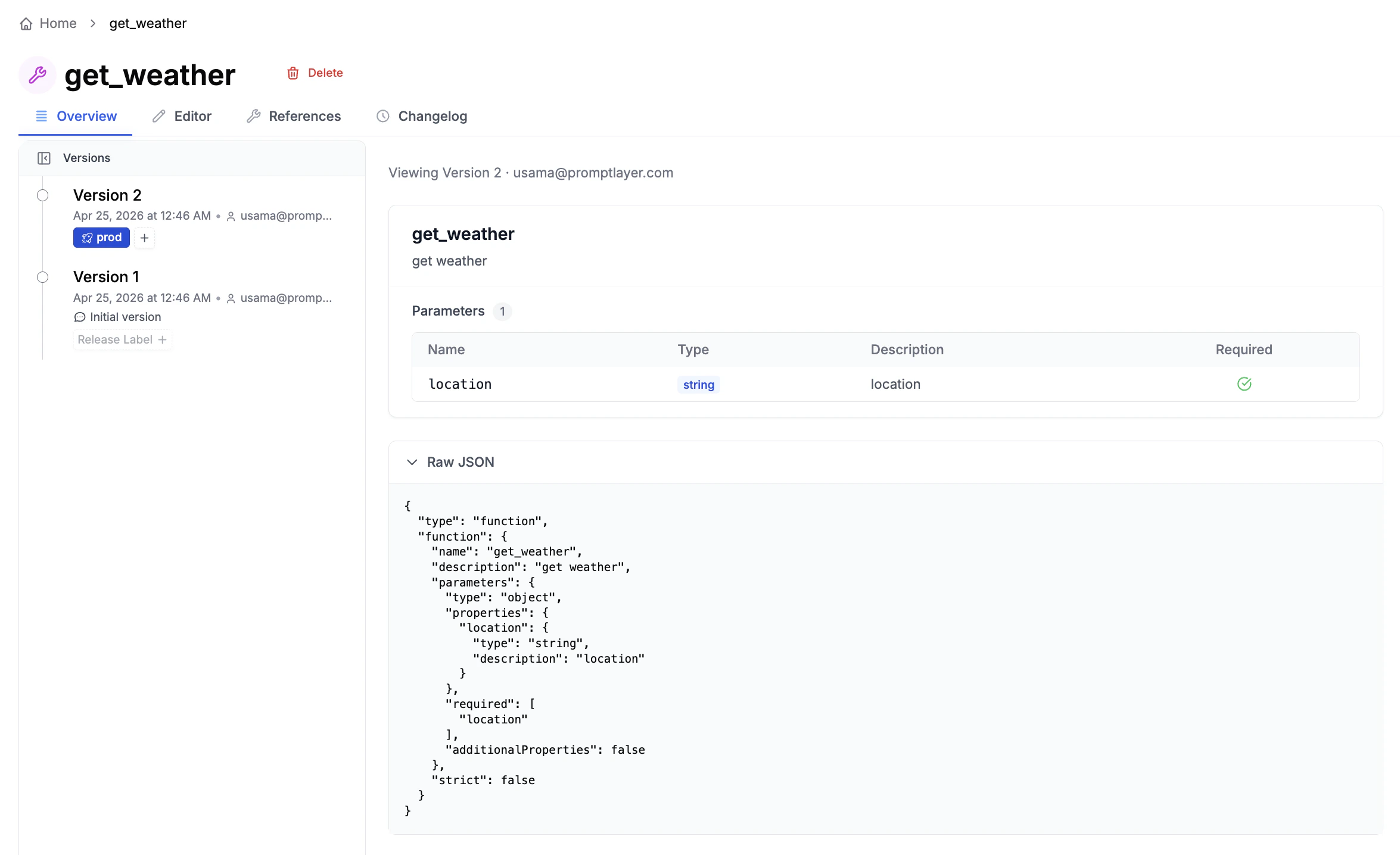
The Tool Registry is a centralized store for tool definitions (function schemas) that can be reused across prompts. Instead of copying the same tool definition into every prompt, define it once and reference it everywhere.

The Problem

Without a registry, tool definitions get copy-pasted across prompts. A get_weather tool might exist in 20 different prompts, each with slightly different parameter names, descriptions, or schemas. When you need to update it, you have to find and edit every copy. Some get missed, and now your prompts behave inconsistently.

How the Tool Registry Solves This

Define once, use everywhere. Create a tool in the registry, then add it to any prompt as a reference. Your prompts store a lightweight pointer — the actual definition is resolved at runtime from the registry.
Prompt A  →  references "get_weather" (production label)  →  resolved at API call time
Prompt B  →  references "get_weather" (production label)  →  same definition, always in sync
Prompt C  →  references "get_weather" (staging label)     →  testing a new version
When you update the tool, every prompt using it gets the update automatically. No code changes, no redeployments.

Tool Schema as a Contract

A tool’s function schema defines what the LLM can call — the function name, its parameters, and their types. Changing a schema changes LLM behavior. The Tool Registry treats schemas as versioned contracts:
  • Every edit creates a new immutable version with a commit message
  • You can diff any two versions side-by-side to see exactly what changed
  • The full version history gives you an audit trail of every contract change
  • Release labels (like “production”) let you control which version is live
This means you always know what the LLM was calling at any point in time, who changed it, and why.

Know What will Break

The References tab on each tool shows exactly which prompts use it. Before changing a parameter or deleting a tool, you can see the blast radius:
  • Which prompts reference this tool
  • Which labels they use
  • How many are affected
When you delete a tool, a warning dialog lists every affected prompt so you can make an informed decision.
Tool Registry overview page

Creating a Tool

Navigate to the registry home page and click + NewTool. Each tool holds a single function definition in OpenAI function-calling format:
{
  "type": "function",
  "function": {
    "name": "get_weather",
    "description": "Get current weather for a location",
    "parameters": {
      "type": "object",
      "properties": {
        "location": {
          "type": "string",
          "description": "City name"
        }
      },
      "required": ["location"]
    }
  }
}
Use the Interactive Editor for a form-based experience, or the JSON Editor for direct schema editing.