

The Tool-Call Loop
Tool calling is a two-step dance. The LLM emits atool_call, your app reads it, runs your function, sends the tool_result back, and the LLM produces a final answer. That loop lives in your code, and you have to write it for every prompt that uses tools, in every language, in every service.
Most of that loop is identical: parse the tool call, dispatch to the right function, capture the return, send it back, repeat until the model is done. It’s boilerplate that grows linearly with the number of tools and services.
Letting PromptLayer Drive
Attach an execution body to a tool in the registry. When a prompt that references the tool is run, PromptLayer:- Calls the LLM with the tool’s schema
- If the LLM emits a
tool_callfor the tool, runs the body in a sandbox - Feeds the return value back as a
tool_result - Calls the LLM again
- Repeats until the model returns a plain message (no more tool calls), or until a hard cap of 10 round trips
pl.run(...) and gets a final answer back. The whole tool-call loop happens inside PromptLayer.
Writing an Execution Body
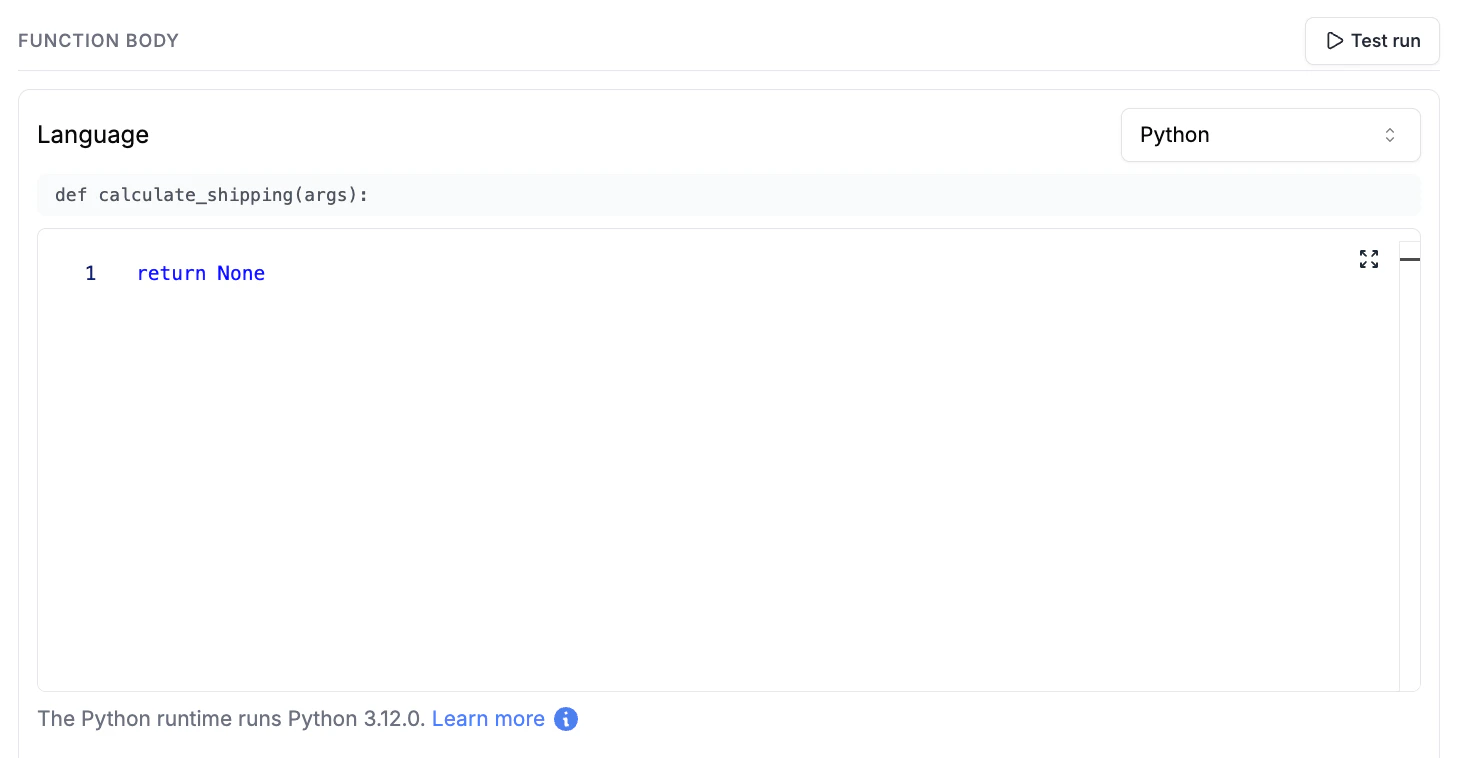
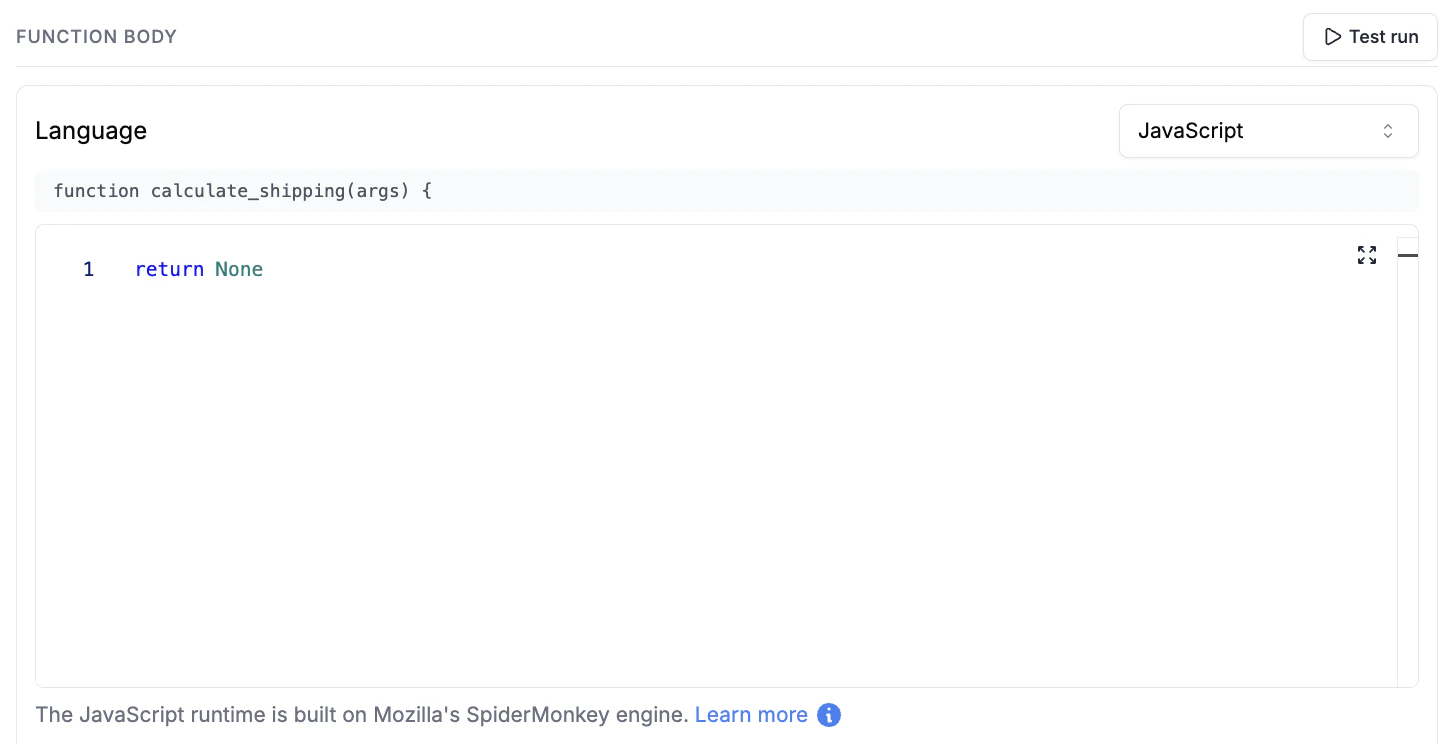
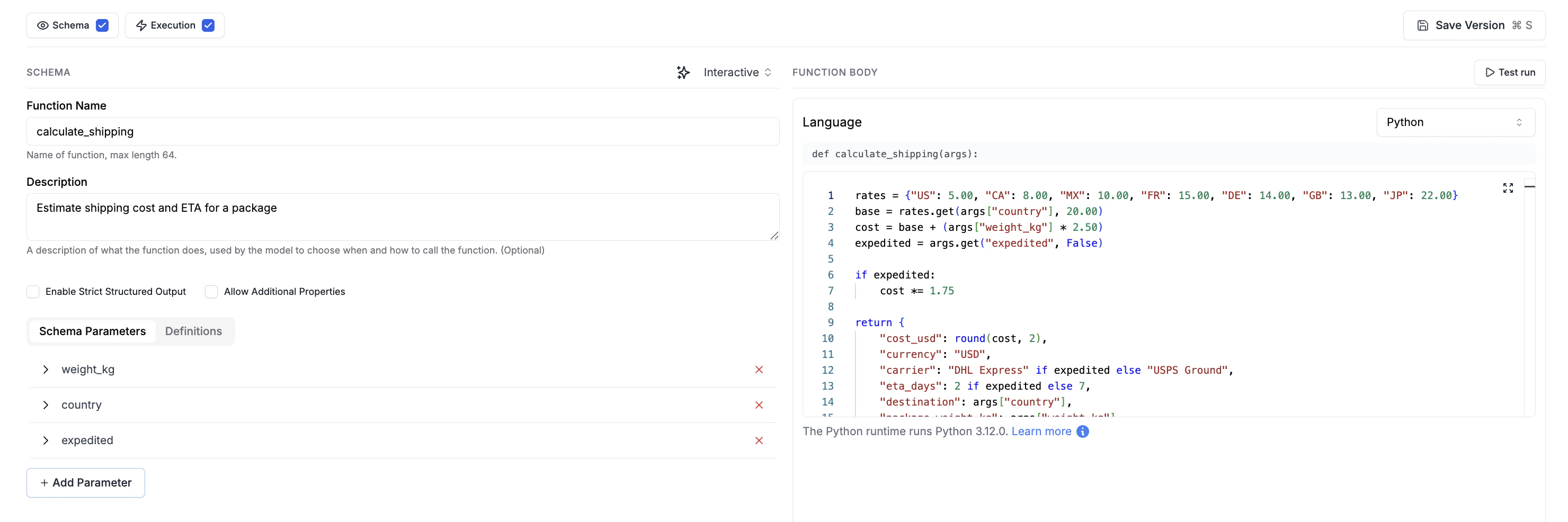
In the Tool Registry editor, turn on the Execution panel and write the body of your tool function. You only write the body. The signature is auto-generated from the tool’s name and is shown above the editor as a read-only line:args object. Access individual fields with args["name"] (Python) or args.name (JavaScript). Return whatever JSON-serializable value you want the LLM to see.
- Python
- JavaScript
Testing Your Body
Click Test run at the top of the editor to open the test dialog. Fill in the schema’s parameters, click Run Test, and see the body’s return value rendered in the Output column. The dialog runs against the same sandbox auto-execution uses, so anything that works here will work at LLM call time.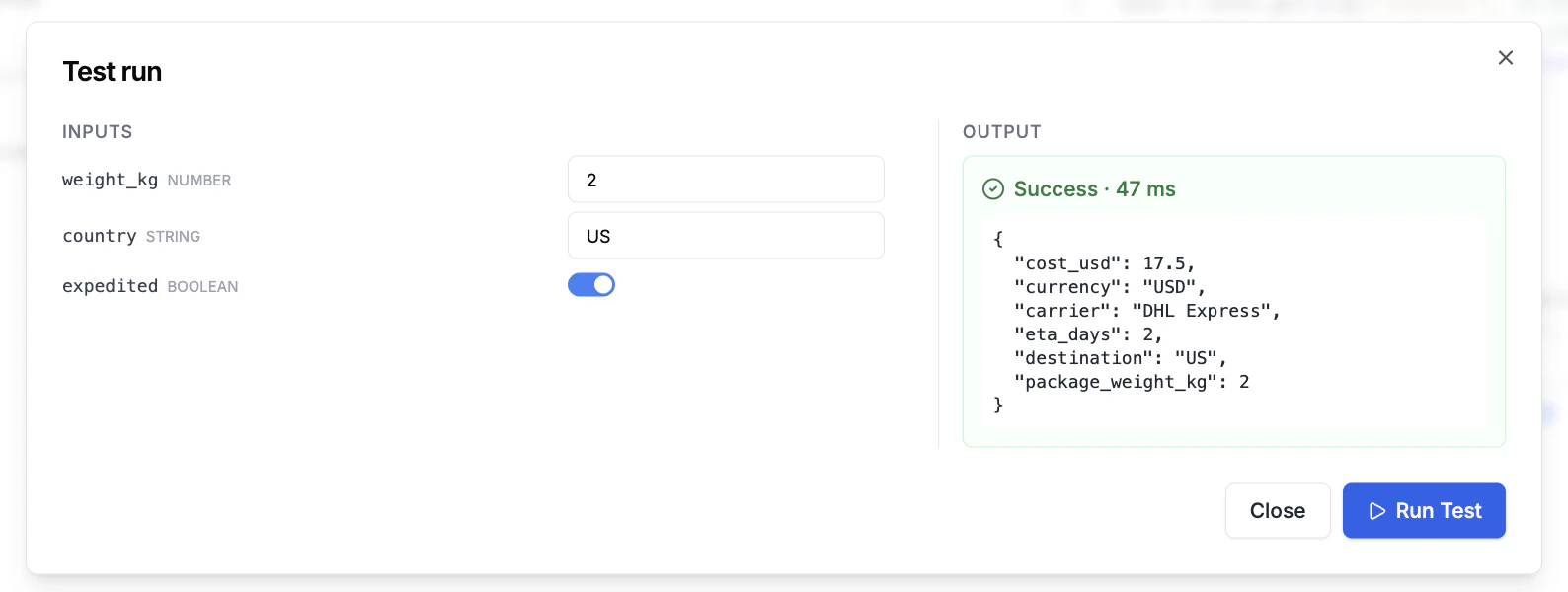
Supported Languages
- Python 3: standard library available; common third-party packages installed in the sandbox
- JavaScript: modern ES syntax, Node-compatible
Behaviour Inside a Prompt
When you run a prompt that contains a registry tool with execution code:- Single tool call per turn → executed. The result is fed back and the LLM is called again.
- Multiple tool calls in one turn, all executable → all run, results fed back together.
- Mixed turn (some executable, some not) → auto-execution bails for that turn and returns. This avoids sending partial
tool_results(which would 400 from the provider). Handle the rest in your own code. - Registry tool without execution code → auto-execution skips it; behaves exactly like a normal function tool.
Errors
This split keeps the LLM resilient to expected errors (bad args, missing keys) but lets infrastructure failures surface so you can see and fix them.
Environment Variables
Execution bodies often need secrets — API keys, tokens, connection strings — that shouldn’t be hard-coded in the editor (editor content is versioned and visible to anyone with workspace access). Use environment variables to inject secrets at execution time. There are two scopes:- Workspace env vars — shared across all tools in the workspace. Set them once in Settings → Environment Variables.
- Tool env vars — scoped to a specific tool. Set them in the tool’s Configure dialog. Tool-level values override workspace-level values when the same key exists in both.
Sandbox & Security
Execution bodies run in an isolated sandbox per request. Each invocation gets a fresh process: no shared state between calls, no access to your application’s environment or filesystem. Standard libraries plus the common Python/JS ecosystem are available.Enabling Auto Execution
- Open a tool in the Tool Registry
- Click the Execution toggle at the top of the editor
- Pick the language and write the body
- Save Version
When To Use It
Good fits:- Pure data transformations (
format_date,parse_address) - Calls to public APIs (
fetch_weather,get_stock_price) - Computations the LLM is bad at (math, sorting, dedup)
- Glue logic you don’t want repeated across services
tool_call and your application handles it like a normal function tool.