


Score panel
The score panel shows the current result, column and sub-score breakdowns, configuration, and recalculation status.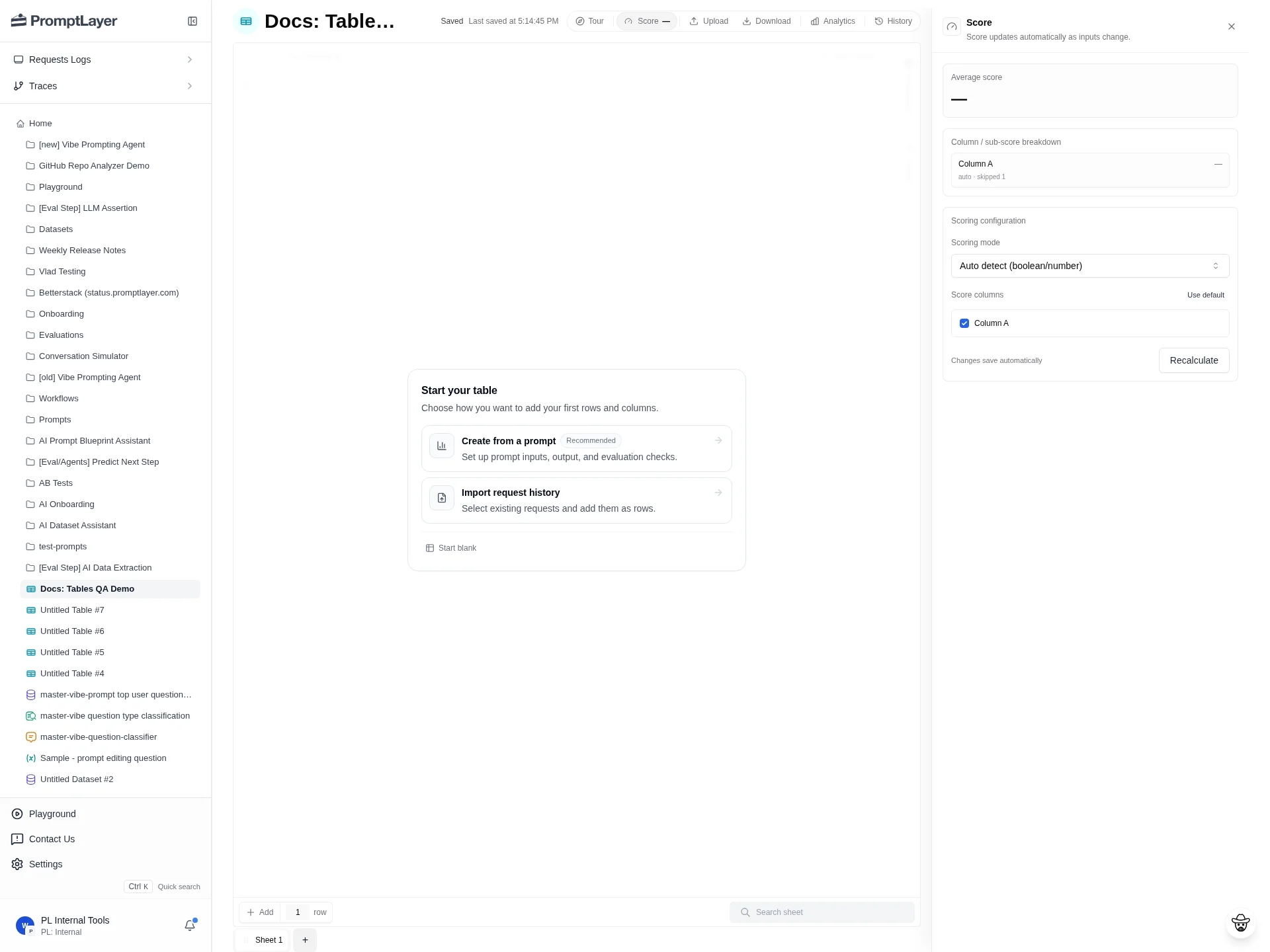
Configure scoring
In Scoring configuration, choose a scoring mode and the columns that count toward the score.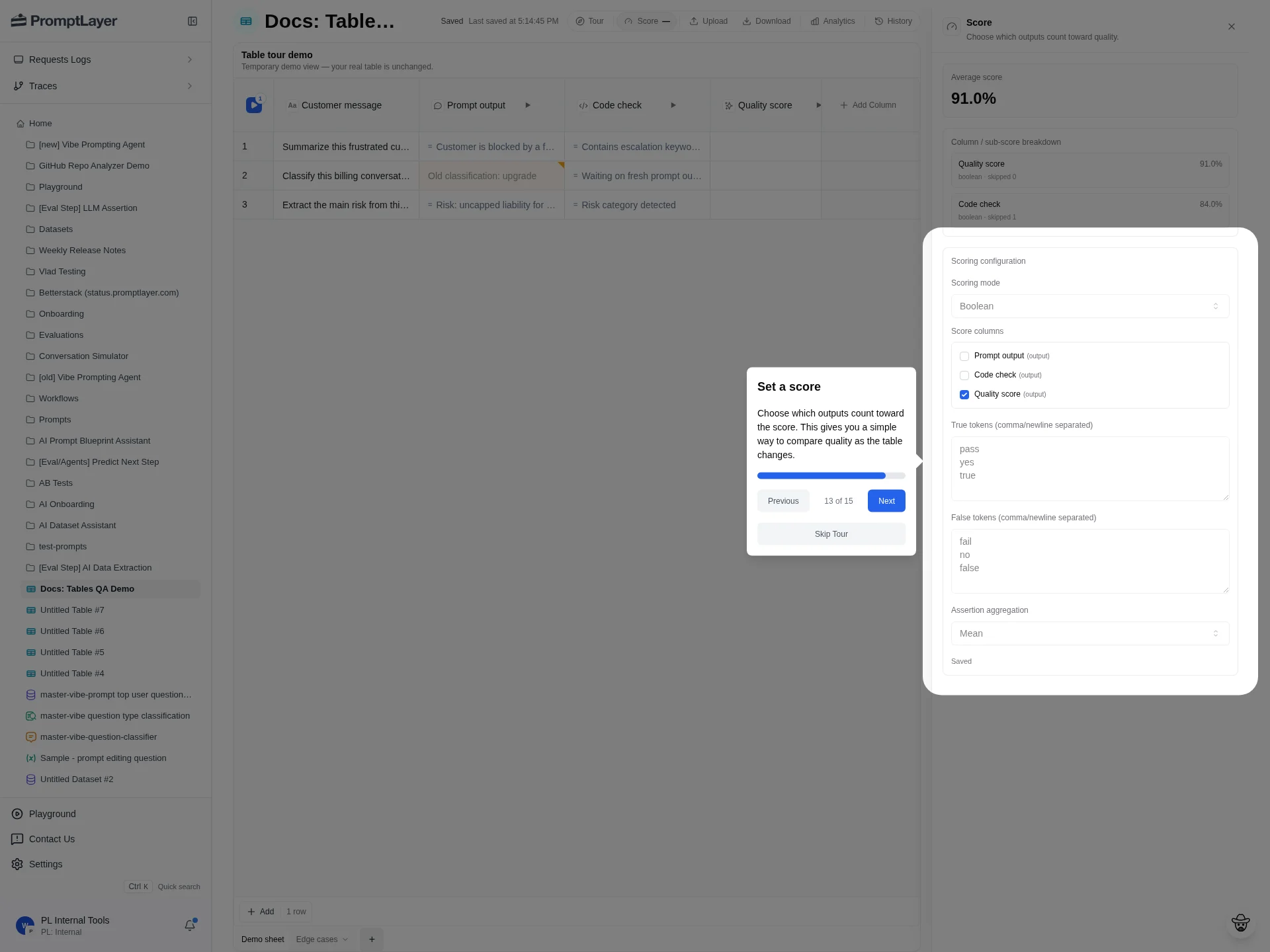
Scoring modes
Boolean scoring
Boolean mode converts selected column values into pass/fail results. Configure true tokens, false tokens, and assertion aggregation (Mean, All, or Any).
Use Boolean scoring for assertion columns, quality checks, moderation checks, format checks, and other pass/fail evaluations.
Numeric scoring
Numeric mode averages selected numeric outputs. Use it when columns return scores, distances, similarity values, ratings, or normalized metrics. For comparable version history, make sure higher values consistently mean better quality.Auto detect scoring
Auto detect chooses boolean or numeric handling based on the selected score column outputs. Use it when the selected columns are already clean booleans or numbers and you do not need custom token rules.Custom code scoring
Custom code mode scores the whole sheet with Python or JavaScript. The scorer receives sheet data and must return a deterministic object with a numericscore.
Required key:
score_matrix shapes:
- 2D matrix:
list[list[cell]]. - Single-table 3D matrix:
list[list[list[cell]]]where the top-level length is1.
null, or objects like { "value": 0.92, "positive_metric": true }.
Use custom code when score logic depends on multiple columns, row-level weighting, custom sub-scores, or a custom matrix display.
Winner and aggregate scoring
Winner / aggregate mode summarizes one column into a qualitative result. Available questions:
Choose the source Column. For lowest or highest value, optionally choose Show winner as to display a label from the same row instead of only the metric value.
Use aggregate scoring for model bakeoffs, latency comparisons, cost comparisons, routing decisions, or any sheet where the result is a winner rather than an average.
Read the score
Use the score summary to compare the average score or aggregate result, inspect column and sub-score breakdowns, and see skipped values or recalculation errors.Recalculate after changes
Recalculate the score after:- Changing the scoring mode.
- Changing score columns.
- Updating true or false tokens.
- Editing custom scorer code.
- Changing aggregate settings.
- Rerunning computed cells that feed the score.
API references
Get sheet score
Read the current score result.
Configure score
Configure scoring for a sheet.
Recalculate score
Queue a score recalculation.
Score history
Read score history for a sheet.
Scorecards guide
Learn when to use scorecards and how to migrate.
Get scorecard
Read the active scorecard and calculation state.