

Create a Signal
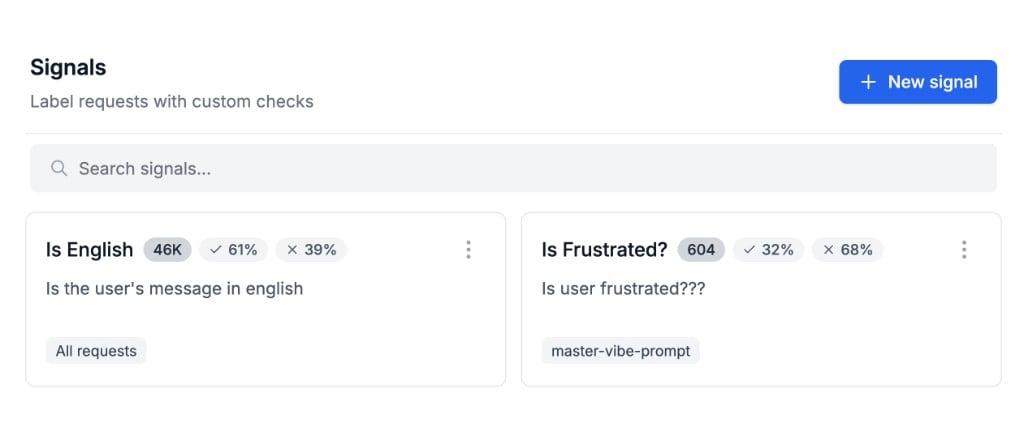
- Open Signals in the PromptLayer sidebar.
- Select New signal.
- Enter a name and write your yes/no question in the signal statement field.
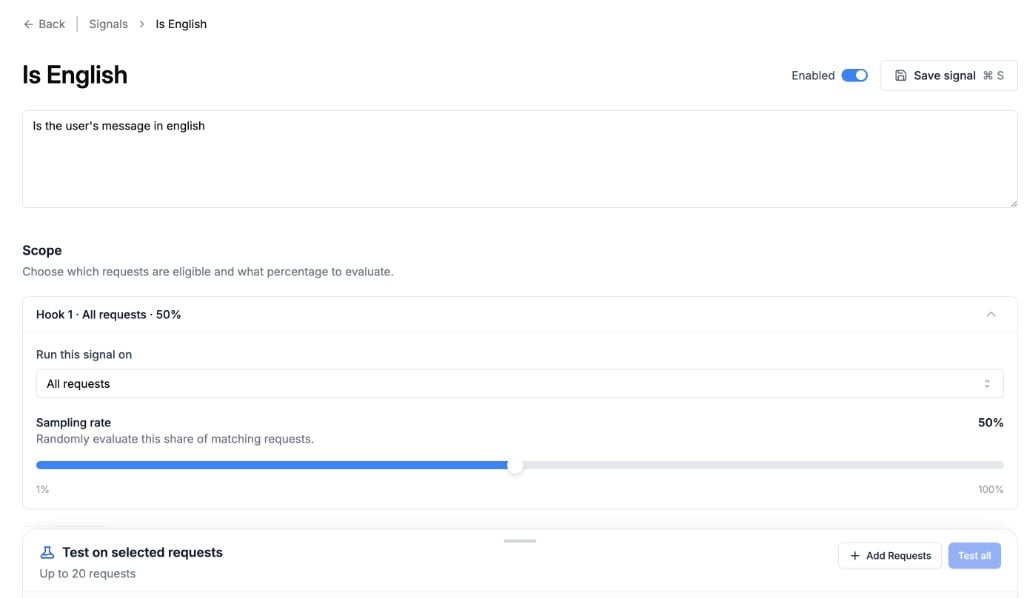
- Add one or more hooks to define where the signal runs and how often it is sampled.
- Save the signal. When you are ready for production evaluation, turn Enabled on.
Scope with hooks
Each hook controls which request logs a signal evaluates and at what rate.
Each hook has its own sample rate (default 50%). PromptLayer evaluates only the sampled share of matching traffic, which helps control cost on high-volume prompts.
A signal can have multiple hooks. Use this when the same question should apply to different prompts, labels, or sampling rates.
Test before enabling
Before you enable a signal in production, test it on real request logs:- In the Test on selected requests panel, add up to 20 request logs from history or from your current scope.
- Run Try signal on individual logs or Test all across the set.
- Review the true/false result, reasoning, and citation for each log.
Use results in Request Logs
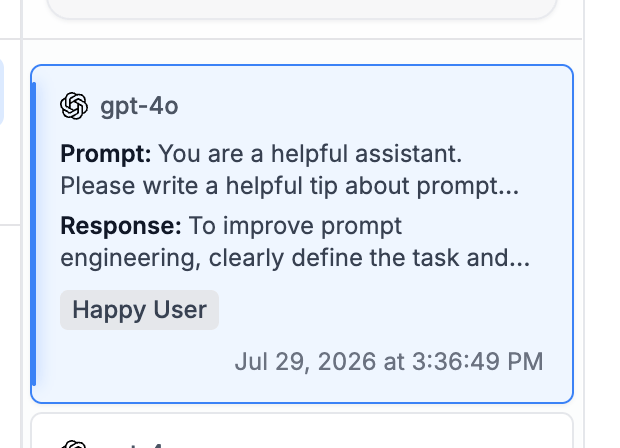
When a signal is enabled, evaluated requests show true or false labels in the Request Logs table and in request details. Select a label to filter the table to matching results. See Search to filter request logs by signal results from the search bar.Signals, tags, and scores
Signals, tags, and scores all help you organize and review request logs, but they work differently:
Use tags for manual categorization at log time. Use scores when you need a numeric rating. Use Signals when you want PromptLayer to continuously evaluate production requests against a yes/no question.