> ## Documentation Index
> Fetch the complete documentation index at: https://docs.promptlayer.com/llms.txt
> Use this file to discover all available pages before exploring further.
# Workflows
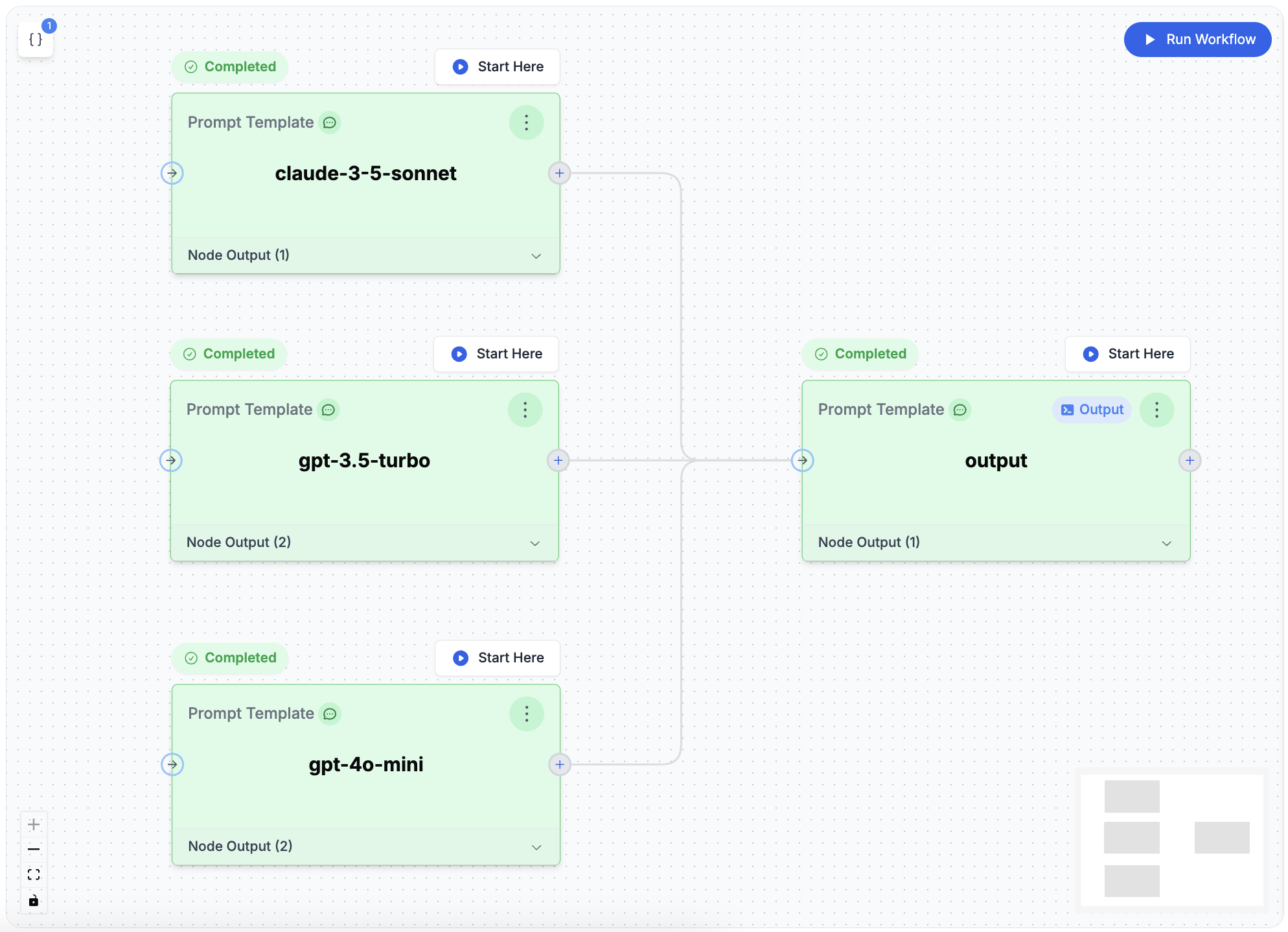
PromptLayer Workflows let you quickly build, launch, and manage AI workflows that use multiple LLMs and business rules. You can create and test these AI systems easily using a visual drag-and-drop tool, and then deploy them without needing to worry about complex infrastructure management.
## Use Cases
### 1. **Combining Multiple LLM Calls into a Single Output**
Improve AI-generated responses by using results from multiple LLM calls, either by merging outputs or choosing the best one. This can lead to:
* More thorough and precise outputs
* Enhanced decision-making by considering multiple perspectives
* Higher reliability through comparing multiple AI answers
### 2. **Building Complex Workflows**
Create advanced AI systems that can handle multi-step tasks and solve complex problems. These systems can:
* Integrate multiple LLM calls
* Incorporate external data sources
* Automate complex decision-making processes
## Key Concepts
### 1. Input Variables
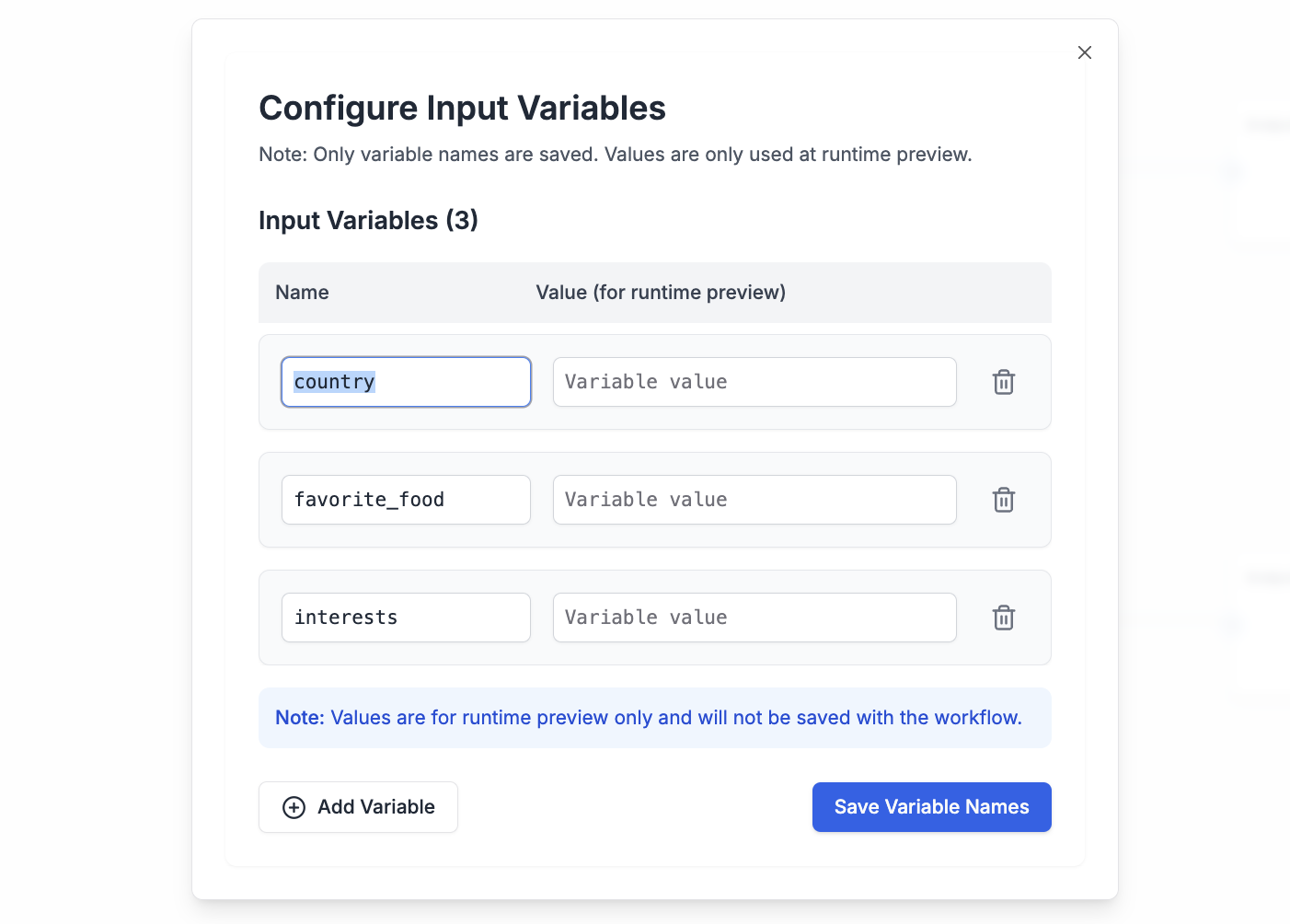
Input Variables are the data you feed into a Workflow. They can be text, numbers, or other information the Workflow uses in its various steps to produce the final result.
### 2. Nodes
Nodes are the building blocks of the Workflow. Each node represents a specific action or decision. Types include:
* **Prompt Template**: Make an LLM call using a prompt template from the registry or an [inline template](#inline-templates) defined directly in the node configuration.
* **Callback Endpoint**: Make external API calls (ex: RAG steps) or trigger callback requests after workflow processes finish.
* **Coding Agent**: Execute AI coding agents (such as Claude Code) in a sandboxed environment for data transformations, file processing, and complex analysis. [Learn more about Coding Agent](/features/evaluations/eval-types#coding-agent)
* **For Loop**: Iterate over collections, running a prompt or sub-workflow on each item.
* **While Loop**: Execute repeatedly until a condition is met.
* **Math Operator**: Perform numerical comparisons or calculations between different data sources.
* **Parse Value**: Extract and process specific data types like strings, numbers, or JSON from inputs.
**Want to learn about all available node types?** Workflow nodes use the same
building blocks as evaluation types. [View all eval
types](/features/evaluations/eval-types) to see the full catalog of nodes you
can use in your workflows, including LLM assertions, data extraction,
conversation simulators, and more.
### 3. Conditional Edges
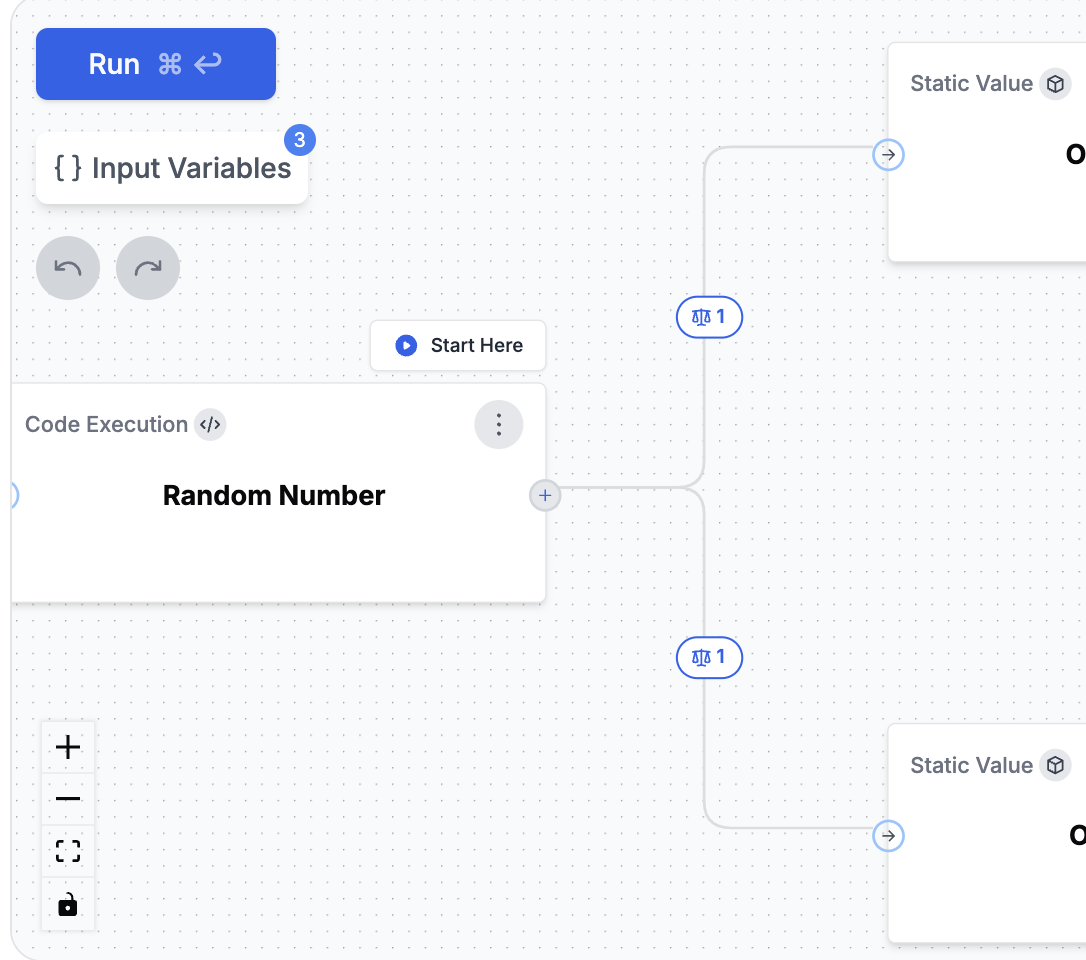
Conditional Edges allow you to create branching logic within your Workflows. By clicking on an edge between nodes, you can define conditions that determine the path your workflow will take. Conditions can be combined using logical operators such as **AND** or **OR**, and support comparisons including:
* Equal (`==`)
* Not Equal (`!=`)
* Less Than (`<`)
* Greater Than (`>`)
* Less Than or Equal To (`<=`)
* Greater Than or Equal To (`>=`)
You can compare values against numbers or booleans, and multiple conditions can be combined to create complex branching logic. This enables your Workflow to dynamically route execution paths based on intermediate results or external data, allowing for more sophisticated and context-aware workflows.
### 4. Output Nodes
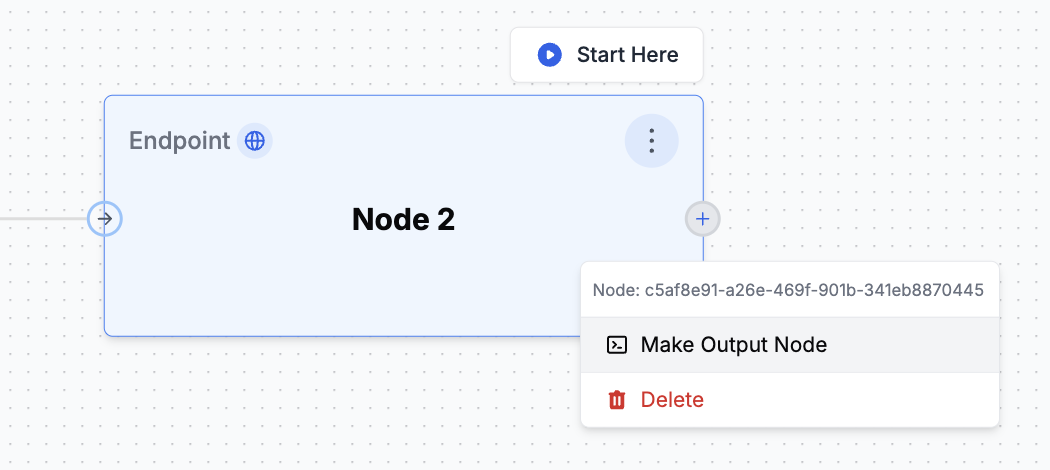
Output Nodes determine what your Workflow returns as its final result. When using Conditional Edges to create different paths in your workflow, you can place multiple Output Nodes at the end of different branches. Similar to a "return statement" in programming, whichever Output Node executes successfully first will provide the final output. This allows your Workflow to deliver different results based on the specific conditions that were met during the workflow.
### 5. Inline Templates
Prompt Template nodes can reference a template from the Prompt Registry or define a template inline. Inline templates are useful for quick iteration and experimentation without committing a prompt to the registry.
When creating or updating a workflow programmatically, use `inline_template` instead of `template` in a Prompt Template node's configuration:
```json theme={null}
{
"name": "Generate Summary",
"node_type": "PROMPT_TEMPLATE",
"configuration": {
"inline_template": {
"inline": true,
"prompt_template": {
"type": "chat",
"messages": [
{
"role": "system",
"content": [{"type": "text", "text": "Summarize the following text concisely."}]
},
{
"role": "user",
"content": [{"type": "text", "text": "{input_text}"}]
}
]
},
"metadata": {
"model": {
"provider": "openai",
"name": "gpt-4",
"parameters": {"temperature": 0.3}
}
}
},
"prompt_template_variable_mappings": {
"input_text": "document"
}
},
"dependencies": ["document"],
"is_output_node": false
}
```
You must provide exactly one of `template` (registry reference) or `inline_template` (inline content) in a Prompt Template node's configuration. They are mutually exclusive. You can convert an inline template to a registry template at any time from the UI using "Save to Registry".
## Versioning
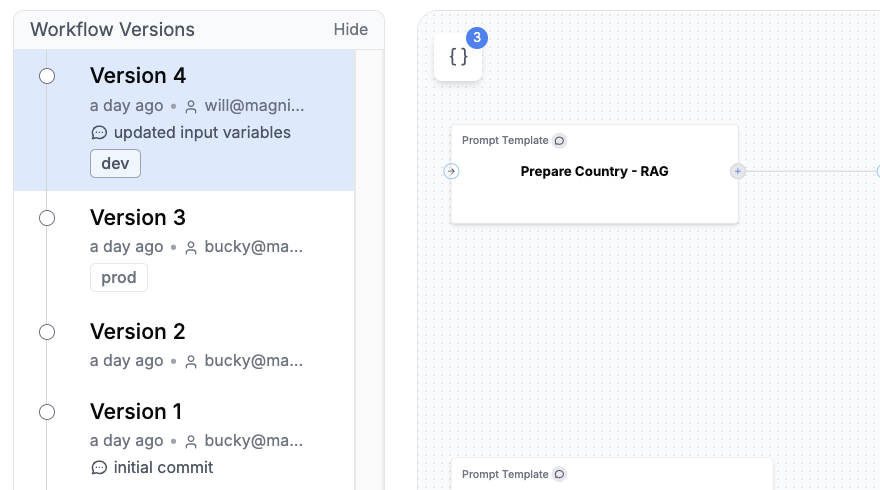
Workflow versioning automatically tracks changes over time. Each update creates a new version, allowing you to safely experiment with new ideas while keeping the current production version stable. You can view the full history of your Workflow's changes, which helps with team collaboration and iterative development.
### Programmatic Updates
When updating a workflow through the REST API, use [Update Workflow](/reference/patch-workflow) to create a new version from the latest workflow version or from a specific `base_version`.
Patch updates merge nodes by name:
* Unmentioned nodes are preserved.
* Object values add or update a node.
* `null` removes a node.
* Node `configuration` is deep-merged.
* `dependencies`, `required_input_variables`, and `edges` are replaced when provided.
* `release_labels` move to the newly created version.
## Running a Workflow
You can run a Workflow in three ways: using the [Python SDK](/sdks/python#running-workflows) or [JavaScript SDK](/sdks/javascript#running-workflows), via the [REST API with polling](/reference/workflow-version-execution-results), or with the [REST API using callback webhooks](/reference/run-workflow) for long-running workflows.
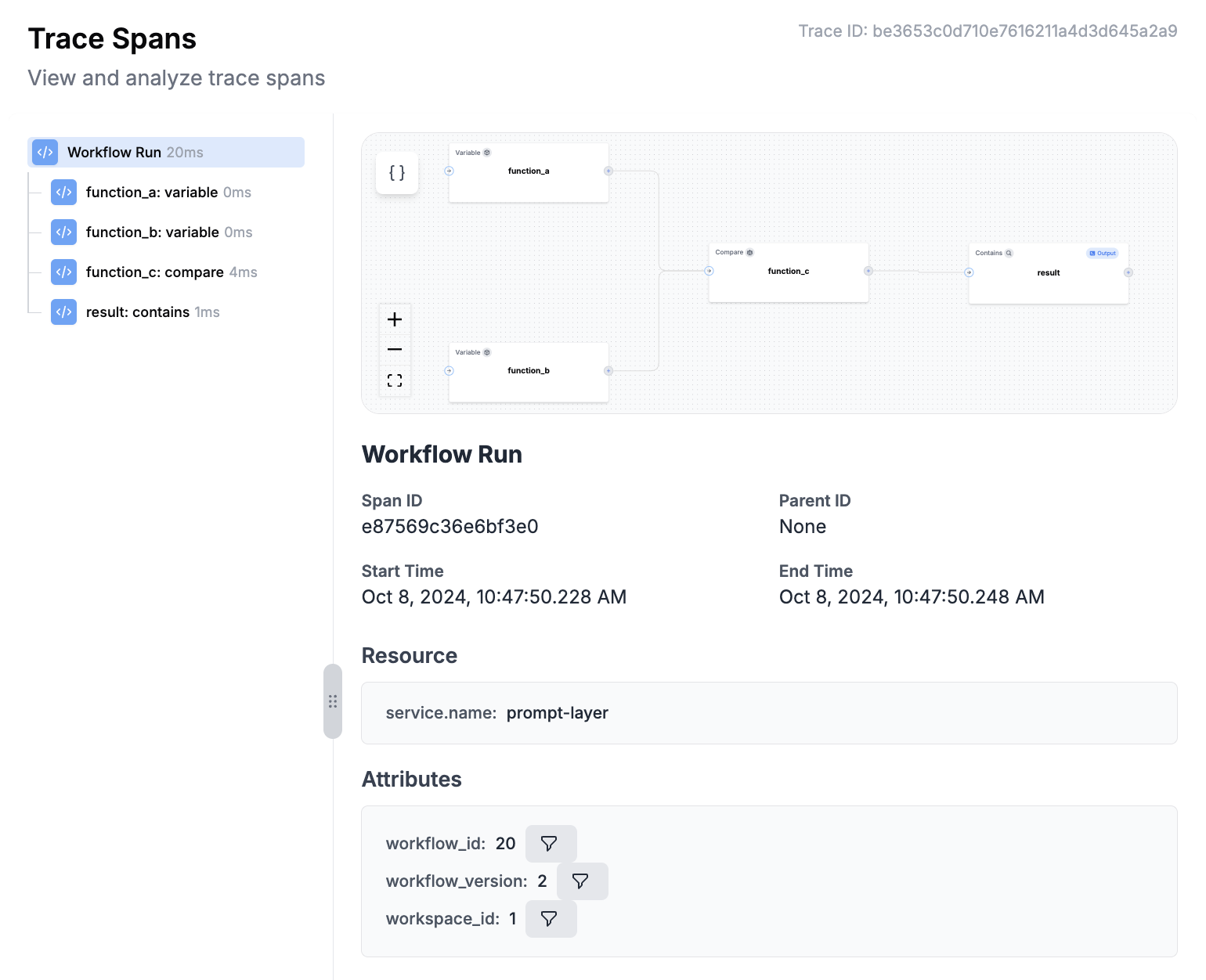
After running a Workflow, the full trace, including spans from all nodes, will be visible in the left traces menu. This allows you to visualize the execution path and see intermediate outputs at each step, helping you debug and optimize your Workflow.
 ## Use Cases
### 1. **Combining Multiple LLM Calls into a Single Output**
Improve AI-generated responses by using results from multiple LLM calls, either by merging outputs or choosing the best one. This can lead to:
* More thorough and precise outputs
* Enhanced decision-making by considering multiple perspectives
* Higher reliability through comparing multiple AI answers
### 2. **Building Complex Workflows**
Create advanced AI systems that can handle multi-step tasks and solve complex problems. These systems can:
* Integrate multiple LLM calls
* Incorporate external data sources
* Automate complex decision-making processes
## Key Concepts
### 1. Input Variables
Input Variables are the data you feed into a Workflow. They can be text, numbers, or other information the Workflow uses in its various steps to produce the final result.
## Use Cases
### 1. **Combining Multiple LLM Calls into a Single Output**
Improve AI-generated responses by using results from multiple LLM calls, either by merging outputs or choosing the best one. This can lead to:
* More thorough and precise outputs
* Enhanced decision-making by considering multiple perspectives
* Higher reliability through comparing multiple AI answers
### 2. **Building Complex Workflows**
Create advanced AI systems that can handle multi-step tasks and solve complex problems. These systems can:
* Integrate multiple LLM calls
* Incorporate external data sources
* Automate complex decision-making processes
## Key Concepts
### 1. Input Variables
Input Variables are the data you feed into a Workflow. They can be text, numbers, or other information the Workflow uses in its various steps to produce the final result.
 ### 2. Nodes
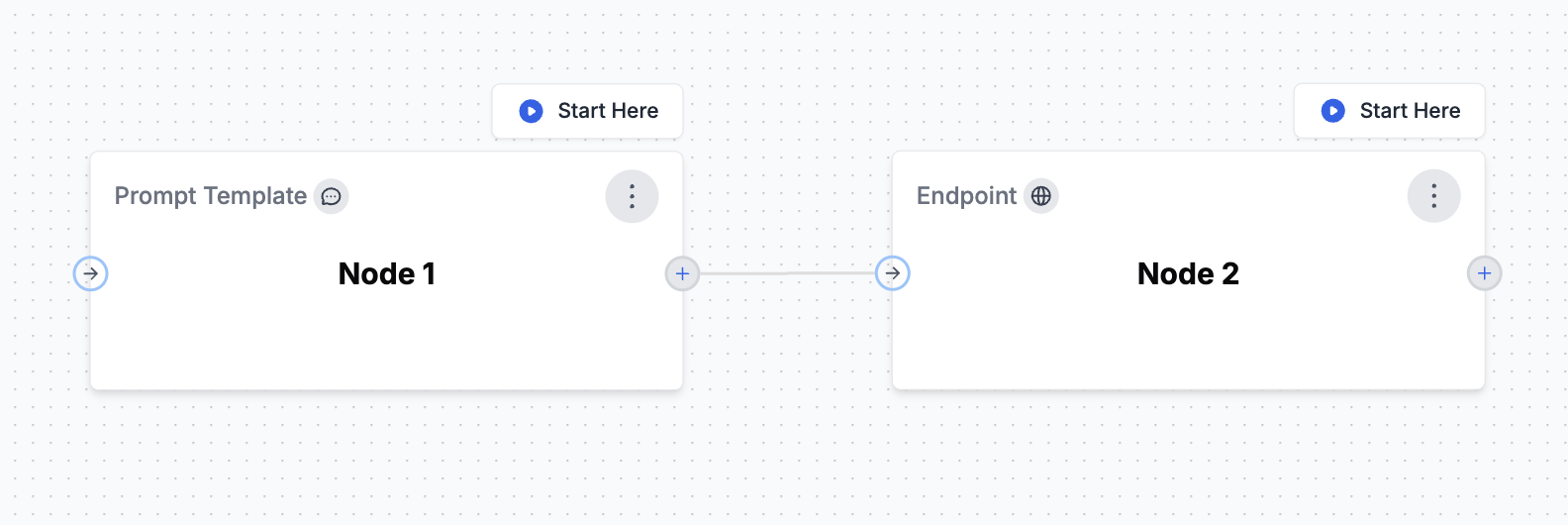
Nodes are the building blocks of the Workflow. Each node represents a specific action or decision. Types include:
* **Prompt Template**: Make an LLM call using a prompt template from the registry or an [inline template](#inline-templates) defined directly in the node configuration.
* **Callback Endpoint**: Make external API calls (ex: RAG steps) or trigger callback requests after workflow processes finish.
* **Coding Agent**: Execute AI coding agents (such as Claude Code) in a sandboxed environment for data transformations, file processing, and complex analysis. [Learn more about Coding Agent](/features/evaluations/eval-types#coding-agent)
* **For Loop**: Iterate over collections, running a prompt or sub-workflow on each item.
* **While Loop**: Execute repeatedly until a condition is met.
* **Math Operator**: Perform numerical comparisons or calculations between different data sources.
* **Parse Value**: Extract and process specific data types like strings, numbers, or JSON from inputs.
### 2. Nodes
Nodes are the building blocks of the Workflow. Each node represents a specific action or decision. Types include:
* **Prompt Template**: Make an LLM call using a prompt template from the registry or an [inline template](#inline-templates) defined directly in the node configuration.
* **Callback Endpoint**: Make external API calls (ex: RAG steps) or trigger callback requests after workflow processes finish.
* **Coding Agent**: Execute AI coding agents (such as Claude Code) in a sandboxed environment for data transformations, file processing, and complex analysis. [Learn more about Coding Agent](/features/evaluations/eval-types#coding-agent)
* **For Loop**: Iterate over collections, running a prompt or sub-workflow on each item.
* **While Loop**: Execute repeatedly until a condition is met.
* **Math Operator**: Perform numerical comparisons or calculations between different data sources.
* **Parse Value**: Extract and process specific data types like strings, numbers, or JSON from inputs.
 ### 3. Conditional Edges
Conditional Edges allow you to create branching logic within your Workflows. By clicking on an edge between nodes, you can define conditions that determine the path your workflow will take. Conditions can be combined using logical operators such as **AND** or **OR**, and support comparisons including:
* Equal (`==`)
* Not Equal (`!=`)
* Less Than (`<`)
* Greater Than (`>`)
* Less Than or Equal To (`<=`)
* Greater Than or Equal To (`>=`)
You can compare values against numbers or booleans, and multiple conditions can be combined to create complex branching logic. This enables your Workflow to dynamically route execution paths based on intermediate results or external data, allowing for more sophisticated and context-aware workflows.
### 3. Conditional Edges
Conditional Edges allow you to create branching logic within your Workflows. By clicking on an edge between nodes, you can define conditions that determine the path your workflow will take. Conditions can be combined using logical operators such as **AND** or **OR**, and support comparisons including:
* Equal (`==`)
* Not Equal (`!=`)
* Less Than (`<`)
* Greater Than (`>`)
* Less Than or Equal To (`<=`)
* Greater Than or Equal To (`>=`)
You can compare values against numbers or booleans, and multiple conditions can be combined to create complex branching logic. This enables your Workflow to dynamically route execution paths based on intermediate results or external data, allowing for more sophisticated and context-aware workflows.
 ### 4. Output Nodes
Output Nodes determine what your Workflow returns as its final result. When using Conditional Edges to create different paths in your workflow, you can place multiple Output Nodes at the end of different branches. Similar to a "return statement" in programming, whichever Output Node executes successfully first will provide the final output. This allows your Workflow to deliver different results based on the specific conditions that were met during the workflow.
### 4. Output Nodes
Output Nodes determine what your Workflow returns as its final result. When using Conditional Edges to create different paths in your workflow, you can place multiple Output Nodes at the end of different branches. Similar to a "return statement" in programming, whichever Output Node executes successfully first will provide the final output. This allows your Workflow to deliver different results based on the specific conditions that were met during the workflow.
 ### 5. Inline Templates
Prompt Template nodes can reference a template from the Prompt Registry or define a template inline. Inline templates are useful for quick iteration and experimentation without committing a prompt to the registry.
When creating or updating a workflow programmatically, use `inline_template` instead of `template` in a Prompt Template node's configuration:
```json theme={null}
{
"name": "Generate Summary",
"node_type": "PROMPT_TEMPLATE",
"configuration": {
"inline_template": {
"inline": true,
"prompt_template": {
"type": "chat",
"messages": [
{
"role": "system",
"content": [{"type": "text", "text": "Summarize the following text concisely."}]
},
{
"role": "user",
"content": [{"type": "text", "text": "{input_text}"}]
}
]
},
"metadata": {
"model": {
"provider": "openai",
"name": "gpt-4",
"parameters": {"temperature": 0.3}
}
}
},
"prompt_template_variable_mappings": {
"input_text": "document"
}
},
"dependencies": ["document"],
"is_output_node": false
}
```
### 5. Inline Templates
Prompt Template nodes can reference a template from the Prompt Registry or define a template inline. Inline templates are useful for quick iteration and experimentation without committing a prompt to the registry.
When creating or updating a workflow programmatically, use `inline_template` instead of `template` in a Prompt Template node's configuration:
```json theme={null}
{
"name": "Generate Summary",
"node_type": "PROMPT_TEMPLATE",
"configuration": {
"inline_template": {
"inline": true,
"prompt_template": {
"type": "chat",
"messages": [
{
"role": "system",
"content": [{"type": "text", "text": "Summarize the following text concisely."}]
},
{
"role": "user",
"content": [{"type": "text", "text": "{input_text}"}]
}
]
},
"metadata": {
"model": {
"provider": "openai",
"name": "gpt-4",
"parameters": {"temperature": 0.3}
}
}
},
"prompt_template_variable_mappings": {
"input_text": "document"
}
},
"dependencies": ["document"],
"is_output_node": false
}
```
 ### Programmatic Updates
When updating a workflow through the REST API, use [Update Workflow](/reference/patch-workflow) to create a new version from the latest workflow version or from a specific `base_version`.
Patch updates merge nodes by name:
* Unmentioned nodes are preserved.
* Object values add or update a node.
* `null` removes a node.
* Node `configuration` is deep-merged.
* `dependencies`, `required_input_variables`, and `edges` are replaced when provided.
* `release_labels` move to the newly created version.
## Running a Workflow
You can run a Workflow in three ways: using the [Python SDK](/sdks/python#running-workflows) or [JavaScript SDK](/sdks/javascript#running-workflows), via the [REST API with polling](/reference/workflow-version-execution-results), or with the [REST API using callback webhooks](/reference/run-workflow) for long-running workflows.
After running a Workflow, the full trace, including spans from all nodes, will be visible in the left traces menu. This allows you to visualize the execution path and see intermediate outputs at each step, helping you debug and optimize your Workflow.
### Programmatic Updates
When updating a workflow through the REST API, use [Update Workflow](/reference/patch-workflow) to create a new version from the latest workflow version or from a specific `base_version`.
Patch updates merge nodes by name:
* Unmentioned nodes are preserved.
* Object values add or update a node.
* `null` removes a node.
* Node `configuration` is deep-merged.
* `dependencies`, `required_input_variables`, and `edges` are replaced when provided.
* `release_labels` move to the newly created version.
## Running a Workflow
You can run a Workflow in three ways: using the [Python SDK](/sdks/python#running-workflows) or [JavaScript SDK](/sdks/javascript#running-workflows), via the [REST API with polling](/reference/workflow-version-execution-results), or with the [REST API using callback webhooks](/reference/run-workflow) for long-running workflows.
After running a Workflow, the full trace, including spans from all nodes, will be visible in the left traces menu. This allows you to visualize the execution path and see intermediate outputs at each step, helping you debug and optimize your Workflow.