> ## Documentation Index
> Fetch the complete documentation index at: https://docs.promptlayer.com/llms.txt
> Use this file to discover all available pages before exploring further.
# Prompt Blueprints
Prompt Blueprints are a core concept in PromptLayer that provides a standardized, model-agnostic representation of prompts. They serve as an abstraction layer that:
* Creates a unified format that works across all LLM providers (OpenAI, Anthropic, etc.)
* Enables seamless switching between different models without code changes
* Standardizes how prompts, responses, and tool calls are structured and stored
* Ensures consistent handling of various content types (text, images, function calls)
Think of Prompt Blueprints as a universal language for LLM interactions that shields your application from provider-specific implementation details.
## Accessing the Prompt Blueprint
Instead of accessing the raw LLM response via `response["raw_response"]`, it's recommended to use the standardized `response["prompt_blueprint"]`. This ensures consistency across different providers.
**Provider-Specific Schema Notice**
The `raw_response` object structure is provider-specific and may change without notice as LLM providers update their APIs. PromptLayer passes through the native format from each provider. For stable, provider-agnostic prompt data, always use `prompt_blueprint` instead.
```python theme={null}
response = promptlayer_client.run(
prompt_name="ai-poet",
input_variables={'topic': 'food'},
)
print(response["prompt_blueprint"]["prompt_template"]["messages"][-1]["content"][-1]["text"])
```
With this approach, you can update from one provider to another (e.g., OpenAI to Anthropic) without any code changes.
## Streaming Support
PromptLayer now supports streaming responses with prompt\_blueprint integration. When streaming is enabled, each chunk includes both the raw streaming response and the progressively built prompt\_blueprint, allowing you to track how the response is constructed in real-time.
### OpenAI Streaming Example
```python theme={null}
import promptlayer
# Initialize PromptLayer client
promptlayer_client = promptlayer.PromptLayer()
# Run with streaming enabled
response_stream = promptlayer_client.run(
prompt_name="ai-poet",
input_variables={'topic': 'food'},
stream=True
)
# Process streaming chunks
for chunk in response_stream:
# Access the raw streaming response
raw_chunk = chunk["raw_response"]
# Access the progressively built prompt blueprint
prompt_blueprint = chunk["prompt_blueprint"]
if raw_chunk.choices and raw_chunk.choices[0].delta.content:
print(f"Streaming content: {raw_chunk.choices[0].delta.content}")
# The prompt_blueprint shows the current state of the response
if prompt_blueprint and prompt_blueprint["prompt_template"]["messages"]:
current_response = prompt_blueprint["prompt_template"]["messages"][-1]
if current_response.get("content"):
print(f"Current response: {current_response['content']}")
```
### Anthropic Streaming Example
```python theme={null}
import promptlayer
# Initialize PromptLayer client
promptlayer_client = promptlayer.PromptLayer()
# Run with streaming enabled for Anthropic
response_stream = promptlayer_client.run(
prompt_name="helpful-assistant",
input_variables={'task': 'prompt engineering tip'},
stream=True
)
# Process streaming chunks
for chunk in response_stream:
# Access the raw streaming response
raw_chunk = chunk["raw_response"]
# Access the progressively built prompt blueprint
prompt_blueprint = chunk["prompt_blueprint"]
# Handle different Anthropic streaming event types
if raw_chunk.get("type") == "content_block_delta":
delta = raw_chunk.get("delta", {})
if delta.get("type") == "text_delta":
print(f"Streaming content: {delta.get('text', '')}")
# The prompt_blueprint shows the current state of the response
if prompt_blueprint and prompt_blueprint["prompt_template"]["messages"]:
current_response = prompt_blueprint["prompt_template"]["messages"][-1]
if current_response.get("content") and len(current_response["content"]) > 0:
# Get the text content from the current response
text_content = current_response["content"][0].get("text", "")
if text_content:
print(f"Current response: {text_content}")
```
### Key Features of Streaming with Prompt Blueprint
* **Progressive Building**: Each streaming chunk includes the current state of the prompt\_blueprint, showing how the response is built incrementally
* **Real-time Access**: You can access both the raw streaming data and the structured prompt blueprint format simultaneously
* **Consistent Format**: The prompt\_blueprint maintains the same standardized format across all streaming chunks
* **Final State**: The last chunk contains the complete prompt\_blueprint with the full response
### Streaming Response Structure
Each streaming chunk contains:
```python theme={null}
{
"request_id": None, # Present only in the final chunk
"raw_response": ChatCompletionChunk(...), # Raw streaming response from provider
"prompt_blueprint": {
"prompt_template": {
"type": "chat",
"messages": [
{
"role": "assistant",
"content": [
{"type": "text", "text": "Current response text..."}
],
"input_variables": [],
"template_format": "f-string"
}
],
"input_variables": []
},
"metadata": {
"model": {
"provider": "openai",
"name": "gpt-4o",
"parameters": {
"temperature": 1,
"stream": True,
# ... other parameters
}
}
}
}
}
```
The `request_id` is only included in the final chunk, indicating the completion of the streaming response.
## Placeholder Messages
Placeholder Messages are a powerful feature that allows you to inject messages into a prompt template at runtime. By using the `placeholder` role, you can define placeholders within your prompt template that can be replaced with full messages when the prompt is executed.
For more detailed information on Placeholder Messages, including how to create and use them, please refer to our dedicated [Placeholder Messages Documentation](/features/prompt-registry/placeholder-messages) page.
### Running a Template with Placeholders
When running a prompt that includes placeholders, you need to supply the messages that will replace the placeholders in the input variables.
```python theme={null}
response = promptlayer_client.run(
prompt_name="template-name",
input_variables={
"fill_in_message": [
{
"role": "user",
"content": [{"type": "text", "text": "My age is 29"}],
},
{
"role": "assistant",
"content": [{"type": "text", "text": "What a wonderful age!"}],
}
]
},
)
```
**Note**: The messages provided must conform to the Prompt Blueprint format.
## Prompt Blueprint Message Format
Each message in a Prompt Blueprint should be a dictionary with the following structure:
* **`role`**: The role of the message sender (`user`, `assistant`, `system`, `tool`, `function`, `placeholder`, `developer`).
* **`content`**: A list of content items, where each item has a **`type`** field that determines the content structure.
### Supported Content Types
| Type | Description |
| ---------------------------------------- | --------------------------------------------------------------------- |
| `text` | Text content with a `text` field |
| `thinking` | Model reasoning with `thinking` and optional `signature` fields |
| `code` | Code block with a `code` field (from code execution tools) |
| `image_url` | Image content with an `image_url` object containing a `url` |
| `media` | Media content (images, PDFs) with a `media` object |
| `media_variable` | Dynamic media variable with a `name` field |
| `output_media` | LLM-generated media (e.g. images) with a `url` and `mime_type` |
| `server_tool_use` | Server-side tool invocation with `id`, `name`, and `input` |
| `web_search_tool_result` | Web search results with citations |
| `code_execution_result` | Code execution output with `output` and `outcome` fields |
| `mcp_list_tools` | MCP server tool listing with `server_label` and `tools` |
| `mcp_call` | MCP tool call with `name`, `server_label`, and `arguments` |
| `mcp_approval_request` | MCP tool approval request |
| `mcp_approval_response` | MCP tool approval response |
| `bash_code_execution_tool_result` | Bash tool execution result with `tool_use_id` and `content` |
| `text_editor_code_execution_tool_result` | Text editor tool result with `tool_use_id` and `content` |
| `shell_call` | Shell tool call with `action` containing commands |
| `shell_call_output` | Shell tool output with execution results |
| `apply_patch_call` | Apply patch tool call with `operation` (create, update, delete files) |
| `apply_patch_call_output` | Apply patch tool output |
### Example Message
```python theme={null}
{
"role": "user",
"content": [{"type": "text", "text": "Hello, how are you?"}],
}
```
### Example Message with Thinking support
```python theme={null}
{
"role": "user",
"content": [
{"signature": "xxxxxx-xxxxx-xxxx-xxxx", "type": "thinking", "thinking": "User is greeting and asking for my wellbeing."},
{"type": "text", "text": "Hello, how are you?"},
]
}
```
### Example Assistant Message with Generated Image
When a model generates an image (via OpenAI Images API, Responses API `image_generation` tool, or Google Gemini image models), the response includes `output_media` content blocks:
```python theme={null}
{
"role": "assistant",
"content": [
{"type": "text", "text": "Here is the image you requested:"},
{
"type": "output_media",
"id": "ig_abc123",
"url": "https://...",
"mime_type": "image/png",
"media_type": "image",
"provider_metadata": {
"revised_prompt": "A photorealistic sunset over mountains...",
"size": "1024x1024",
"quality": "high"
}
}
]
}
```
The `provider_metadata` field varies by provider:
* **OpenAI**: `revised_prompt`, `size`, `quality`, `background`, `output_format`
* **Google Gemini**: `aspect_ratio`, `image_size`
See the [Image Generation guide](/features/image-generation) for full details on setup and usage.
## Tools and Function Calling
The Prompt Blueprint supports tool and function calling capabilities. This section demonstrates how to define available tools, handle assistant tool calls, and provide tool responses.
### Defining Available Tools
When creating a prompt template, you can specify available tools under the `tools` field. Each tool definition follows this structure:
```python theme={null}
tools = [
{
"type": "function",
"function": {
"name": "get_weather",
"parameters": {
"type": "object",
"properties": {
"location": {"type": "string"}
}
}
}
}
]
prompt_template = {
"type": "chat",
"messages": messages,
"tools": tools
}
```
The `parameters` field is of interest because it specifies the expected input parameters for the function. The LLM provider will use this information to generate the appropriate tool call. You can define the `parameters` using [JSON Schema](https://json-schema.org) format. You can read more about how OpenAI uses JSON Schema for defining parameters [here](https://platform.openai.com/docs/guides/function-calling). And you can read more about how Anthropic uses JSON Schema for defining parameters [here](https://docs.anthropic.com/en/docs/build-with-claude/tool-use).
### Built-in Tools
In addition to custom function tools, the Prompt Blueprint supports **built-in tools** provided by LLM providers. These are pre-defined tools like web search, file search, code interpreter, and image generation.
```python theme={null}
tools = [
{
"type": "function",
"function": {
"name": "get_weather",
"parameters": {
"type": "object",
"properties": {"location": {"type": "string"}}
}
}
},
{
"type": "image_generation",
"id": "builtin_image_gen",
"name": "Image Generation",
"description": "Generate images from text prompts",
"provider": "openai",
"config": {"type": "image_generation"}
}
]
```
The `type` field distinguishes between custom function tools (`"function"`) and built-in tools (`"web_search"`, `"file_search"`, `"code_interpreter"`, `"image_generation"`, `"google_maps"`). Built-in tools are configured in the Prompt Registry UI — see [Tool Calling](/features/prompt-registry/tool-calling) for details.
### Tool Variables
You can also use **tool variables** to inject tools dynamically at runtime, rather than defining them statically. Tool variables act as placeholders in the `tools` array that get replaced with actual tool definitions from `input_variables`.
For details and examples, see [Tool Calling - Tool Variables](/features/prompt-registry/tool-calling#tool-variables).
### Assistant Tool Calls
When the assistant decides to use a tool, the response will include a `tool_calls` field in the message. The format is:
```python theme={null}
{
"role": "assistant",
"tool_calls": [
{
"id": "call_abc123",
"type": "function",
"function": {
"name": "get_weather",
"arguments": "{\"location\": \"Paris\"}"
}
}
]
}
```
* `id` is used by the assistant to track the tool call.
* `type` is always `function`.
* `function` contains the function details
* `name` tells us which function to call
* `arguments` is a JSON string containing the function's input parameters.
For more information about how PromptLayer structures tool calls, please refer to schema definition towards end of this page.
### Providing Tool Responses
After executing the requested function, you can provide the result back to the assistant using a "tool" role message. The response should be structured JSON data:
```python theme={null}
{
"role": "tool",
"content": [
{
"type": "text",
"text": "{\"temperature\": 72, \"conditions\": \"sunny\", \"humidity\": 45}"
}
],
"tool_call_id": "call_abc123"
}
```
Here is an example of how to log a request with tool calls and responses using OpenAI:
```python theme={null}
from openai import OpenAI
client = OpenAI()
model = "gpt-4o"
tools = [
{
"type": "function",
"function": {
"name": "get_weather",
"parameters": {
"type": "object",
"properties": {"location": {"type": "string"}},
},
},
}
]
messages = [
{
"role": "user",
"content": [
{"type": "text", "text": "What's the weather like in Paris today?"}
],
}
]
prompt_template = {
"type": "chat",
"messages": messages,
"tools": tools,
}
request_start_time = time.time()
completion = client.chat.completions.create(
model=model,
messages=prompt_template["messages"],
tools=prompt_template["tools"],
)
request_end_time = time.time()
print(completion.choices[0].message.tool_calls)
promptlayer.log_request(
provider="openai",
model=model,
input=prompt_template,
output={
"type": "chat",
"messages": [
{
"role": "assistant",
"tool_calls": [
tool_call.model_dump()
for tool_call in completion.choices[0].message.tool_calls
],
}
],
},
input_tokens=completion.usage.prompt_tokens,
output_tokens=completion.usage.completion_tokens,
request_start_time=request_start_time,
request_end_time=request_end_time,
)
```
## Multi-Modal Variables
PromptLayer supports any number of modalities in a single prompt. You can include text, images, videos, and other media types in your prompt templates.
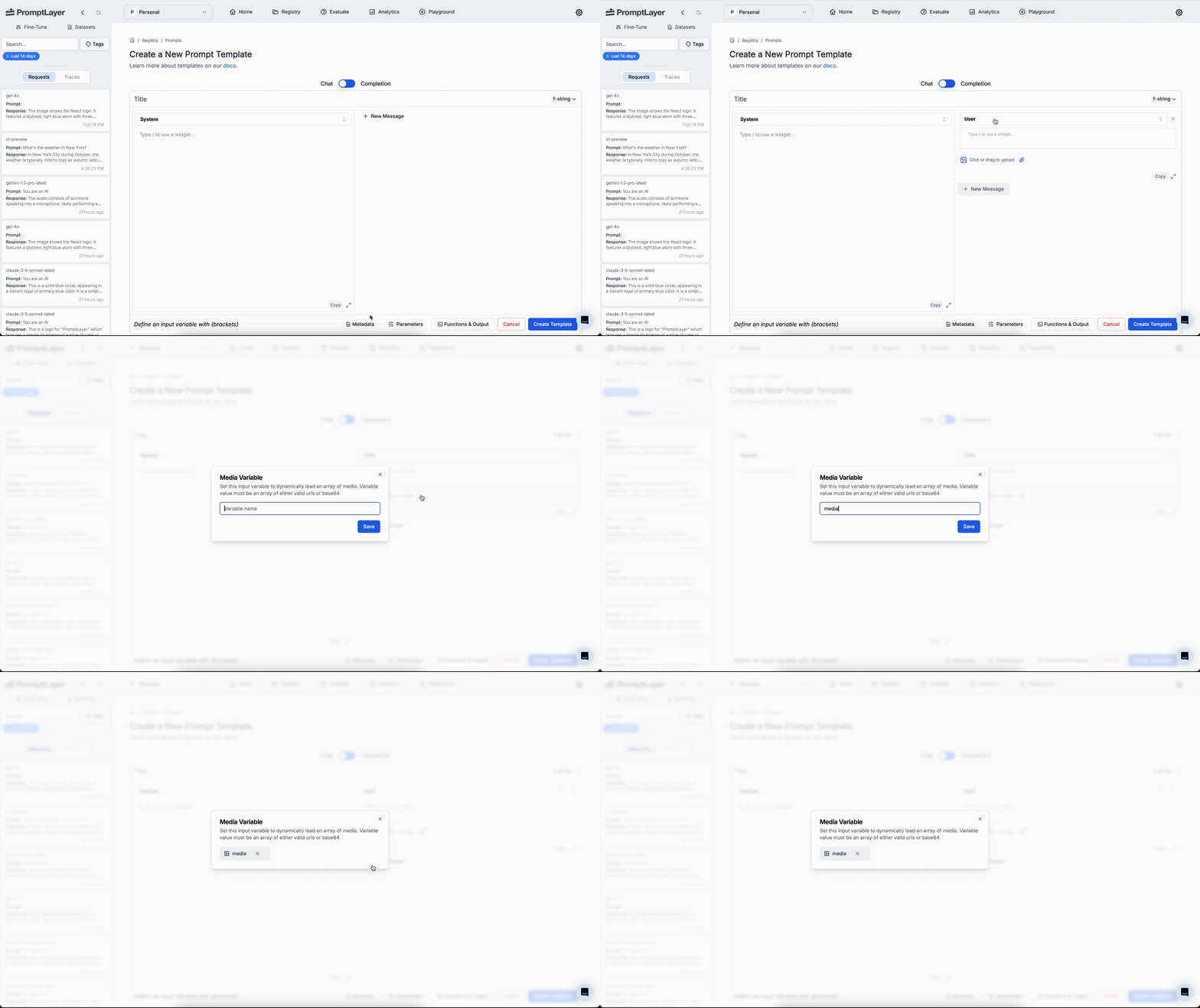
The `media_variable` content allows you to dynamically insert a list of medias into prompt template messages.
The `media_variable` is nested within the message content. The `type` and `name` are required fields specifying the type of content and the name of the variable, respectively. The `name` is the name of the list of medias to be dynamically inserted.
```json theme={null}
{
"role": "user",
"content": [
{
"type": "media_variable",
"name": "media"
}
]
}
```
When defining a prompt template, you can specify an `media_variable` to dynamically include medias in your messages.
 #### Running with Media Variables
```python theme={null}
response = pl_client.run(
prompt_name="image-prompt",
input_variables={
"media": [
"https://example.com/image1.jpg",
"https://example.com/image2.jpg"
]
},
)
print(response)
```
Notice that the `media` is a list of strings, they can either be public URLs or base64 strings.
## Structured Outputs
Prompt Blueprints can be configured to produce structured outputs that follow a specific format defined by JSON Schema. This ensures consistent response formats that are easier to parse and integrate with your applications.
For detailed information on creating and using structured outputs with your prompt templates, see our [Structured Outputs documentation](/features/prompt-registry/structured-outputs).
## Prompt Blueprint Schema
#### Running with Media Variables
```python theme={null}
response = pl_client.run(
prompt_name="image-prompt",
input_variables={
"media": [
"https://example.com/image1.jpg",
"https://example.com/image2.jpg"
]
},
)
print(response)
```
Notice that the `media` is a list of strings, they can either be public URLs or base64 strings.
## Structured Outputs
Prompt Blueprints can be configured to produce structured outputs that follow a specific format defined by JSON Schema. This ensures consistent response formats that are easier to parse and integrate with your applications.
For detailed information on creating and using structured outputs with your prompt templates, see our [Structured Outputs documentation](/features/prompt-registry/structured-outputs).
## Prompt Blueprint Schema