> ## Documentation Index
> Fetch the complete documentation index at: https://docs.promptlayer.com/llms.txt
> Use this file to discover all available pages before exploring further.
# Observability
> Learn how to use logging to monitor performance and optimize your prompts.
This module requires an existing prompt in your PromptLayer account. Please
follow the [Getting Started](/onboarding-guides/getting-started) guide to
create one if needed.
When buidling a prompt, observability becomes critical. For example, the [ai-poet prompt](/onboarding-guides/getting-started) generates a creative haiku based on a given topic, and enabling logging helps you monitor important performance details. For example, logging can reveal:
* **Execution Issues:** Did the prompt return a reasonable output as expected?
* **Execution Time:** How quickly the prompt is executed.
* **Token Usage:** The number of tokens used during execution, which directly impacts cost.
* **Cost Metrics:** Whether the prompt runs efficiently within your budget.
By reviewing these logs, you can determine if your ai-poet prompt is performing as expected and make adjustments if necessary—ensuring that your creative content is generated both efficiently and effectively.
## Create an API Key
Before you can enable logging, you need to authenticate your PromptLayer client with an API key.
1. Go to your PromptLayer **Settings**.
2. Click on **Create an API key** to generate a new API key.
3. Copy the API key for later use. ([Read more](/quickstart#prerequisites))
 ***
## Enable Logging
Set up logging and tracing within your SDK to capture execution data. This enables you to monitor latency, track errors, and record metadata.
1. Install the PromptLayer SDK.
```python Python theme={null}
pip install promptlayer
pip install openai
```
```js JavaScript theme={null}
npm install promptlayer
npm install openai
```
2. Import and initialize the PromptLayer client.
```python Python theme={null}
# Make sure to `pip install promptlayer`
import os
os.environ["OPENAI_API_KEY"] = "sk-"
from promptlayer import PromptLayer
promptlayer_client = PromptLayer(api_key="")
```
```js JavaScript theme={null}
// Make sure to `npm install promptlayer`
import { PromptLayer } from "promptlayer";
const promptLayerClient = new PromptLayer({ apiKey: "pl_****" });
```
3. Run the "ai-poet" prompt using the `run` method, providing an input variable such as `{topic: "The Ocean"}`.
```python Python theme={null}
input_variables = {
"topic": "The Ocean"
}
response = promptlayer_client.run(
prompt_name="ai-poet",
input_variables=input_variables
)
```
```js JavaScript theme={null}
const input_variables = {
topic: "The Ocean"
};
const response = await promptLayerClient.run({
promptName: "ai-poet",
inputVariables: input_variables
});
```
5. Review the generated logs to analyze metrics like execution time, token usage, and cost, then use these insights to fine-tune your prompt.
To read more about logging, check out the [Metadata](/features/prompt-history/metadata) and [Tagging Requests](/features/prompt-history/tagging-requests) guides.
***
## Run and View Logs
Review your logs to troubleshoot issues and gather performance metrics.
1. Execute your prompt (via SDK or code).
2. Open the sidebar **on the left side** and click **Requests tab** to view log entries.
3. Click on the log entry to see execution time, cost, token usage, and more.
4. Use these insights to refine and optimize your prompt.
Use filters to search for specific requests, such as filtering by tags. In
this guide, we added the tag `onboarding_guide` to the request.
***
## Enable Logging
Set up logging and tracing within your SDK to capture execution data. This enables you to monitor latency, track errors, and record metadata.
1. Install the PromptLayer SDK.
```python Python theme={null}
pip install promptlayer
pip install openai
```
```js JavaScript theme={null}
npm install promptlayer
npm install openai
```
2. Import and initialize the PromptLayer client.
```python Python theme={null}
# Make sure to `pip install promptlayer`
import os
os.environ["OPENAI_API_KEY"] = "sk-"
from promptlayer import PromptLayer
promptlayer_client = PromptLayer(api_key="")
```
```js JavaScript theme={null}
// Make sure to `npm install promptlayer`
import { PromptLayer } from "promptlayer";
const promptLayerClient = new PromptLayer({ apiKey: "pl_****" });
```
3. Run the "ai-poet" prompt using the `run` method, providing an input variable such as `{topic: "The Ocean"}`.
```python Python theme={null}
input_variables = {
"topic": "The Ocean"
}
response = promptlayer_client.run(
prompt_name="ai-poet",
input_variables=input_variables
)
```
```js JavaScript theme={null}
const input_variables = {
topic: "The Ocean"
};
const response = await promptLayerClient.run({
promptName: "ai-poet",
inputVariables: input_variables
});
```
5. Review the generated logs to analyze metrics like execution time, token usage, and cost, then use these insights to fine-tune your prompt.
To read more about logging, check out the [Metadata](/features/prompt-history/metadata) and [Tagging Requests](/features/prompt-history/tagging-requests) guides.
***
## Run and View Logs
Review your logs to troubleshoot issues and gather performance metrics.
1. Execute your prompt (via SDK or code).
2. Open the sidebar **on the left side** and click **Requests tab** to view log entries.
3. Click on the log entry to see execution time, cost, token usage, and more.
4. Use these insights to refine and optimize your prompt.
Use filters to search for specific requests, such as filtering by tags. In
this guide, we added the tag `onboarding_guide` to the request.
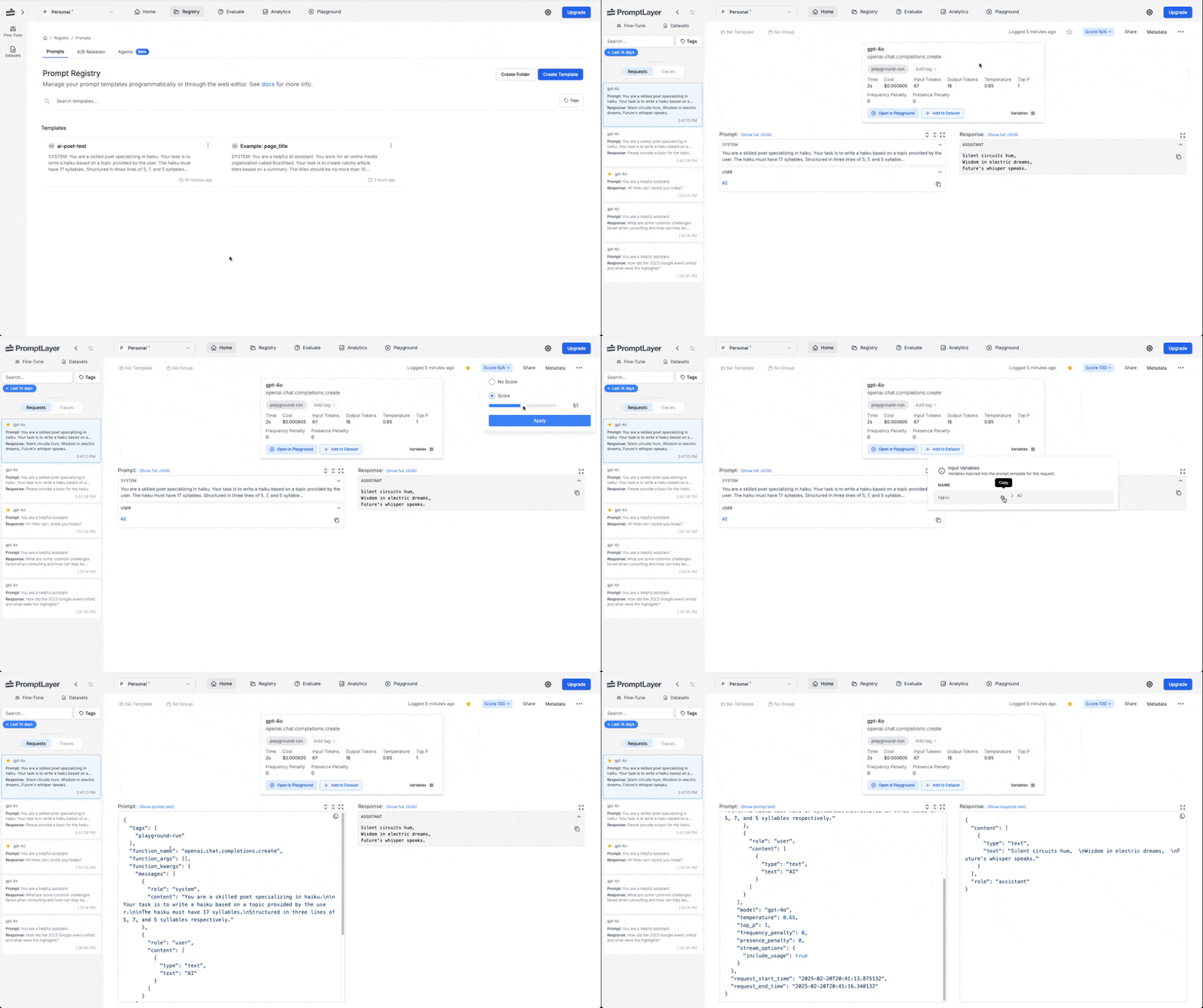 You can also open these logs in the Playground, share them with your team, and add them to a dataset to use them for refining and testing.
***
**Additional Resources:**
* For more on running prompts, see the [Python SDK](/sdks/python#using-the-run-method-recommended) and [JavaScript SDK](/sdks/javascript#using-the-run-method-recommended) guides.
* For more on Logging, check out our [Advanced Logging](/features/prompt-history/request-id) guide.
* To learn more about filtering logs, check out the [Advanced Search](/why-promptlayer/advanced-search#advanced-search) section of the Quickstart guide.
You can also open these logs in the Playground, share them with your team, and add them to a dataset to use them for refining and testing.
***
**Additional Resources:**
* For more on running prompts, see the [Python SDK](/sdks/python#using-the-run-method-recommended) and [JavaScript SDK](/sdks/javascript#using-the-run-method-recommended) guides.
* For more on Logging, check out our [Advanced Logging](/features/prompt-history/request-id) guide.
* To learn more about filtering logs, check out the [Advanced Search](/why-promptlayer/advanced-search#advanced-search) section of the Quickstart guide.