> ## Documentation Index
> Fetch the complete documentation index at: https://docs.promptlayer.com/llms.txt
> Use this file to discover all available pages before exploring further.
# Migrate from Evaluations and Datasets
> Move legacy Dataset, Evaluation, and Report workflows into Tables.
Legacy Evaluations, Reports, and Datasets remain available for existing projects. Use Tables for new workflows.
Tables bring legacy Dataset, Evaluation, and Report workflows into one place: rows, computed steps, runs, scoring, history, and analytics.
## Convert a legacy view to a Table
When a legacy Dataset or Evaluation page shows a migration banner, click **Convert to Table**. PromptLayer creates the Table from the legacy object and opens it so you can review sheets, rows, columns, scoring, and run status before moving production workflows.
Use the conversion button first when it appears. Rebuild manually only when you are working from exports, logs, or a legacy workflow without the banner.
 ## Concept mapping
| Legacy concept | Table concept |
| ------------------- | ------------------------------------ |
| Dataset group | Table |
| Dataset row | Table row |
| Dataset column | Text column |
| Dataset version | Sheet version |
| Evaluation pipeline | Sheet with computed columns |
| Evaluation step | Computed column |
| Report run | Recalculation operation |
| Report output | Computed cell output |
| Report score card | Sheet score configuration |
| Report history | History, versions, and score history |
## Migration checklist
1. Convert from the legacy page when the banner is available.
2. Review generated sheets, rows, columns, scoring, and run status.
3. For manual rebuilds, import rows from CSV or request history.
4. Recreate missing evaluation steps as computed columns.
5. Map sources, configure scoring, and rerun stale or pending cells.
6. Compare outputs, score, history, and analytics before moving automation to the Tables API.
## Manual rebuild shortcuts
Use these paths when conversion is not available.
| Legacy workflow | Table workflow |
| ---------------------------- | ------------------------------------------------------------------------------------------------------------------------------------------------------------------------------- |
| Dataset from CSV or JSON | Create a Table, click **Upload**, choose **From computer**, then add computed columns and scoring in the same sheet. |
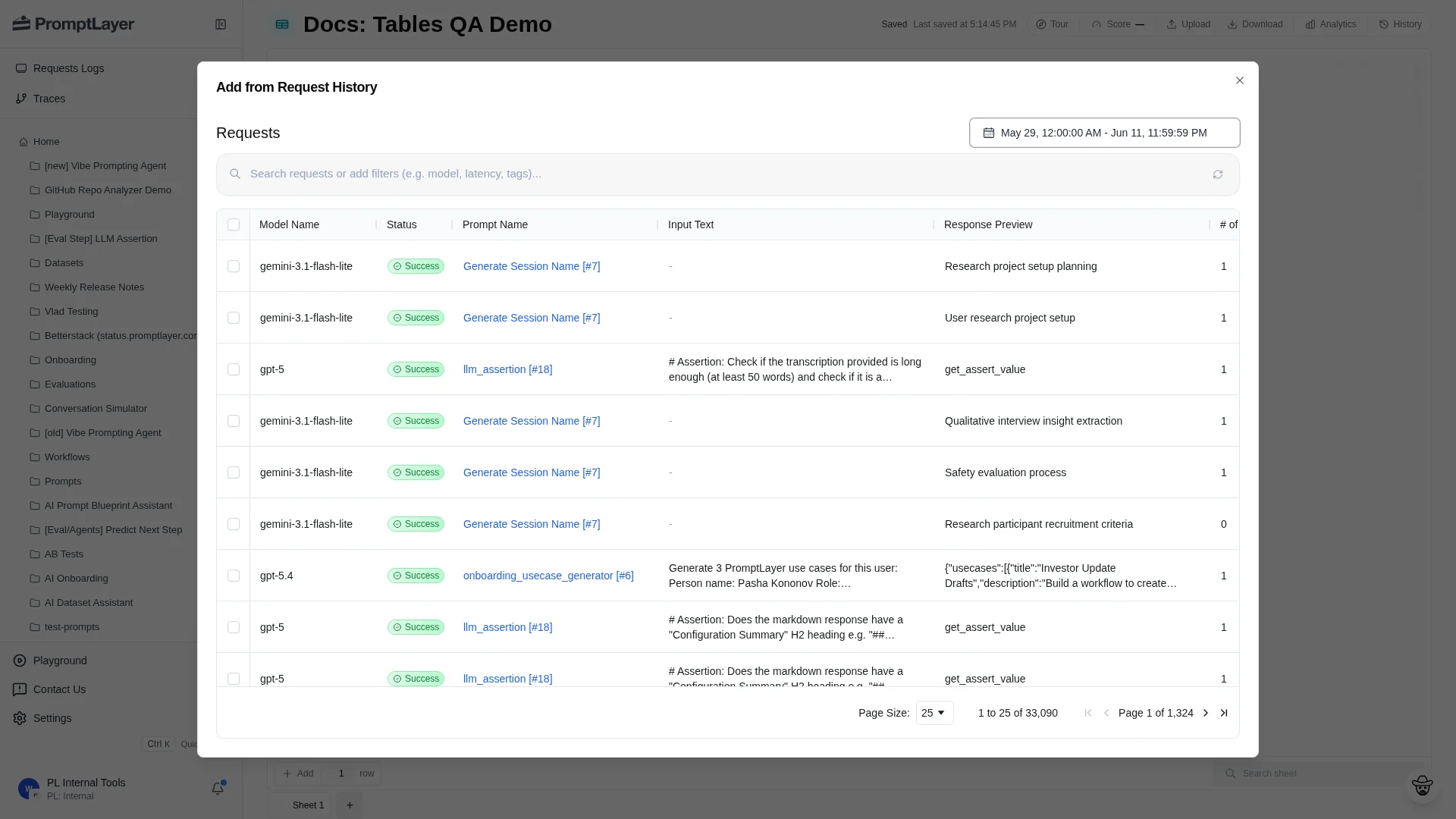
| Dataset from request history | Create a Table, click **Upload**, choose **From request history**, select requests, then click **Add to Sheet**. |
| Evaluation pipeline | Put inputs in text columns, add one computed column for each evaluation step, map Prompt Template variables to source columns, run the computed columns, and configure scoring. |
| Report run | Run the Table, a computed column, or selected stale work. Inspect cells in place, then use **Score**, **Analytics**, and **History** to review results. |
## Concept mapping
| Legacy concept | Table concept |
| ------------------- | ------------------------------------ |
| Dataset group | Table |
| Dataset row | Table row |
| Dataset column | Text column |
| Dataset version | Sheet version |
| Evaluation pipeline | Sheet with computed columns |
| Evaluation step | Computed column |
| Report run | Recalculation operation |
| Report output | Computed cell output |
| Report score card | Sheet score configuration |
| Report history | History, versions, and score history |
## Migration checklist
1. Convert from the legacy page when the banner is available.
2. Review generated sheets, rows, columns, scoring, and run status.
3. For manual rebuilds, import rows from CSV or request history.
4. Recreate missing evaluation steps as computed columns.
5. Map sources, configure scoring, and rerun stale or pending cells.
6. Compare outputs, score, history, and analytics before moving automation to the Tables API.
## Manual rebuild shortcuts
Use these paths when conversion is not available.
| Legacy workflow | Table workflow |
| ---------------------------- | ------------------------------------------------------------------------------------------------------------------------------------------------------------------------------- |
| Dataset from CSV or JSON | Create a Table, click **Upload**, choose **From computer**, then add computed columns and scoring in the same sheet. |
| Dataset from request history | Create a Table, click **Upload**, choose **From request history**, select requests, then click **Add to Sheet**. |
| Evaluation pipeline | Put inputs in text columns, add one computed column for each evaluation step, map Prompt Template variables to source columns, run the computed columns, and configure scoring. |
| Report run | Run the Table, a computed column, or selected stale work. Inspect cells in place, then use **Score**, **Analytics**, and **History** to review results. |
 ## Automation mapping
| Legacy automation | Tables API |
| -------------------------------- | ------------------------------------------------------------------------------- |
| Create Dataset Group | [Create Table](/reference/tables-create) |
| Upload Dataset file | [Create file import](/reference/table-sheet-imports-file-create) |
| Create Dataset from request logs | [Create request-log import](/reference/table-sheet-imports-request-logs-create) |
| Add Evaluation step | [Create column](/reference/table-sheet-columns-create) |
| Run Report | [Create operation](/reference/table-sheet-operations-create) |
| Poll Report status | [Get operation](/reference/table-sheet-operations-get) |
| Read Report score | [Get sheet score](/reference/table-sheet-score-get) |
| Save checkpoint | [Create sheet version](/reference/table-sheet-versions-create) |
## Recommended order
Migrate one workflow at a time. Review the generated Table before changing automation, confirm outputs and scores match the old workflow, then move automation to the Tables API. Keep the legacy workflow read-only until the Table is trusted.
## Automation mapping
| Legacy automation | Tables API |
| -------------------------------- | ------------------------------------------------------------------------------- |
| Create Dataset Group | [Create Table](/reference/tables-create) |
| Upload Dataset file | [Create file import](/reference/table-sheet-imports-file-create) |
| Create Dataset from request logs | [Create request-log import](/reference/table-sheet-imports-request-logs-create) |
| Add Evaluation step | [Create column](/reference/table-sheet-columns-create) |
| Run Report | [Create operation](/reference/table-sheet-operations-create) |
| Poll Report status | [Get operation](/reference/table-sheet-operations-get) |
| Read Report score | [Get sheet score](/reference/table-sheet-score-get) |
| Save checkpoint | [Create sheet version](/reference/table-sheet-versions-create) |
## Recommended order
Migrate one workflow at a time. Review the generated Table before changing automation, confirm outputs and scores match the old workflow, then move automation to the Tables API. Keep the legacy workflow read-only until the Table is trusted.