> ## Documentation Index
> Fetch the complete documentation index at: https://docs.promptlayer.com/llms.txt
> Use this file to discover all available pages before exploring further.
# Columns
> Add, configure, map, filter, sort, run, and manage Table columns.
Columns define what each row stores or produces. Start with text inputs, then add computed columns for each step in the workflow.
For the full list of supported types, see [Column Types](/features/tables/column-types).
## Add a column
Click **Add Column** to add a new field to the sheet.
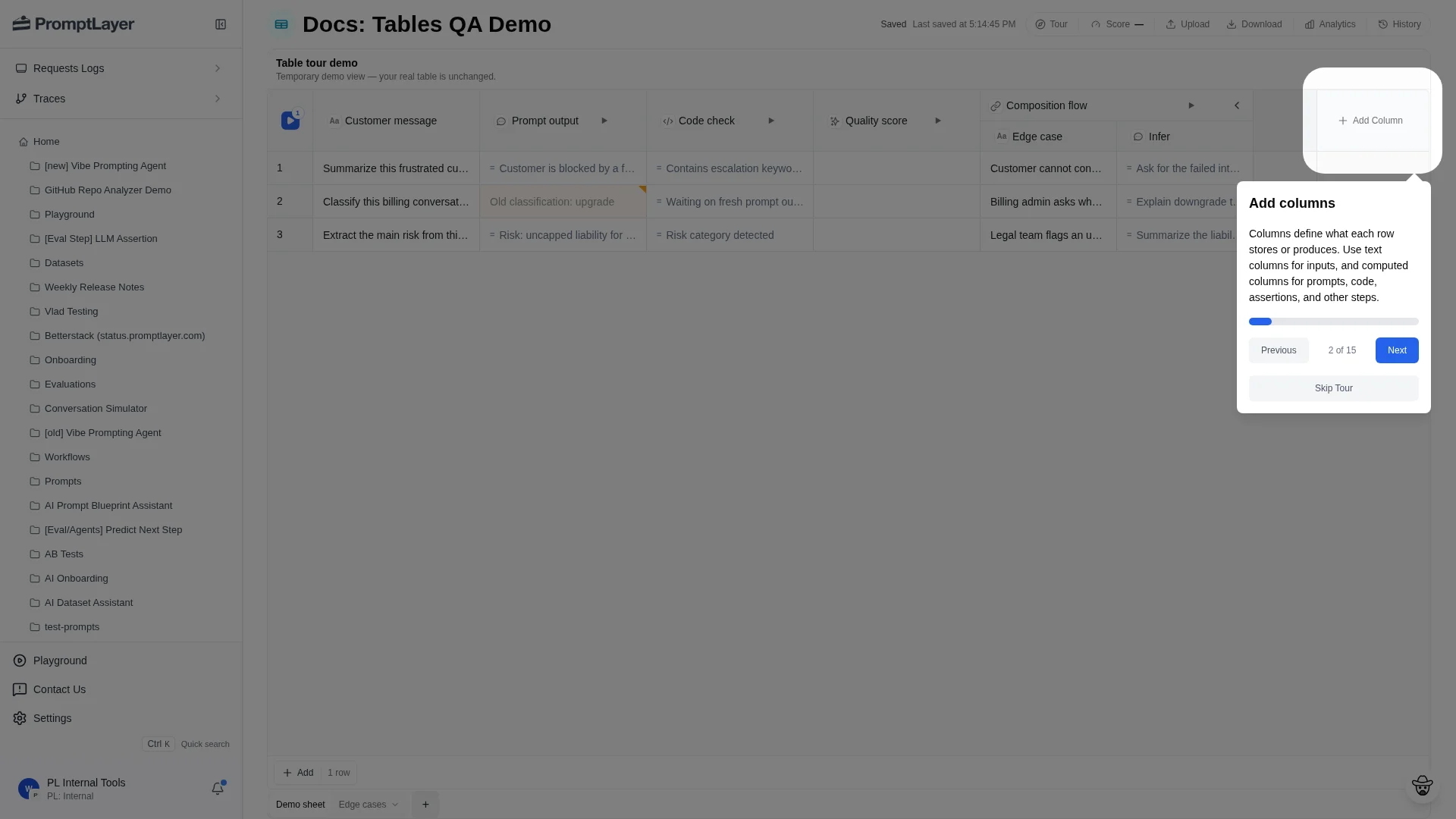 A clear sheet usually moves left to right: inputs, generated outputs, checks or helper transforms, and reviewer notes.
## Choose a computed type
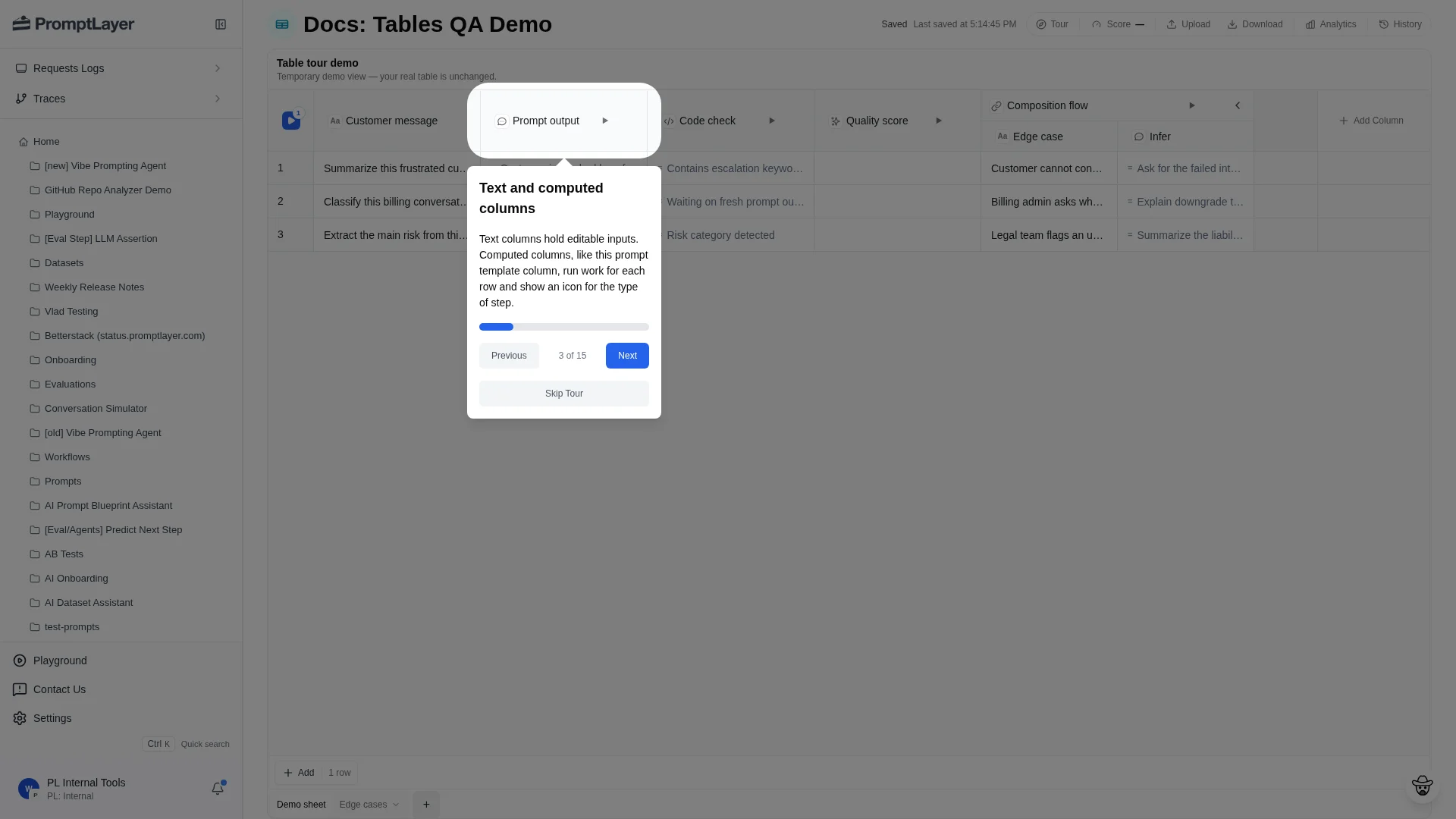
Use one computed column per logical step: prompt or workflow execution, code, deterministic checks, LLM evaluation, helper transforms, or composition.
A clear sheet usually moves left to right: inputs, generated outputs, checks or helper transforms, and reviewer notes.
## Choose a computed type
Use one computed column per logical step: prompt or workflow execution, code, deterministic checks, LLM evaluation, helper transforms, or composition.
 ## Configure a column
Open a column menu and choose **Configure column** to edit its settings.
## Configure a column
Open a column menu and choose **Configure column** to edit its settings.
 Use the same menu to hide, resize, pin, filter, sort, run, duplicate, or delete a column.
## Map sources
Computed columns read from source columns. A Prompt Template column, for example, exposes the prompt's input variables and lets you map each variable to a source column.
Use the same menu to hide, resize, pin, filter, sort, run, duplicate, or delete a column.
## Map sources
Computed columns read from source columns. A Prompt Template column, for example, exposes the prompt's input variables and lets you map each variable to a source column.
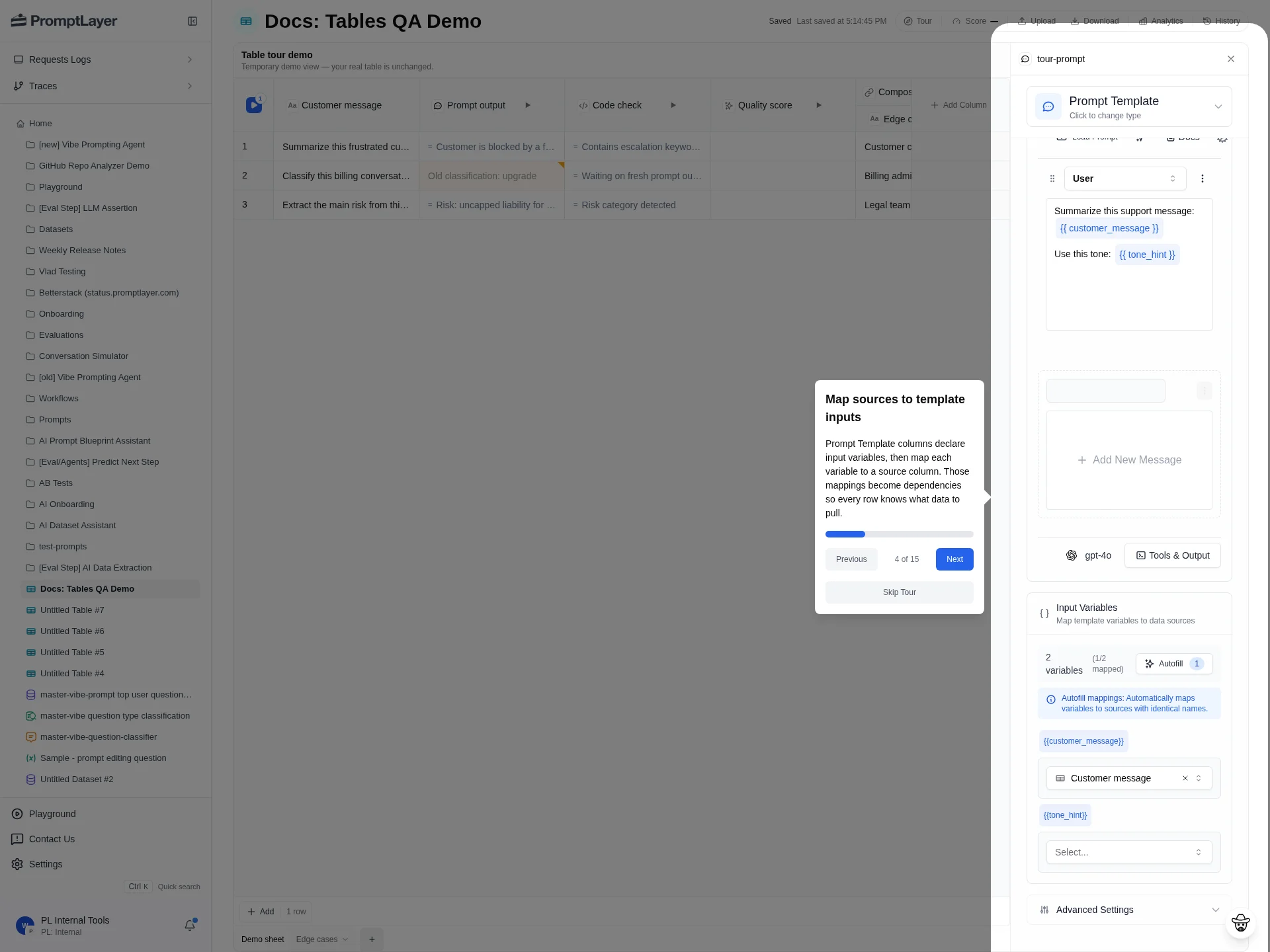 Source mappings become dependencies. When a source value or computed column configuration changes, dependent computed cells can become stale.
If a variable is unmapped, open the source selector and choose the source column for that variable.
## Filter and sort columns
Use **Filter** to narrow visible rows by column value. Use **Sort ascending**, **Sort descending**, and **Clear sort** to reorder or reset the grid.
## Pin, hide, resize, duplicate, and delete columns
Use column menu actions to manage grid layout:
* **Pin left** or **Pin right** keeps important columns visible while scrolling.
* **Hide** removes a column from the visible grid without deleting it.
* **Auto size column** resizes a column to fit visible content.
* **Duplicate** copies a column when you want a similar configuration.
* **Delete** removes the column.
## Run or stop a column
Use **Run column** when one computed step needs updating. If the column is queued, dispatched, or running, the menu can show **Stop column**.
## Use composition columns
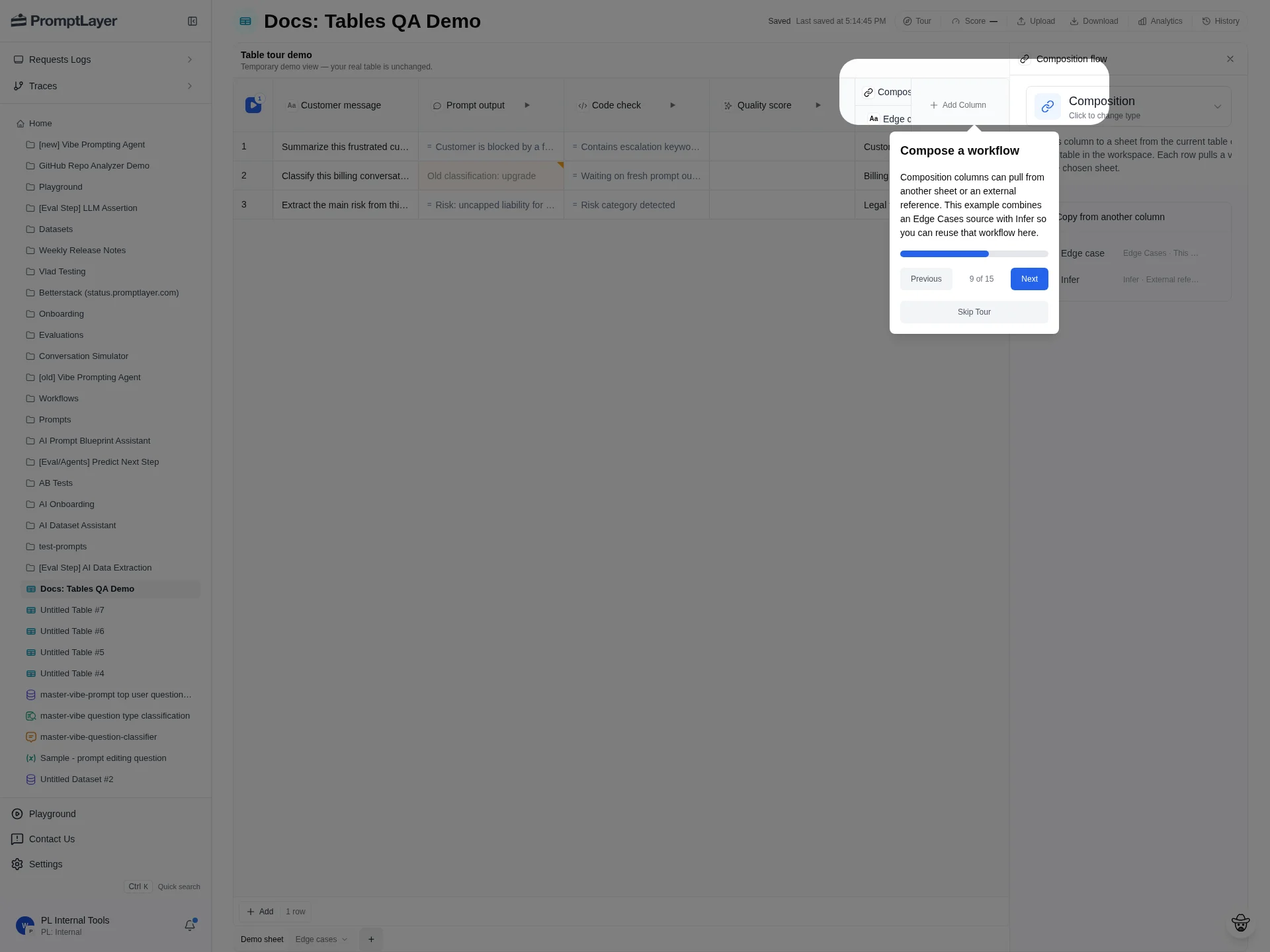
Composition columns reference another sheet or table and pull values from a chosen source column. Use composition when multiple sheets should share a reusable intermediate result instead of copying logic into every sheet.
Source mappings become dependencies. When a source value or computed column configuration changes, dependent computed cells can become stale.
If a variable is unmapped, open the source selector and choose the source column for that variable.
## Filter and sort columns
Use **Filter** to narrow visible rows by column value. Use **Sort ascending**, **Sort descending**, and **Clear sort** to reorder or reset the grid.
## Pin, hide, resize, duplicate, and delete columns
Use column menu actions to manage grid layout:
* **Pin left** or **Pin right** keeps important columns visible while scrolling.
* **Hide** removes a column from the visible grid without deleting it.
* **Auto size column** resizes a column to fit visible content.
* **Duplicate** copies a column when you want a similar configuration.
* **Delete** removes the column.
## Run or stop a column
Use **Run column** when one computed step needs updating. If the column is queued, dispatched, or running, the menu can show **Stop column**.
## Use composition columns
Composition columns reference another sheet or table and pull values from a chosen source column. Use composition when multiple sheets should share a reusable intermediate result instead of copying logic into every sheet.
 ## API references
Add a text or computed column to a sheet.
Update a column title, config, or dependencies.
List columns for a sheet.
Queue work for a column, row, cell selection, or stale cells.
## API references
Add a text or computed column to a sheet.
Update a column title, config, or dependencies.
List columns for a sheet.
Queue work for a column, row, cell selection, or stale cells.