> ## Documentation Index
> Fetch the complete documentation index at: https://docs.promptlayer.com/llms.txt
> Use this file to discover all available pages before exploring further.
# Structured Outputs
Structured outputs ensure LLM responses follow specific formats, making them easier to use in your applications. For more advanced structured data requirements, you may also want to check out our [Tool Calling documentation](/features/prompt-registry/tool-calling).
## What are Structured Outputs?
Structured outputs define formats LLMs must follow when generating responses:
* Consistent response formats
* Easier parsing and validation
* More reliable integration with your applications
* Less error handling
Examples include customer records, product information, and analytical results.
## Creating Structured Outputs with JSON Schema
To add a JSON schema to your prompt template:
1. Edit your prompt template
2. Click "Functions & Output"
3. Select "Structured Output"
4. Click "Add Schema"
5. Define your schema structure
### Example: Customer Review Analysis Schema
```json theme={null}
{
"type": "object",
"properties": {
"sentiment": {
"type": "string",
"enum": ["positive", "neutral", "negative"],
"description": "The overall sentiment of the review"
},
"topics": {
"type": "array",
"items": {
"type": "string"
},
"description": "List of topics mentioned in the review"
}
},
"required": ["sentiment", "topics"]
}
```
## Schema Configuration Options
### Strict Mode
Strict mode enforces more rigorous schema validation. When enabled, the LLM output must exactly match the schema specification with no additional fields or deviations.
In the schema editor:
1. Toggle "Strict Mode" in the schema settings
2. Ensure your schema is complete and accurate
3. Test with sample inputs
### Additional Properties
Control whether objects can have properties not defined in your schema:
* **Disabled** (default): Only properties you define are allowed
* **Enabled**: Objects can include additional properties beyond those specified
This applies to the root object and all nested objects in your schema.
## String Validation
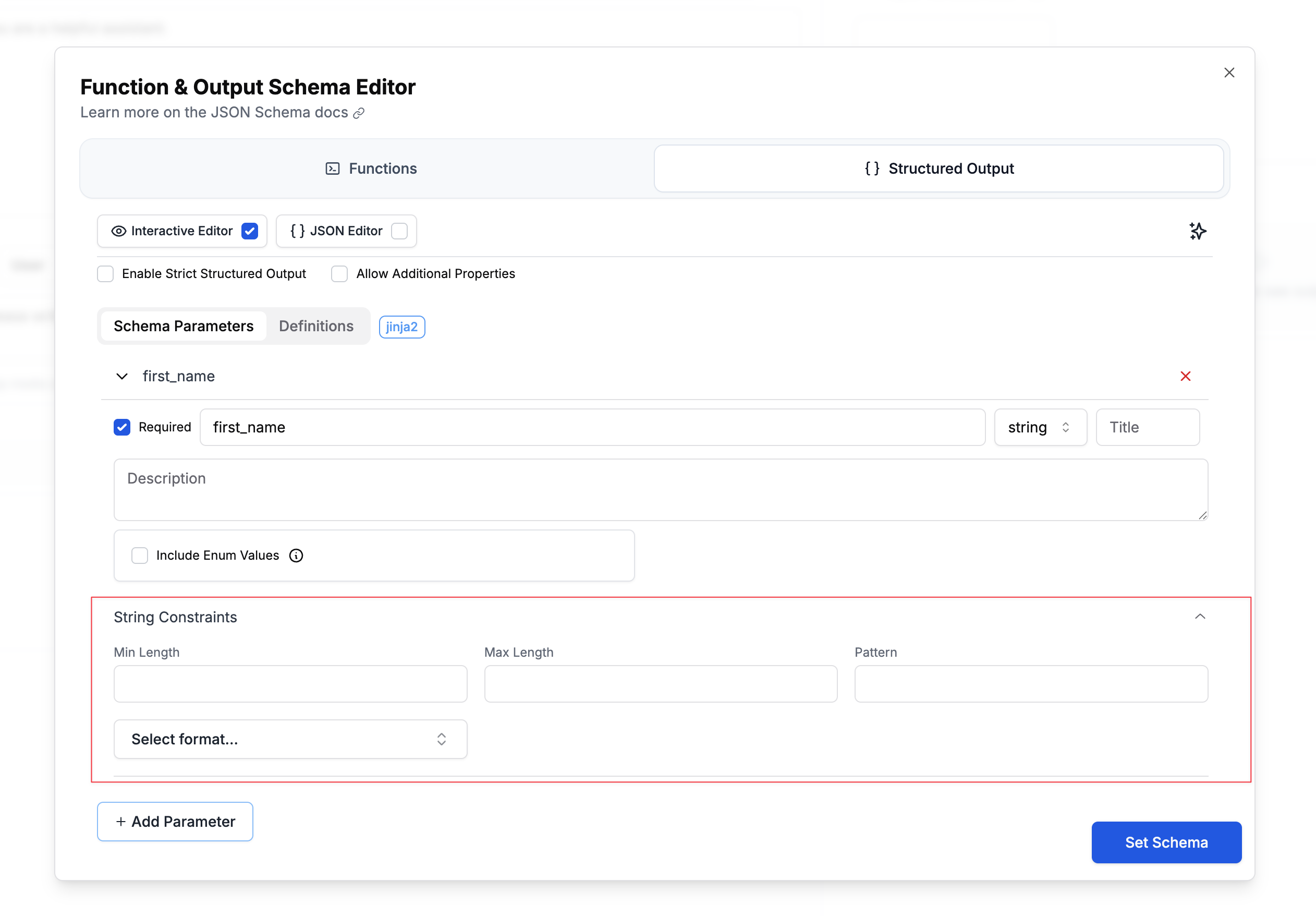
Add constraints to string fields to ensure proper formatting. The schema editor provides an intuitive interface for configuring these constraints:
### Length Constraints
Control the minimum and maximum length of strings using the **Min Length** and **Max Length** fields. For example, you might require a username to be between 3-20 characters, or limit a bio field to 500 characters maximum.
### Pattern Matching
Use regex patterns to validate string formats. Enter your regular expression in the **Pattern** field to enforce specific formats like alphanumeric usernames with underscores (`^[a-zA-Z0-9_]+$`) or valid phone numbers (`^\+?[1-9]\d{1,14}$`).
### Format Validation
Specify standard formats for automatic validation using the **Select format...** dropdown. This provides built-in validation for common data types like email addresses, URLs, dates, and UUIDs without requiring custom regex patterns.
**Supported formats:**
* `date-time` - ISO 8601 datetime (e.g., "2024-01-15T10:30:00Z")
* `date` - Full date (e.g., "2024-01-15")
* `time` - Time (e.g., "10:30:00")
* `duration` - ISO 8601 duration
* `email` - Email address
* `idn-email` - Internationalized email address
* `hostname` - Valid hostname
* `idn-hostname` - Internationalized hostname
* `ipv4` - IPv4 address
* `ipv6` - IPv6 address
* `uri` - URI/URL
* `uri-reference` - URI reference
* `iri` - Internationalized URI
* `iri-reference` - Internationalized URI reference
* `uuid` - UUID format
* `uri-template` - URI template
* `json-pointer` - JSON pointer
* `relative-json-pointer` - Relative JSON pointer
* `regex` - Regular expression
## Number Validation
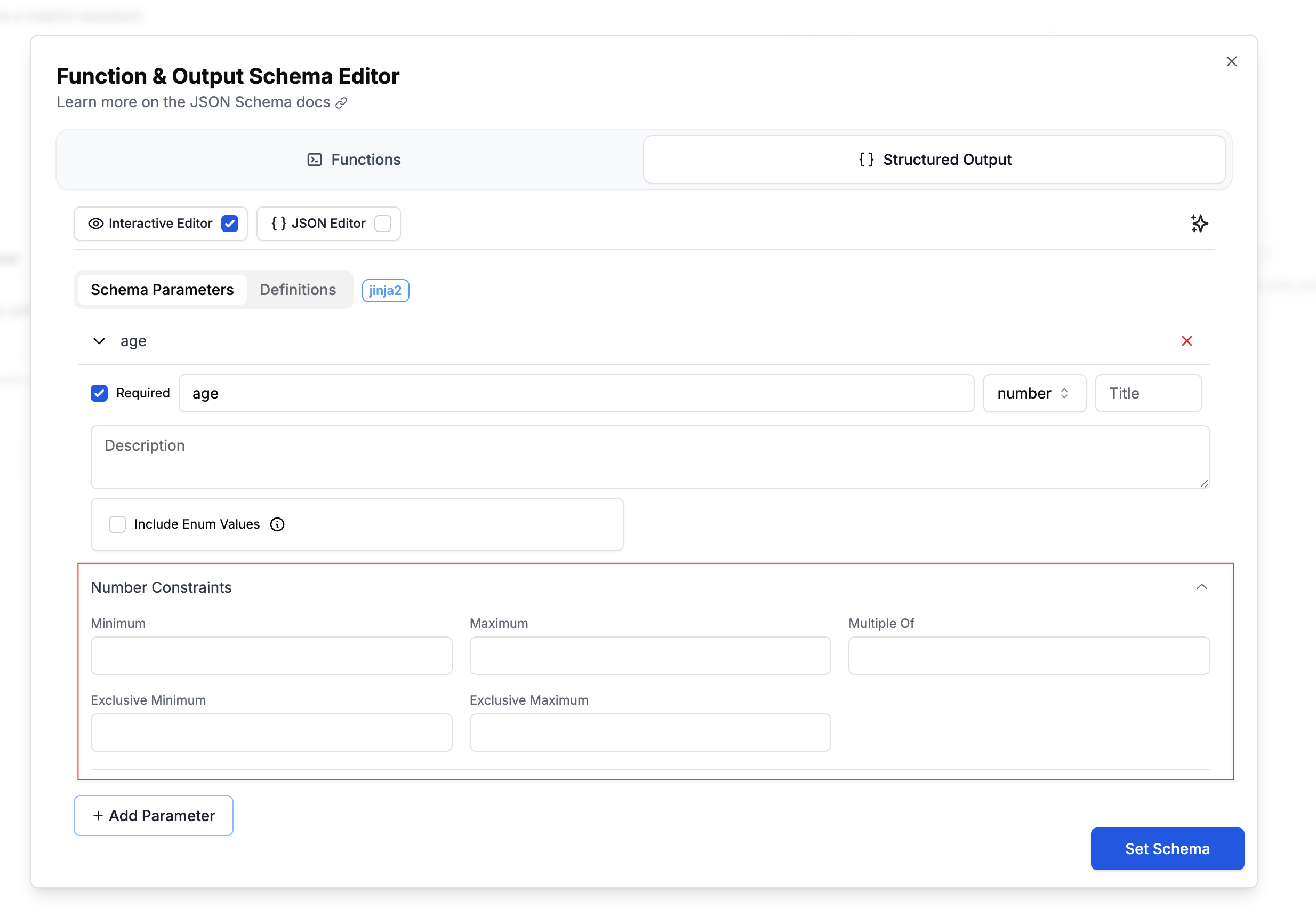
Add constraints to number fields to ensure proper validation. The schema editor provides an intuitive interface for configuring these constraints:
### Range Constraints
Control the minimum and maximum values using the **Minimum** and **Maximum** fields. For example, you might require an age to be between 0-150, or limit a rating to 1-5 stars.
### Exclusive Boundaries
Use **Exclusive Minimum** and **Exclusive Maximum** checkboxes when you need strict inequalities. For instance, a price field might need to be greater than 0 (not equal to 0), requiring an exclusive minimum.
### Multiple Of
Specify that numbers must be multiples of a particular value using the **Multiple Of** field. This is useful for ensuring prices are rounded to cents (0.01), requiring even numbers (2), or enforcing other step values.
**Example use cases:**
* Age between 0-150 (inclusive)
* Price greater than 0, rounded to cents (exclusive minimum: 0, multipleOf: 0.01)
* Rating from 1-5 stars (inclusive range)
## Array Validation
Control array size and structure.
### Size Constraints
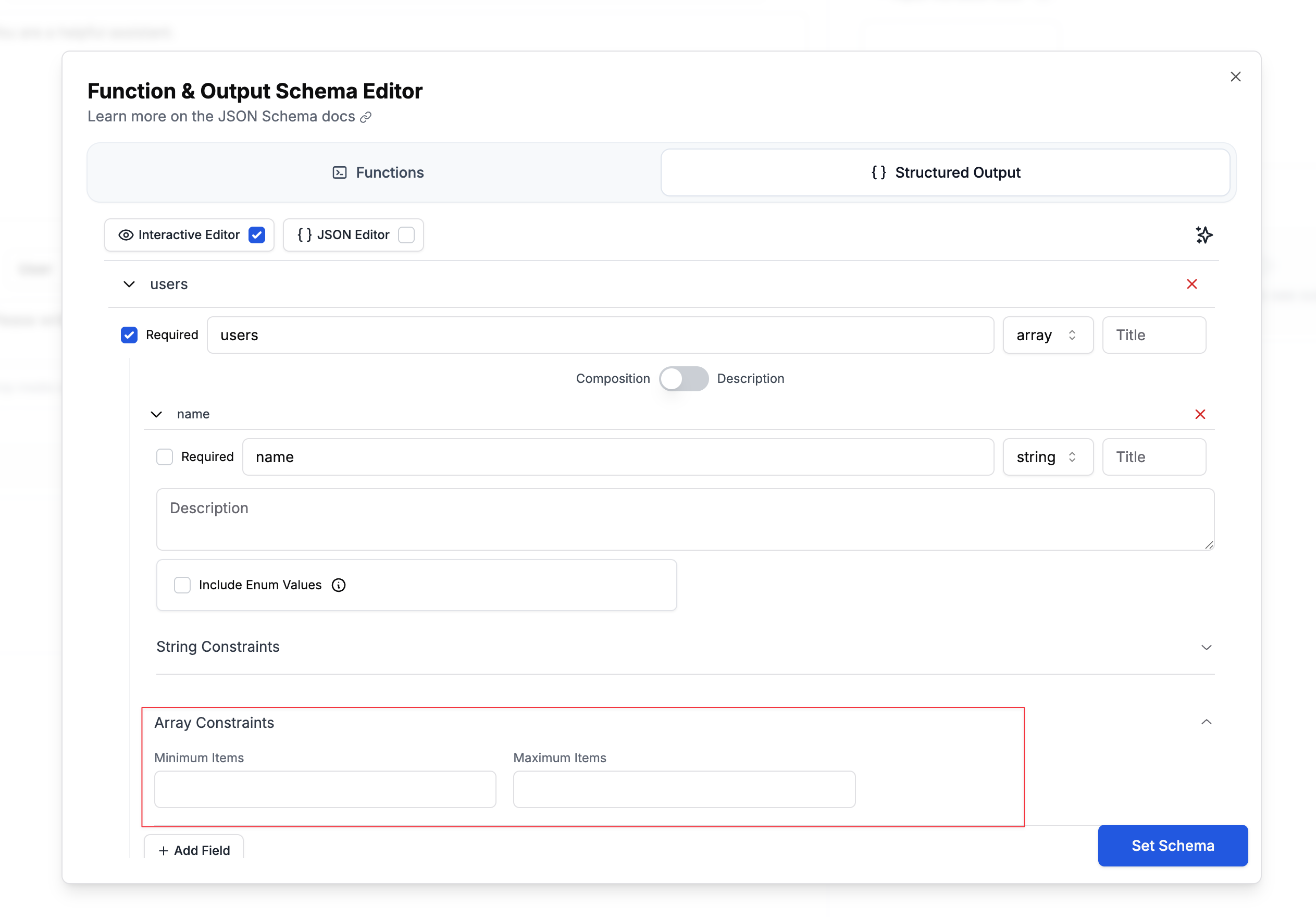
Control the minimum and maximum number of items in an array using the **Minimum Items** and **Maximum Items** fields. For example, you might require at least 1 tag but no more than 10, or limit search results to a maximum of 5 items.
**Example use cases:**
* Tags array with 1-10 items
* Top 5 search results (maximum only)
* At least 3 required reviewers (minimum only)
## Nested Objects and Required Fields
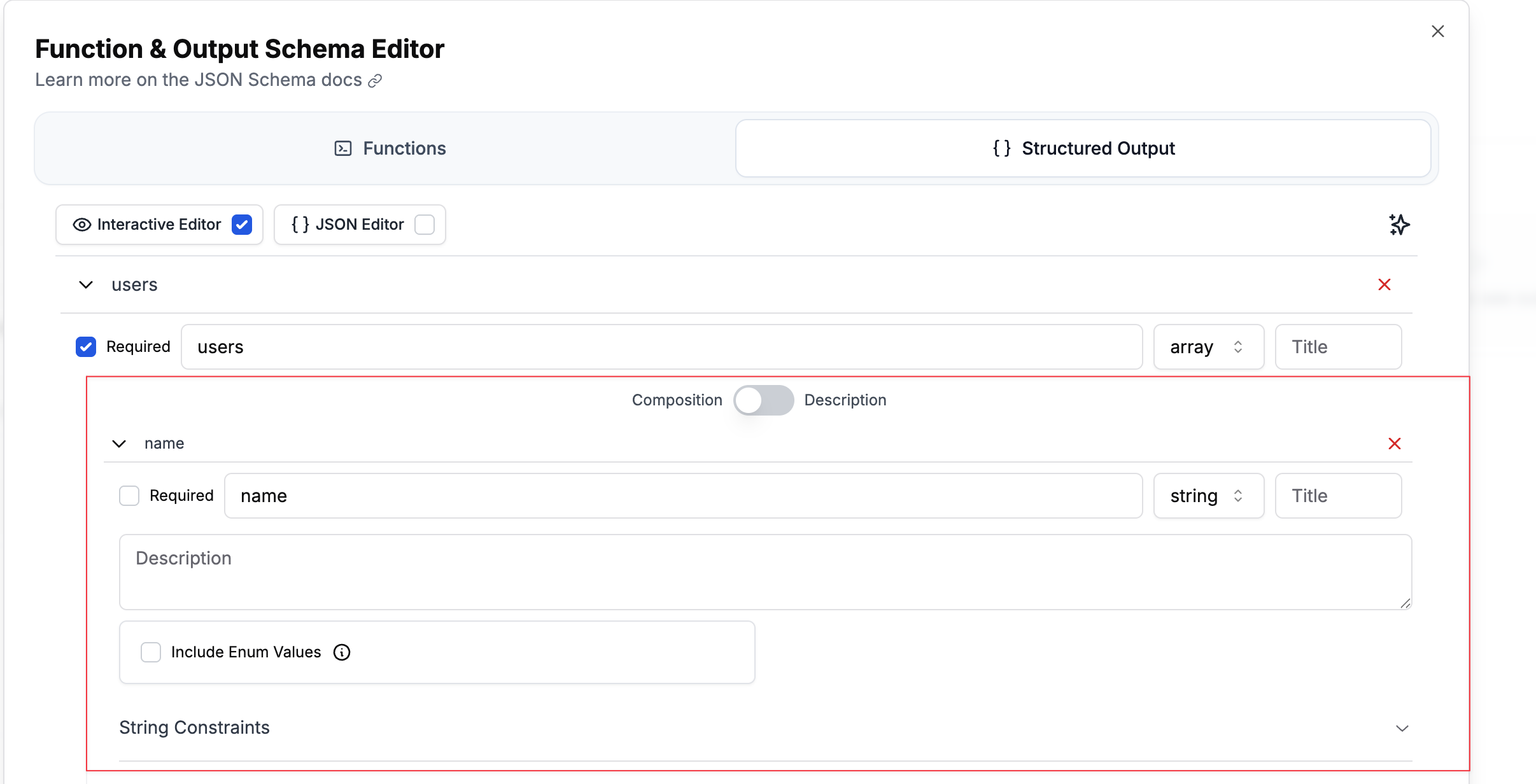
Using **Composition** mode you can define complex structures with nested objects and specify which fields are required at each level:
In the interactive editor:
1. Create your parent object
2. Add nested properties
3. Toggle "Required" for each field at its level
4. Nest objects as deeply as needed using the "Add Field" button
## Reusable Schema Definitions with \$defs
For complex schemas with repeated structures, use `$defs` to define reusable components:
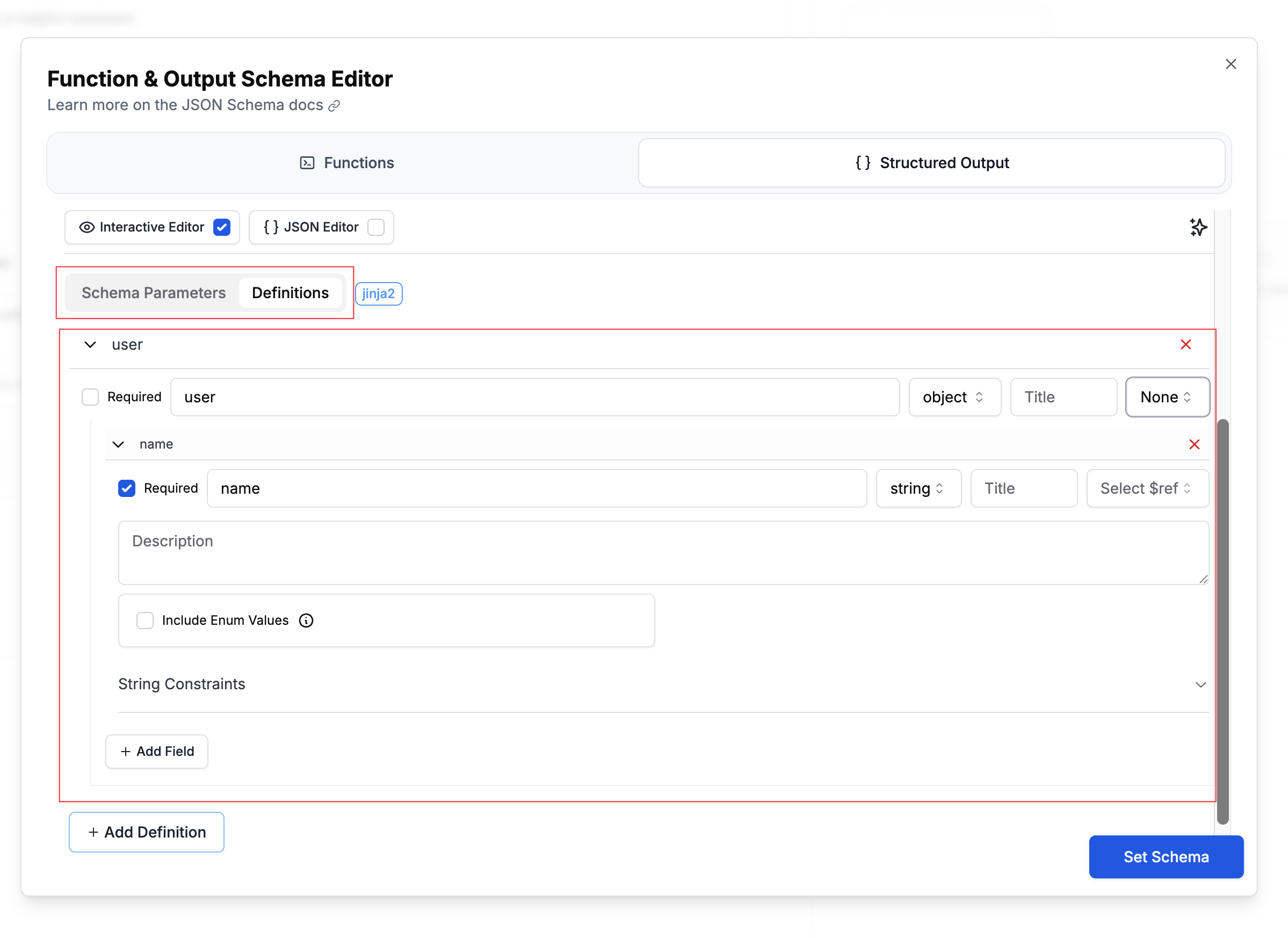
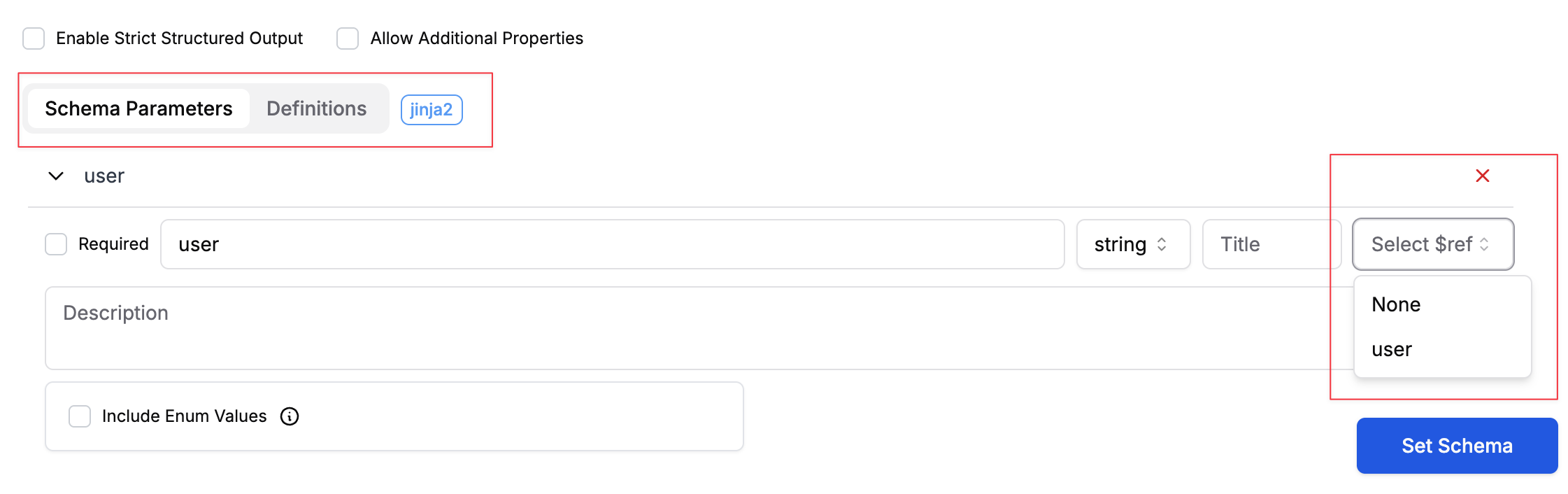
### Using \$defs in the Interactive Editor
1. Click "Add Definition" at the bottom of the schema editor
2. Name your definition (e.g., "Person", "Address")
3. Define its structure like any other object
4. Reference it using the **Select \$ref** dropdown:
**Benefits:**
* Avoid duplicating complex structures
* Maintain consistency across your schema
* Easier to update common patterns
## Using Variables in Structured Outputs
You can make your schemas dynamic by using template variables:
Variables in structured outputs only work with Jinja2 format with the Jinja2 option enabled. F-string format isn't supported.
### Interactive Mode
When using the interactive schema editor, you can add variables in two ways:
1. **For enum values**: Click the enum field and toggle the switch to "Use Variable"
2. **For text/string values**: Type `{{ variable_name }}` directly in any text field
### JSON Mode
Variables must be in quotes, except for enum variables:
```json theme={null}
{
"type": "object",
"properties": {
"sentiment": {
"type": "string",
"enum": {name: "sentiment_options", type: "enum_variable"},
"description": "The sentiment of the {{ content_type }}"
},
"topics": {
"type": "array",
"items": {
"type": "string"
},
"description": "List of topics mentioned in the {{ document_type }}"
}
}
}
```
When running the prompt, provide your variables:
```python theme={null}
response = pl.run(
prompt_name="content_analyzer",
input_variables={
"text": "I really enjoyed the new restaurant downtown. The food was amazing and the service was excellent.",
"sentiment_options": ["positive", "neutral", "negative"],
"document_type": "review",
"content_type": "customer feedback"
}
)
```
### Variable Use Cases
**Dynamic validation constraints:**
```json theme={null}
{
"type": "object",
"properties": {
"username": {
"type": "string",
"minLength": "{{ min_username_length }}",
"maxLength": "{{ max_username_length }}",
"description": "Username with configurable length"
}
}
}
```
**Context-dependent descriptions:**
```json theme={null}
{
"type": "object",
"properties": {
"analysis": {
"type": "string",
"description": "Analysis of {{ document_type }} for {{ use_case }}"
}
}
}
```
For more information on template variables, see our [Template Variables documentation](/features/prompt-registry/template-variables).
## Dynamic Schema Injection with Variable Type
For advanced use cases, you can inject entire schema sections dynamically at runtime using the `variable` type. This allows you to define different schemas based on runtime conditions without creating multiple prompt templates.
### How It Works
1. In the schema editor, select "variable" as the type for a field
2. Specify a variable name (e.g., `userSchema`)
3. At runtime, pass the complete schema object for that variable
### Example: Dynamic User Schema
In your prompt template schema:
```json theme={null}
{
"type": "object",
"properties": {
"user_data": {
"type": "variable",
"name": "userSchema"
},
"metadata": {
"type": "object",
"properties": {
"timestamp": { "type": "string" },
"version": { "type": "string" }
}
}
}
}
```
At runtime, provide the complete schema:
```python theme={null}
response = pl.run(
prompt_name="dynamic_processor",
input_variables={
"userSchema": {
"type": "object",
"properties": {
"name": { "type": "string" },
"age": { "type": "number" },
"preferences": {
"type": "array",
"items": { "type": "string" }
}
},
"required": ["name", "age"]
}
}
)
```
The `user_data` field will be replaced entirely with the schema you provide, allowing different structures for different use cases.
### Use Cases for Dynamic Schemas
**Multi-tenant applications:**
```python theme={null}
# Different schema per customer
customer_schemas = {
"enterprise": {
"type": "object",
"properties": {
"company_name": { "type": "string" },
"department": { "type": "string" },
"employee_count": { "type": "number" }
}
},
"individual": {
"type": "object",
"properties": {
"name": { "type": "string" },
"age": { "type": "number" }
}
}
}
response = pl.run(
prompt_name="user_analyzer",
input_variables={
"userSchema": customer_schemas[customer_type]
}
)
```
**Dynamic form processing:**
```python theme={null}
# Schema based on form configuration
form_schema = build_schema_from_config(form_config)
response = pl.run(
prompt_name="form_processor",
input_variables={
"formSchema": form_schema
}
)
```
### Important Notes
* Variable schemas only work with Jinja2 template format
* The entire field is replaced with the provided schema object
* Ensure the injected schema is valid JSON schema syntax
* The injected schema inherits the `additionalProperties` setting from the parent
## Best Practices
* **For enum values:** Use `{name: "variable_name", type: "enum_variable"}` in JSON mode or the variable selector in interactive mode
* **For text variables:** Include them within quotes as `{{ variable_name }}` in both modes
* **For dynamic schemas:** Use `type: "variable"` with a descriptive variable name
* Only Jinja2 format works for variables in structured outputs
* Ensure all variables used in the schema are provided
* Use proper JSON formatting with variables
 ### Length Constraints
Control the minimum and maximum length of strings using the **Min Length** and **Max Length** fields. For example, you might require a username to be between 3-20 characters, or limit a bio field to 500 characters maximum.
### Pattern Matching
Use regex patterns to validate string formats. Enter your regular expression in the **Pattern** field to enforce specific formats like alphanumeric usernames with underscores (`^[a-zA-Z0-9_]+$`) or valid phone numbers (`^\+?[1-9]\d{1,14}$`).
### Format Validation
Specify standard formats for automatic validation using the **Select format...** dropdown. This provides built-in validation for common data types like email addresses, URLs, dates, and UUIDs without requiring custom regex patterns.
**Supported formats:**
* `date-time` - ISO 8601 datetime (e.g., "2024-01-15T10:30:00Z")
* `date` - Full date (e.g., "2024-01-15")
* `time` - Time (e.g., "10:30:00")
* `duration` - ISO 8601 duration
* `email` - Email address
* `idn-email` - Internationalized email address
* `hostname` - Valid hostname
* `idn-hostname` - Internationalized hostname
* `ipv4` - IPv4 address
* `ipv6` - IPv6 address
* `uri` - URI/URL
* `uri-reference` - URI reference
* `iri` - Internationalized URI
* `iri-reference` - Internationalized URI reference
* `uuid` - UUID format
* `uri-template` - URI template
* `json-pointer` - JSON pointer
* `relative-json-pointer` - Relative JSON pointer
* `regex` - Regular expression
## Number Validation
Add constraints to number fields to ensure proper validation. The schema editor provides an intuitive interface for configuring these constraints:
### Length Constraints
Control the minimum and maximum length of strings using the **Min Length** and **Max Length** fields. For example, you might require a username to be between 3-20 characters, or limit a bio field to 500 characters maximum.
### Pattern Matching
Use regex patterns to validate string formats. Enter your regular expression in the **Pattern** field to enforce specific formats like alphanumeric usernames with underscores (`^[a-zA-Z0-9_]+$`) or valid phone numbers (`^\+?[1-9]\d{1,14}$`).
### Format Validation
Specify standard formats for automatic validation using the **Select format...** dropdown. This provides built-in validation for common data types like email addresses, URLs, dates, and UUIDs without requiring custom regex patterns.
**Supported formats:**
* `date-time` - ISO 8601 datetime (e.g., "2024-01-15T10:30:00Z")
* `date` - Full date (e.g., "2024-01-15")
* `time` - Time (e.g., "10:30:00")
* `duration` - ISO 8601 duration
* `email` - Email address
* `idn-email` - Internationalized email address
* `hostname` - Valid hostname
* `idn-hostname` - Internationalized hostname
* `ipv4` - IPv4 address
* `ipv6` - IPv6 address
* `uri` - URI/URL
* `uri-reference` - URI reference
* `iri` - Internationalized URI
* `iri-reference` - Internationalized URI reference
* `uuid` - UUID format
* `uri-template` - URI template
* `json-pointer` - JSON pointer
* `relative-json-pointer` - Relative JSON pointer
* `regex` - Regular expression
## Number Validation
Add constraints to number fields to ensure proper validation. The schema editor provides an intuitive interface for configuring these constraints:
 ### Range Constraints
Control the minimum and maximum values using the **Minimum** and **Maximum** fields. For example, you might require an age to be between 0-150, or limit a rating to 1-5 stars.
### Exclusive Boundaries
Use **Exclusive Minimum** and **Exclusive Maximum** checkboxes when you need strict inequalities. For instance, a price field might need to be greater than 0 (not equal to 0), requiring an exclusive minimum.
### Multiple Of
Specify that numbers must be multiples of a particular value using the **Multiple Of** field. This is useful for ensuring prices are rounded to cents (0.01), requiring even numbers (2), or enforcing other step values.
**Example use cases:**
* Age between 0-150 (inclusive)
* Price greater than 0, rounded to cents (exclusive minimum: 0, multipleOf: 0.01)
* Rating from 1-5 stars (inclusive range)
## Array Validation
Control array size and structure.
### Range Constraints
Control the minimum and maximum values using the **Minimum** and **Maximum** fields. For example, you might require an age to be between 0-150, or limit a rating to 1-5 stars.
### Exclusive Boundaries
Use **Exclusive Minimum** and **Exclusive Maximum** checkboxes when you need strict inequalities. For instance, a price field might need to be greater than 0 (not equal to 0), requiring an exclusive minimum.
### Multiple Of
Specify that numbers must be multiples of a particular value using the **Multiple Of** field. This is useful for ensuring prices are rounded to cents (0.01), requiring even numbers (2), or enforcing other step values.
**Example use cases:**
* Age between 0-150 (inclusive)
* Price greater than 0, rounded to cents (exclusive minimum: 0, multipleOf: 0.01)
* Rating from 1-5 stars (inclusive range)
## Array Validation
Control array size and structure.
 ### Size Constraints
Control the minimum and maximum number of items in an array using the **Minimum Items** and **Maximum Items** fields. For example, you might require at least 1 tag but no more than 10, or limit search results to a maximum of 5 items.
**Example use cases:**
* Tags array with 1-10 items
* Top 5 search results (maximum only)
* At least 3 required reviewers (minimum only)
## Nested Objects and Required Fields
Using **Composition** mode you can define complex structures with nested objects and specify which fields are required at each level:
### Size Constraints
Control the minimum and maximum number of items in an array using the **Minimum Items** and **Maximum Items** fields. For example, you might require at least 1 tag but no more than 10, or limit search results to a maximum of 5 items.
**Example use cases:**
* Tags array with 1-10 items
* Top 5 search results (maximum only)
* At least 3 required reviewers (minimum only)
## Nested Objects and Required Fields
Using **Composition** mode you can define complex structures with nested objects and specify which fields are required at each level:
 In the interactive editor:
1. Create your parent object
2. Add nested properties
3. Toggle "Required" for each field at its level
4. Nest objects as deeply as needed using the "Add Field" button
## Reusable Schema Definitions with \$defs
For complex schemas with repeated structures, use `$defs` to define reusable components:
In the interactive editor:
1. Create your parent object
2. Add nested properties
3. Toggle "Required" for each field at its level
4. Nest objects as deeply as needed using the "Add Field" button
## Reusable Schema Definitions with \$defs
For complex schemas with repeated structures, use `$defs` to define reusable components:
 ### Using \$defs in the Interactive Editor
1. Click "Add Definition" at the bottom of the schema editor
2. Name your definition (e.g., "Person", "Address")
3. Define its structure like any other object
4. Reference it using the **Select \$ref** dropdown:
### Using \$defs in the Interactive Editor
1. Click "Add Definition" at the bottom of the schema editor
2. Name your definition (e.g., "Person", "Address")
3. Define its structure like any other object
4. Reference it using the **Select \$ref** dropdown:
 **Benefits:**
* Avoid duplicating complex structures
* Maintain consistency across your schema
* Easier to update common patterns
## Using Variables in Structured Outputs
You can make your schemas dynamic by using template variables:
**Benefits:**
* Avoid duplicating complex structures
* Maintain consistency across your schema
* Easier to update common patterns
## Using Variables in Structured Outputs
You can make your schemas dynamic by using template variables: