> ## Documentation Index
> Fetch the complete documentation index at: https://docs.promptlayer.com/llms.txt
> Use this file to discover all available pages before exploring further.
# Snippets
Snippets allow you to modularize and reuse pieces of your prompt templates, much like using building blocks to create a larger structure. This feature enables you to compose complex templates by referencing other prompt templates within a parent template.
## How Snippets Work
### Adding Snippets via the Dashboard
To add a new snippet while writing a template in the Dashboard:
1. Tap the `/` symbol.
2. Select `Snippets` from the dropdown menu.
3. A dialog box will appear, guiding you through the insertion of your snippet.
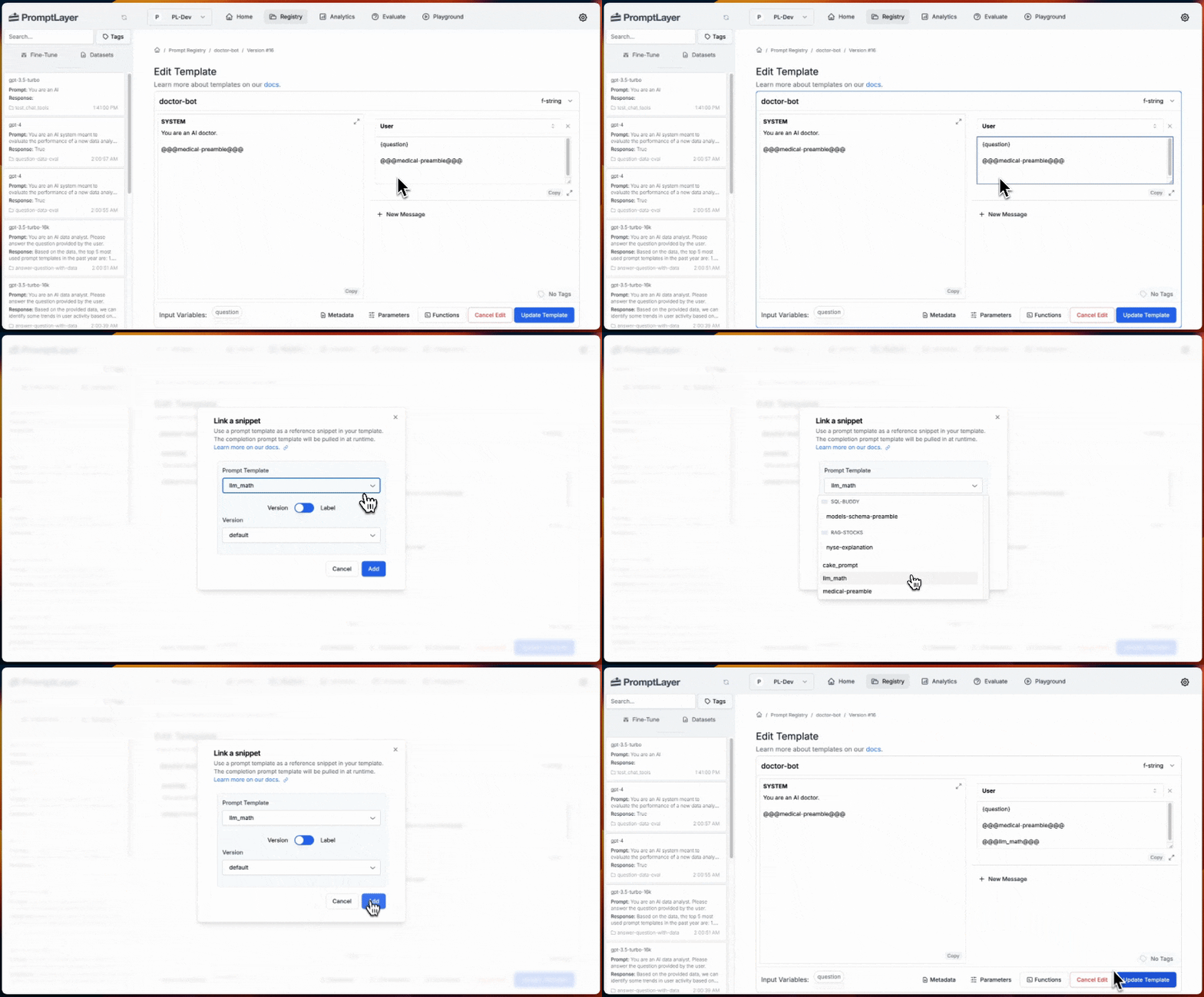 *Inserting a snippet from the Dashboard*
### Creating Snippets Programmatically
A snippet is a reference to a prompt template that can be inserted into another template. You can reference templates in three ways:
1. **By Template Name**: `@@@template_name@@@` - This will automatically use the latest version of the referenced template.
2. **By Template Version Number**: `@@@template_name@version_number:{number}@@@` - This points to a specific version of the template.
3. **By Template Label**: `@@@template_name@label:{label_name}@@@` - This uses the version of the template that has the specified label.
### Restrictions
It's important to note that only completion templates can be used as snippets.
## Rendering Snippets
When you run a parent template that contains snippets, the system 'renders' the template, replacing the snippet references with their actual content. This transpilation occurs whether you run the template from the Playground, use the Evaluation functionality, or retrieve it through the SDKs, providing you with a fully realized version of your prompt.
*Inserting a snippet from the Dashboard*
### Creating Snippets Programmatically
A snippet is a reference to a prompt template that can be inserted into another template. You can reference templates in three ways:
1. **By Template Name**: `@@@template_name@@@` - This will automatically use the latest version of the referenced template.
2. **By Template Version Number**: `@@@template_name@version_number:{number}@@@` - This points to a specific version of the template.
3. **By Template Label**: `@@@template_name@label:{label_name}@@@` - This uses the version of the template that has the specified label.
### Restrictions
It's important to note that only completion templates can be used as snippets.
## Rendering Snippets
When you run a parent template that contains snippets, the system 'renders' the template, replacing the snippet references with their actual content. This transpilation occurs whether you run the template from the Playground, use the Evaluation functionality, or retrieve it through the SDKs, providing you with a fully realized version of your prompt.
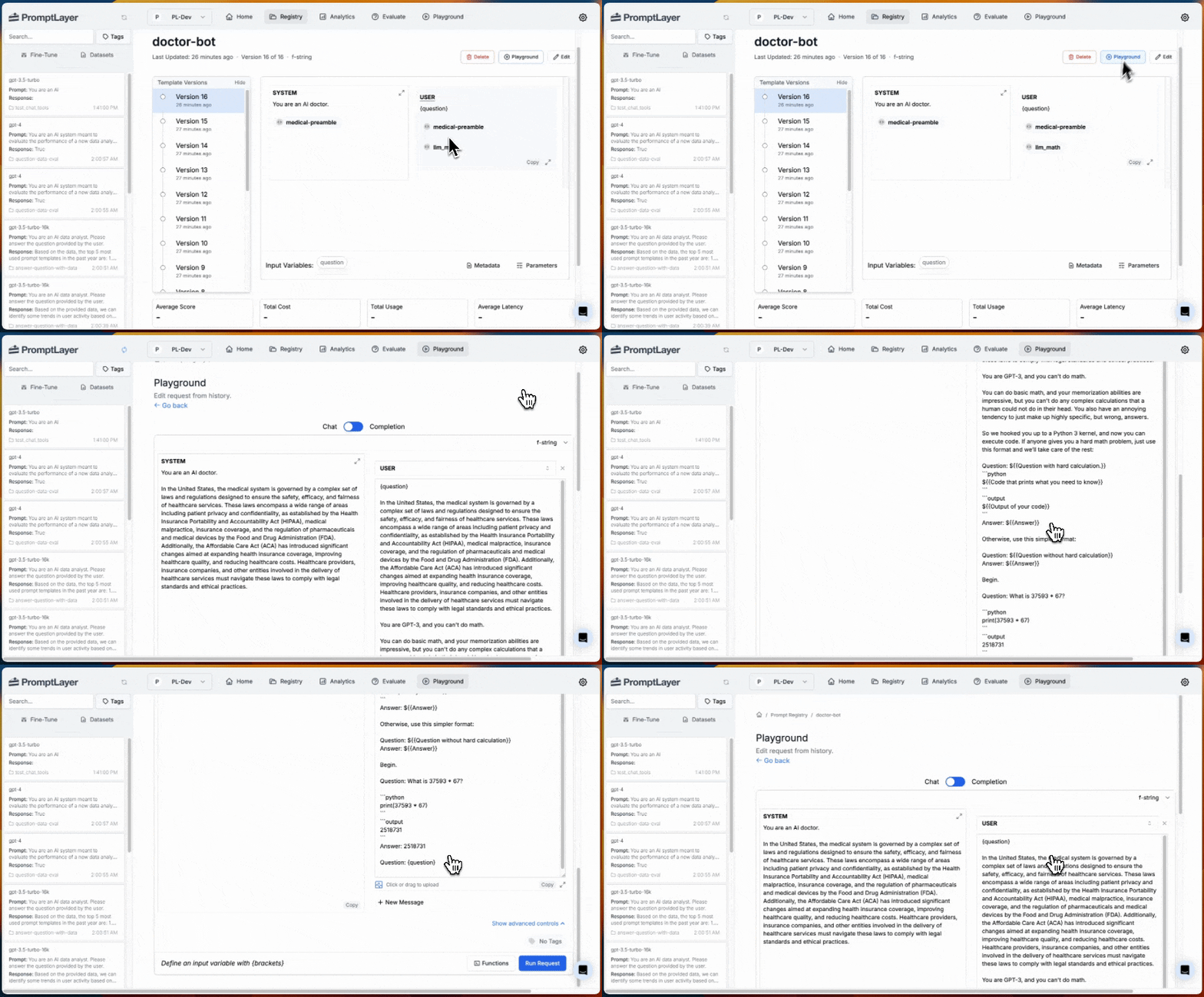 *Rendering snippets from the Playground*
### Webhooks
When you update a snippet, there will be a webhook of type `prompt_template_updated` for all of the templates that import the snippet.
## Visualizing Snippets in Templates
When editing a prompt that contains snippets, you'll see the snippet references as strings in the format described above, depending on how you've chosen to reference them.
When you open a prompt template from the Registry, you'll see it as a clickable pill that will take you to the referenced version.
*Rendering snippets from the Playground*
### Webhooks
When you update a snippet, there will be a webhook of type `prompt_template_updated` for all of the templates that import the snippet.
## Visualizing Snippets in Templates
When editing a prompt that contains snippets, you'll see the snippet references as strings in the format described above, depending on how you've chosen to reference them.
When you open a prompt template from the Registry, you'll see it as a clickable pill that will take you to the referenced version.
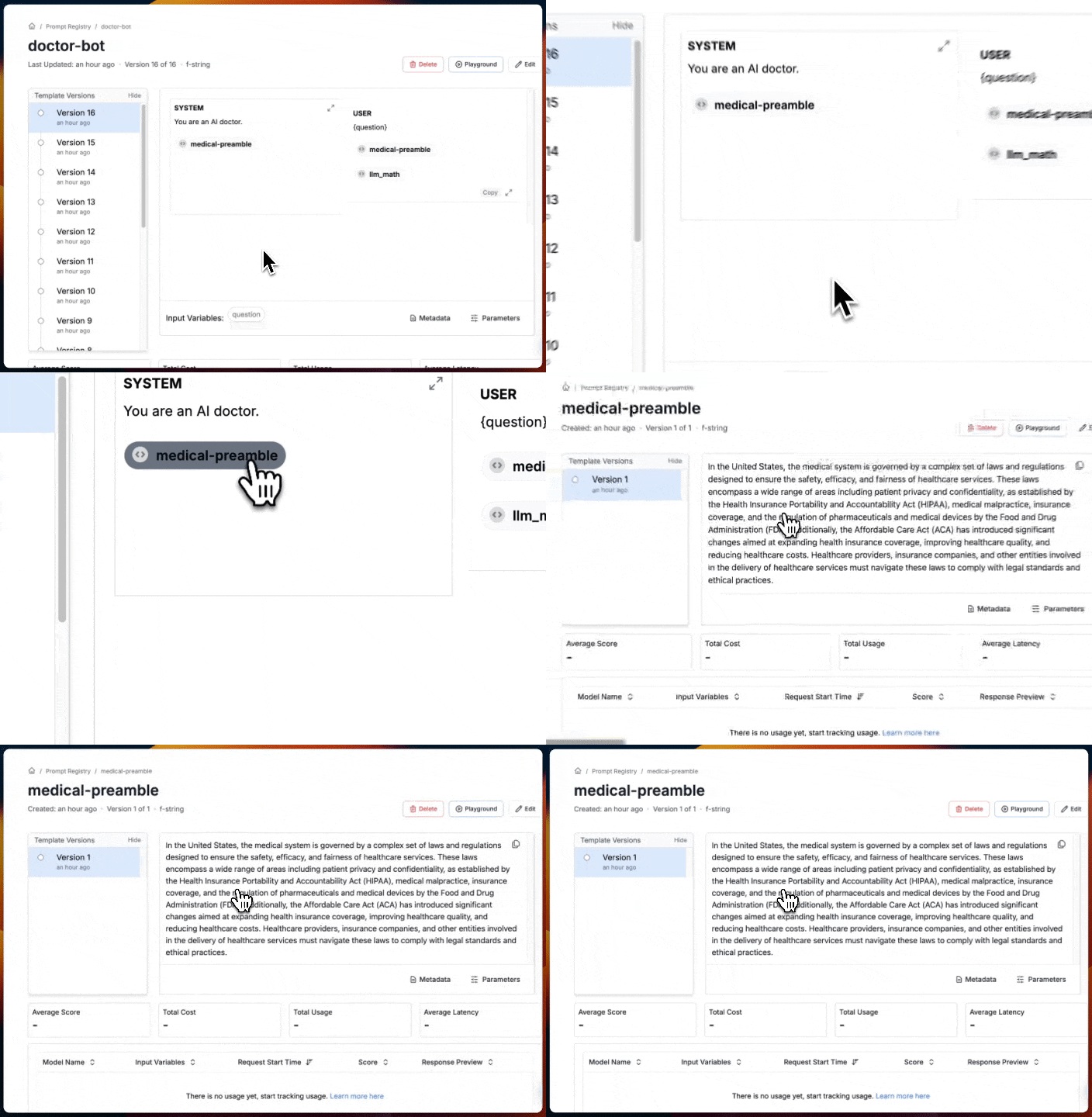 *Navigating to a snippet*
## Why snippets?
By leveraging snippets, you can create a more maintainable and scalable prompt management system, allowing for greater flexibility and efficiency in your prompt template creation process.
*Navigating to a snippet*
## Why snippets?
By leveraging snippets, you can create a more maintainable and scalable prompt management system, allowing for greater flexibility and efficiency in your prompt template creation process.