> ## Documentation Index
> Fetch the complete documentation index at: https://docs.promptlayer.com/llms.txt
> Use this file to discover all available pages before exploring further.
# Input Variable Sets
Input Variable Sets allow you to save and reuse collections of input variables across prompts and workflows. Instead of re-entering the same variable values repeatedly, you can create named sets and apply them wherever needed.
## What are Input Variable Sets?
An Input Variable Set is a named collection of key-value pairs that can be stored in your workspace and reused across different contexts. Think of them as saved inputs for your prompt templates.
For example, if you frequently test prompts with the same customer data or use cases, you can save those variable values as a set and quickly apply them to any prompt template.
## Creating Input Variable Sets
You can create Input Variable Sets from several locations in PromptLayer:
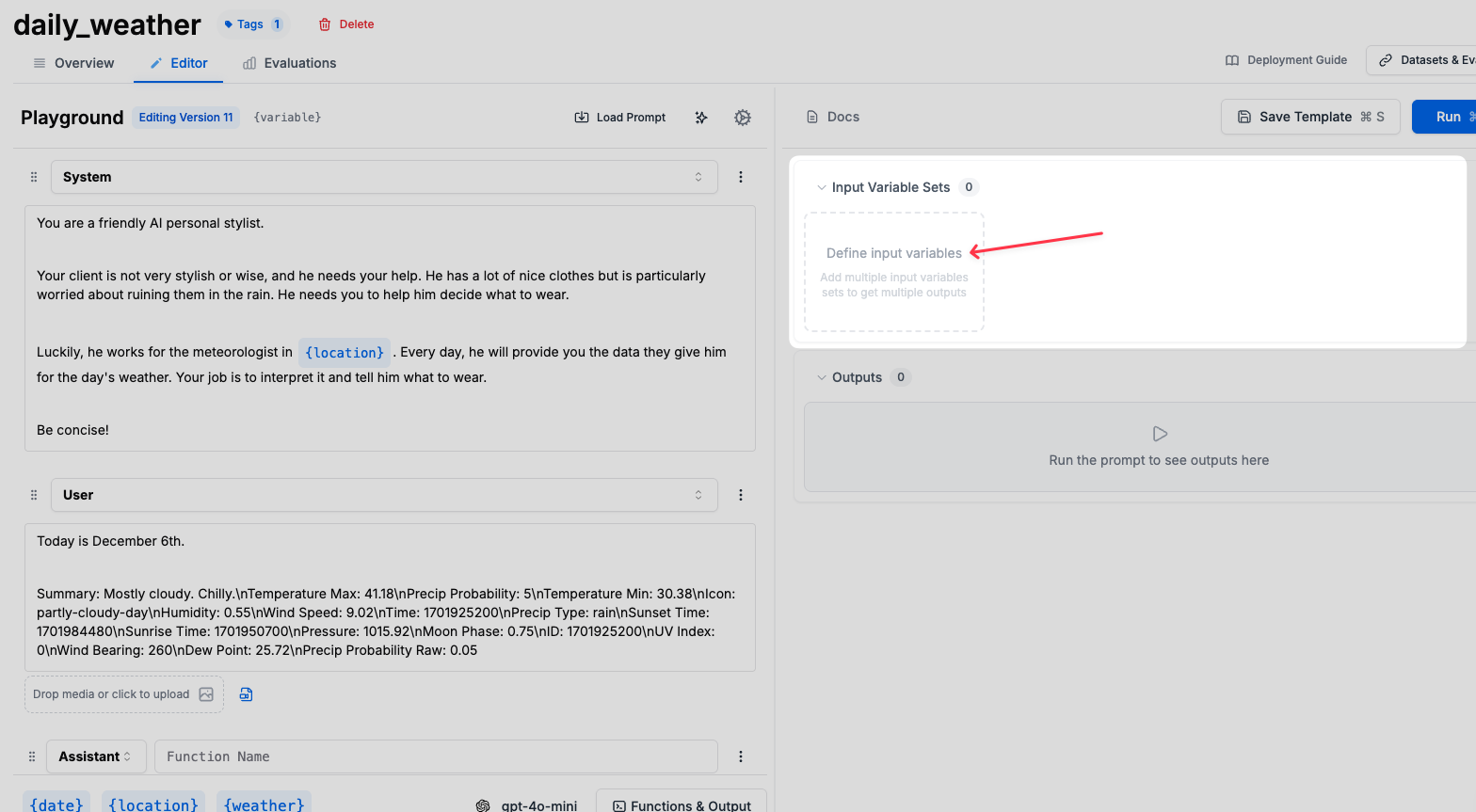
### From the Prompt Editor
1. Open any prompt template with [template variables](/features/prompt-registry/template-variables)
2. Fill in your input variables with the values you want to save
3. Click the **Save** button in the input variables section
4. Name your variable set and choose a folder location
5. Click **Save** to create the set
 ### From the Registry
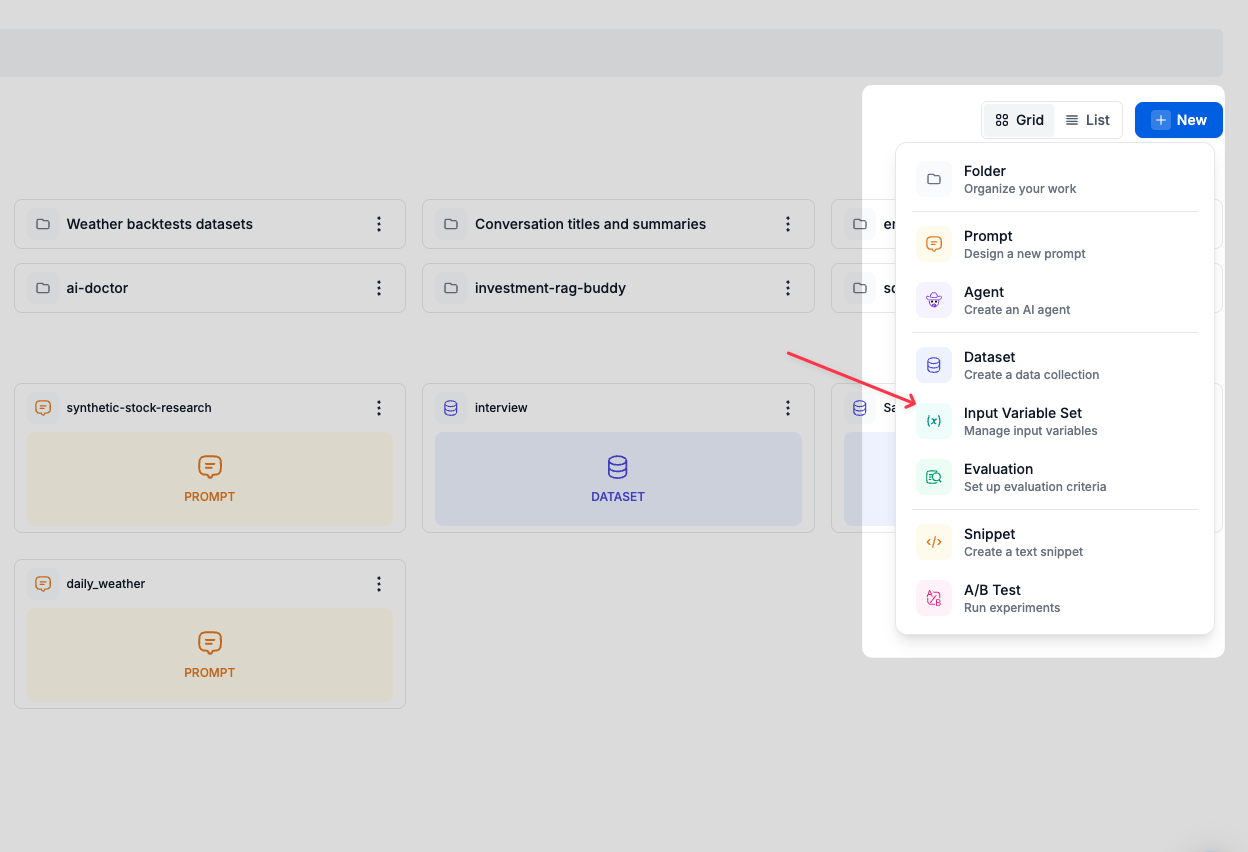
You can also create Input Variable Sets directly from the Registry:
1. Navigate to the **Registry** section
2. Click **New** → **Input Variable Set**
3. Enter a name and configure your variables
4. Save to your chosen folder
### From the Registry
You can also create Input Variable Sets directly from the Registry:
1. Navigate to the **Registry** section
2. Click **New** → **Input Variable Set**
3. Enter a name and configure your variables
4. Save to your chosen folder
 ## Using Input Variable Sets
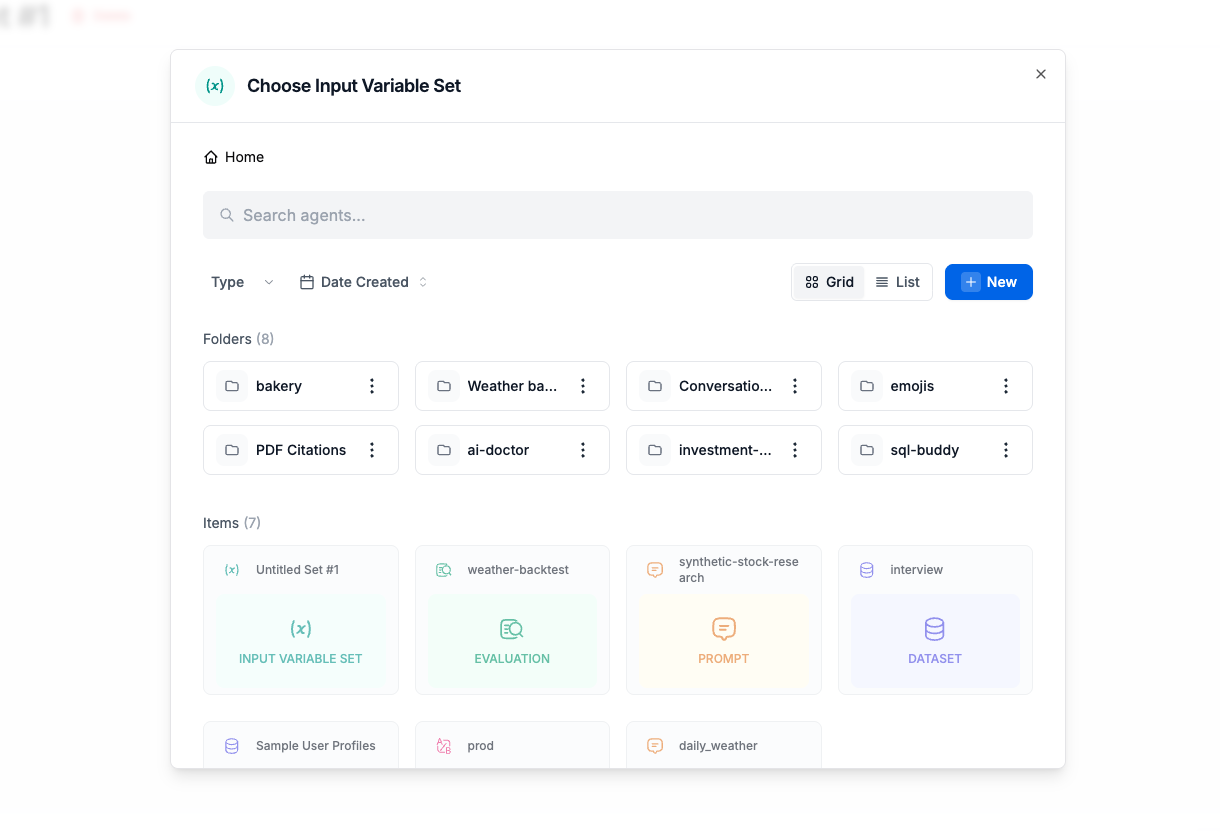
Once created, you can load saved variable sets in the prompt editor by clicking the **Load** button in the input variables section. Variable sets also work with workflow executions, allowing you to apply consistent inputs for test runs and evaluations.
## Using Input Variable Sets
Once created, you can load saved variable sets in the prompt editor by clicking the **Load** button in the input variables section. Variable sets also work with workflow executions, allowing you to apply consistent inputs for test runs and evaluations.
 ## Importing and Exporting
You can import variables from various sources:
* **From Datasets**: Import variables from evaluation datasets
* **From Request Logs**: Use actual request data as variable sets
* **From Files**: Upload JSON or CSV files with variable data
Export options allow you to:
* Save sets to files for backup
* Share between workspaces
* Version control your test data
## Integration with Template Variables
Input Variable Sets work seamlessly with both [f-string and Jinja2 template formats](/features/prompt-registry/template-variables):
* Sets automatically match variable names in your templates
* Missing variables are highlighted
* Extra variables in sets are safely ignored
For more information on how to structure your template variables, see the [Template Variables documentation](/features/prompt-registry/template-variables).
## Related Documentation
* [Template Variables](/features/prompt-registry/template-variables) - Learn how to create dynamic prompts with variables
* [Datasets](/features/evaluations/datasets-overview) - Use datasets for comprehensive evaluation
* [Playground](/why-promptlayer/playground) - Test prompts with different variable configurations
## Importing and Exporting
You can import variables from various sources:
* **From Datasets**: Import variables from evaluation datasets
* **From Request Logs**: Use actual request data as variable sets
* **From Files**: Upload JSON or CSV files with variable data
Export options allow you to:
* Save sets to files for backup
* Share between workspaces
* Version control your test data
## Integration with Template Variables
Input Variable Sets work seamlessly with both [f-string and Jinja2 template formats](/features/prompt-registry/template-variables):
* Sets automatically match variable names in your templates
* Missing variables are highlighted
* Extra variables in sets are safely ignored
For more information on how to structure your template variables, see the [Template Variables documentation](/features/prompt-registry/template-variables).
## Related Documentation
* [Template Variables](/features/prompt-registry/template-variables) - Learn how to create dynamic prompts with variables
* [Datasets](/features/evaluations/datasets-overview) - Use datasets for comprehensive evaluation
* [Playground](/why-promptlayer/playground) - Test prompts with different variable configurations