> ## Documentation Index
> Fetch the complete documentation index at: https://docs.promptlayer.com/llms.txt
> Use this file to discover all available pages before exploring further.
# Image Generation
PromptLayer supports image generation across multiple providers and APIs. You can generate images from the Playground, Prompt Registry, Evaluations, and via the SDK — with full logging, versioning, and cost tracking.
## Supported Providers & APIs
Image generation is available through three distinct paths:
| Provider | API / Method | Models | Template Type |
| ------------------- | --------------------------------------- | --------------------------------------------------------------------------------------------------------------------------------------------------------------------------- | ------------- |
| **OpenAI** | Images API | `dall-e-2`, `dall-e-3`, `gpt-image-1`, `gpt-image-1-mini`, `gpt-image-1.5`, `gpt-image-2` | Completion |
| **OpenAI** | Responses API (`image_generation` tool) | `gpt-5`, `gpt-5.4`, `gpt-5.2`, `gpt-5-nano`, `gpt-4.1`, and [other supported models](https://developers.openai.com/api/docs/guides/tools-image-generation#supported-models) | Chat |
| **OpenAI Azure** | Images API | Same as OpenAI (depends on Azure deployment) | Completion |
| **OpenAI Azure** | Responses API (`image_generation` tool) | Same as OpenAI Responses API | Chat |
| **Google (Gemini)** | Native image output | `gemini-2.5-flash-image`, `gemini-3-pro-image-preview`, and other image-capable Gemini models | Chat |
| **Vertex AI** | Native image output | Same Gemini image models via Vertex AI | Chat |
## OpenAI Images API
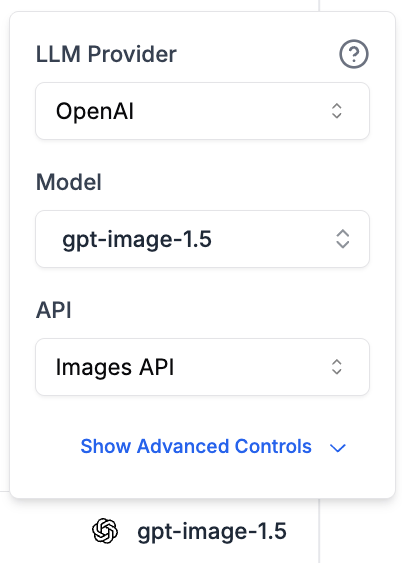
The OpenAI Images API is a dedicated endpoint for image generation. In PromptLayer, it uses a **completion template** — you write a text prompt and the model returns one or more generated images.
### Setting Up in the Playground
1. Open the **Playground** or **Prompt Registry**
2. In the model settings panel, select **OpenAI** (or **OpenAI Azure**) as the provider
3. Change the **API** dropdown to **Images API**
4. Select an image model (e.g. `gpt-image-1`, `dall-e-3`)
5. Write your image prompt in the text area
6. Click **Run**
 ### Parameters
The following parameters are available for the Images API:
| Parameter | Description | Example Values |
| -------------------- | ----------------------------------- | ------------------------------------------- |
| `quality` | Image quality level | `"standard"`, `"high"`, `"hd"` |
| `size` | Output image dimensions | `"1024x1024"`, `"1024x1792"`, `"1792x1024"` |
| `background` | Background style (GPT Image models) | `"auto"`, `"transparent"`, `"opaque"` |
| `output_format` | Output image format | `"png"`, `"webp"`, `"jpeg"` |
| `output_compression` | Compression level (0-100) | `50` |
| `n` | Number of images to generate | `1`, `2`, `4` |
| `style` | Style preset (DALL-E 3) | `"vivid"`, `"natural"` |
| `moderation` | Content moderation level | `"auto"`, `"low"` |
### Using with `pl.run()`
When you save a prompt template with the Images API configuration, you can run it via the SDK:
```python Python theme={null}
from promptlayer import PromptLayer
pl = PromptLayer(api_key="pl_*****")
response = pl.run(
prompt_name="my-image-prompt",
input_variables={"subject": "a cat wearing a top hat"}
)
# The generated image is in the prompt blueprint
content = response["prompt_blueprint"]["prompt_template"]["content"]
for item in content:
if item["type"] == "output_media":
print(f"Image URL: {item['url']}")
print(f"MIME type: {item['mime_type']}")
```
```js JavaScript theme={null}
import { PromptLayer } from "promptlayer";
const pl = new PromptLayer({ apiKey: "pl_*****" });
const response = await pl.run({
promptName: "my-image-prompt",
inputVariables: { subject: "a cat wearing a top hat" }
});
const content = response.prompt_blueprint.prompt_template.content;
for (const item of content) {
if (item.type === "output_media") {
console.log("Image URL:", item.url);
console.log("MIME type:", item.mime_type);
}
}
```
### Pricing
GPT Image models (`gpt-image-1`, `gpt-image-1-mini`, `gpt-image-1.5`, `gpt-image-2`) use **token-based pricing** — cost is calculated from input and output tokens, just like text models. PromptLayer automatically tracks these tokens and calculates cost.
DALL-E models (`dall-e-2`, `dall-e-3`) use **per-image pricing** based on the image size and model. PromptLayer tracks this automatically.
The Images API uses a completion template (single text prompt in, image(s) out).
## OpenAI Responses API — Image Generation Tool
The OpenAI Responses API includes a built-in **Image Generation** tool that the model can invoke during a conversation. Unlike the Images API, this works within a chat context — the model decides when to generate images based on the conversation.
### Setting Up in the Prompt Registry
1. Open your prompt in the **Prompt Registry**
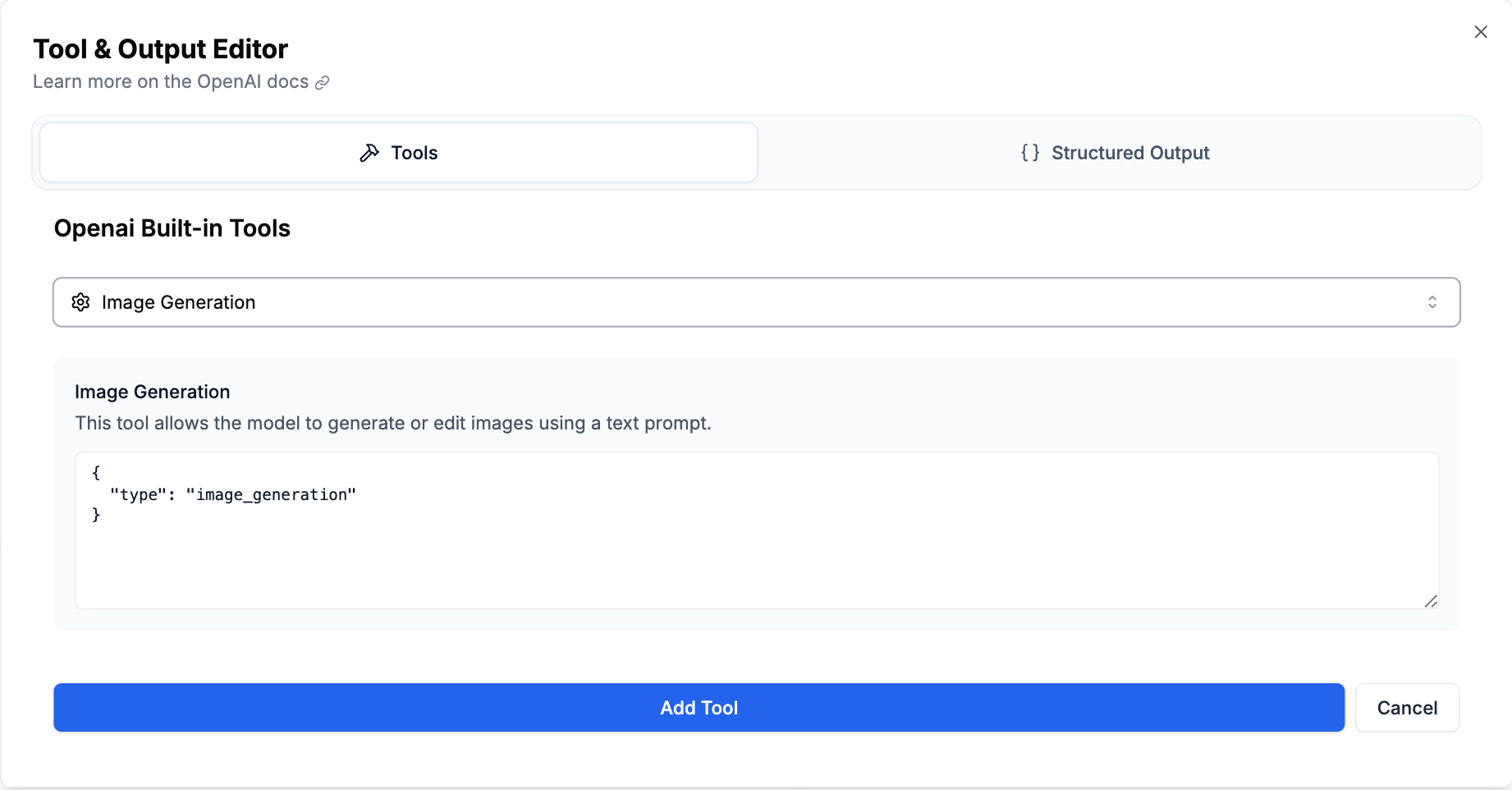
2. Set the provider to **OpenAI** and the **API** to **Responses API**
3. Click the **Functions & Output** button
4. Click **Built-in tools** and add **Image Generation**
5. Save and run your prompt
### Parameters
The following parameters are available for the Images API:
| Parameter | Description | Example Values |
| -------------------- | ----------------------------------- | ------------------------------------------- |
| `quality` | Image quality level | `"standard"`, `"high"`, `"hd"` |
| `size` | Output image dimensions | `"1024x1024"`, `"1024x1792"`, `"1792x1024"` |
| `background` | Background style (GPT Image models) | `"auto"`, `"transparent"`, `"opaque"` |
| `output_format` | Output image format | `"png"`, `"webp"`, `"jpeg"` |
| `output_compression` | Compression level (0-100) | `50` |
| `n` | Number of images to generate | `1`, `2`, `4` |
| `style` | Style preset (DALL-E 3) | `"vivid"`, `"natural"` |
| `moderation` | Content moderation level | `"auto"`, `"low"` |
### Using with `pl.run()`
When you save a prompt template with the Images API configuration, you can run it via the SDK:
```python Python theme={null}
from promptlayer import PromptLayer
pl = PromptLayer(api_key="pl_*****")
response = pl.run(
prompt_name="my-image-prompt",
input_variables={"subject": "a cat wearing a top hat"}
)
# The generated image is in the prompt blueprint
content = response["prompt_blueprint"]["prompt_template"]["content"]
for item in content:
if item["type"] == "output_media":
print(f"Image URL: {item['url']}")
print(f"MIME type: {item['mime_type']}")
```
```js JavaScript theme={null}
import { PromptLayer } from "promptlayer";
const pl = new PromptLayer({ apiKey: "pl_*****" });
const response = await pl.run({
promptName: "my-image-prompt",
inputVariables: { subject: "a cat wearing a top hat" }
});
const content = response.prompt_blueprint.prompt_template.content;
for (const item of content) {
if (item.type === "output_media") {
console.log("Image URL:", item.url);
console.log("MIME type:", item.mime_type);
}
}
```
### Pricing
GPT Image models (`gpt-image-1`, `gpt-image-1-mini`, `gpt-image-1.5`, `gpt-image-2`) use **token-based pricing** — cost is calculated from input and output tokens, just like text models. PromptLayer automatically tracks these tokens and calculates cost.
DALL-E models (`dall-e-2`, `dall-e-3`) use **per-image pricing** based on the image size and model. PromptLayer tracks this automatically.
The Images API uses a completion template (single text prompt in, image(s) out).
## OpenAI Responses API — Image Generation Tool
The OpenAI Responses API includes a built-in **Image Generation** tool that the model can invoke during a conversation. Unlike the Images API, this works within a chat context — the model decides when to generate images based on the conversation.
### Setting Up in the Prompt Registry
1. Open your prompt in the **Prompt Registry**
2. Set the provider to **OpenAI** and the **API** to **Responses API**
3. Click the **Functions & Output** button
4. Click **Built-in tools** and add **Image Generation**
5. Save and run your prompt
 ### How It Works
When the `image_generation` tool is enabled:
1. The model receives your messages and decides if an image should be generated
2. The model invokes the `image_generation` tool with an optimized prompt
3. The generated image appears in the response as an `output_media` content block
4. The model may also return text alongside the image (e.g., describing what was generated)
The response includes metadata about the generation:
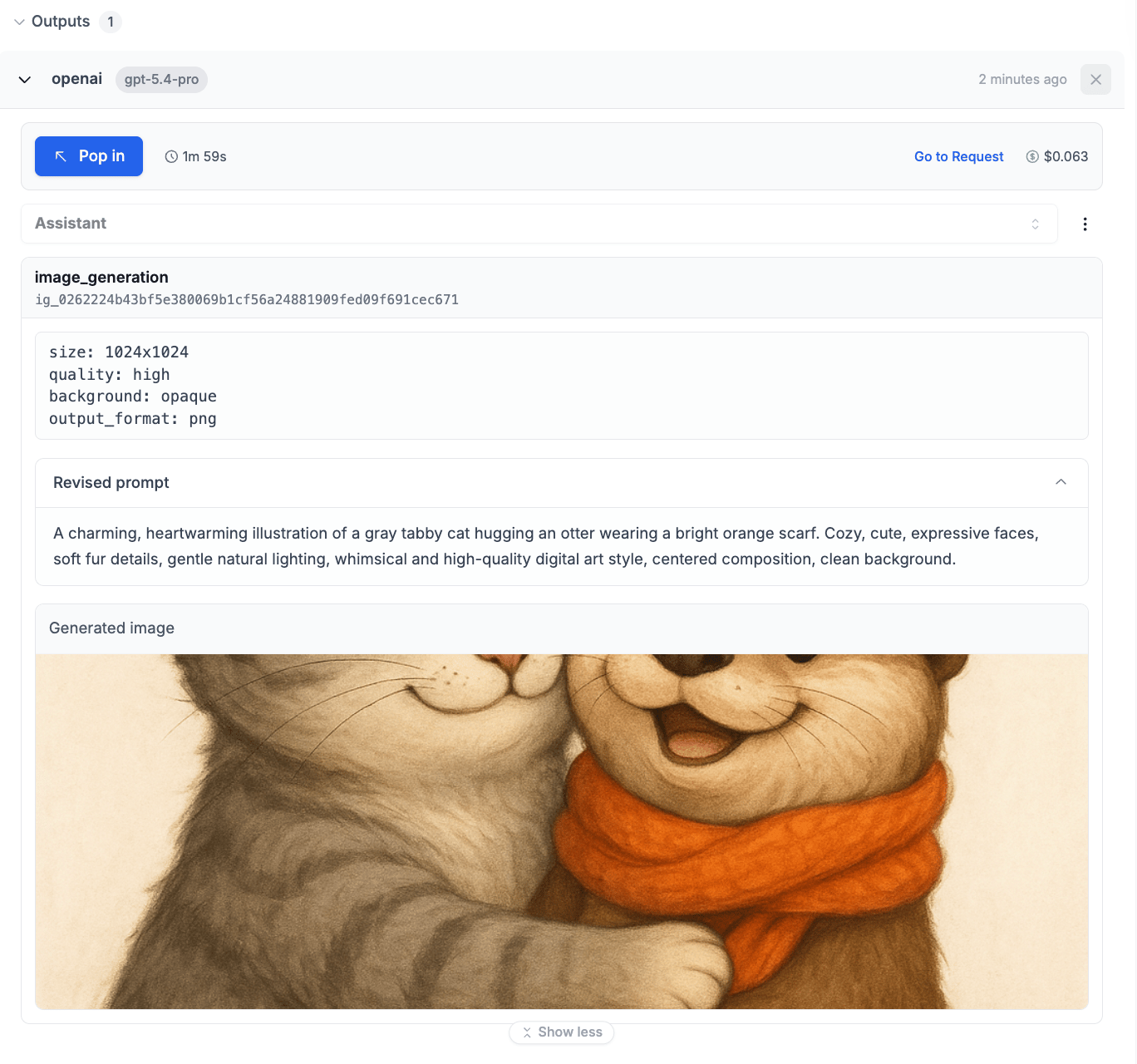
* **Revised prompt** — The optimized prompt the model used for image generation (collapsible in the UI)
* **Parameters** — Size, quality, background, and output format used
* **Image ID** — Unique identifier for the `image_generation_call`
### Multiple Images
The model can generate multiple images in a single response. When this happens, consecutive `image_generation_call` items are grouped into a single assistant message in PromptLayer's display. Each image shows its own revised prompt and parameters.
### Using with `pl.run()`
```python Python theme={null}
from promptlayer import PromptLayer
pl = PromptLayer(api_key="pl_*****")
response = pl.run(
prompt_name="image-chat-prompt",
input_variables={"request": "Draw a sunset over mountains"}
)
messages = response["prompt_blueprint"]["prompt_template"]["messages"]
assistant_msg = messages[-1]
for content in assistant_msg["content"]:
if content["type"] == "output_media":
print(f"Generated image: {content['url'][:50]}...")
if content.get("provider_metadata", {}).get("revised_prompt"):
print(f"Revised prompt: {content['provider_metadata']['revised_prompt']}")
elif content["type"] == "text":
print(f"Text: {content['text']}")
```
```js JavaScript theme={null}
import { PromptLayer } from "promptlayer";
const pl = new PromptLayer({ apiKey: "pl_*****" });
const response = await pl.run({
promptName: "image-chat-prompt",
inputVariables: { request: "Draw a sunset over mountains" }
});
const messages = response.prompt_blueprint.prompt_template.messages;
const assistantMsg = messages[messages.length - 1];
for (const content of assistantMsg.content) {
if (content.type === "output_media") {
console.log("Generated image:", content.url.substring(0, 50) + "...");
if (content.provider_metadata?.revised_prompt) {
console.log("Revised prompt:", content.provider_metadata.revised_prompt);
}
} else if (content.type === "text") {
console.log("Text:", content.text);
}
}
```
## Google Gemini — Native Image Generation
Gemini image models (e.g., `gemini-2.5-flash-image`, `gemini-3-pro-image-preview`) can generate images natively as part of their response. This works with both the **Google** provider and **Vertex AI** provider.
### Setting Up in the Playground
1. Open the **Playground** or **Prompt Registry**
2. Select **Google** (or **Vertex AI**) as the provider
3. Choose a Gemini image model (e.g., `gemini-2.5-flash-image`)
4. PromptLayer automatically configures `response_modalities: ["TEXT", "IMAGE"]` when an image model is selected
5. Write your prompt and click **Run**
### Image Configuration
You can configure image generation parameters in the model settings:
| Parameter | Description | Example Values |
| -------------- | ------------------------- | --------------------------------------------- |
| `aspect_ratio` | Output image aspect ratio | `"1:1"`, `"16:9"`, `"9:16"`, `"4:3"`, `"3:4"` |
| `image_size` | Image resolution | Model-dependent |
These parameters are set via the `imageConfig` in the model parameters panel.
### How It Works
When a Gemini image model generates an image:
1. The image data is returned as `inline_data` in the Gemini response
2. PromptLayer converts this into an `output_media` content block for consistent display
3. The image is displayed in the same card format as OpenAI-generated images
4. Image metadata (aspect ratio, image size) is shown in the parameters block
### Using with `pl.run()`
```python Python theme={null}
from promptlayer import PromptLayer
pl = PromptLayer(api_key="pl_*****")
response = pl.run(
prompt_name="gemini-image-prompt",
input_variables={"description": "A watercolor painting of a garden"}
)
messages = response["prompt_blueprint"]["prompt_template"]["messages"]
assistant_msg = messages[-1]
for content in assistant_msg["content"]:
if content["type"] == "output_media":
print(f"Generated image (MIME: {content['mime_type']})")
if content.get("provider_metadata", {}).get("aspect_ratio"):
print(f"Aspect ratio: {content['provider_metadata']['aspect_ratio']}")
```
```js JavaScript theme={null}
import { PromptLayer } from "promptlayer";
const pl = new PromptLayer({ apiKey: "pl_*****" });
const response = await pl.run({
promptName: "gemini-image-prompt",
inputVariables: { description: "A watercolor painting of a garden" }
});
const messages = response.prompt_blueprint.prompt_template.messages;
const assistantMsg = messages[messages.length - 1];
for (const content of assistantMsg.content) {
if (content.type === "output_media") {
console.log(`Generated image (MIME: ${content.mime_type})`);
if (content.provider_metadata?.aspect_ratio) {
console.log(`Aspect ratio: ${content.provider_metadata.aspect_ratio}`);
}
}
}
```
## Output Media Format
All image generation results in PromptLayer use a unified `output_media` content type, regardless of the provider:
```json theme={null}
{
"type": "output_media",
"id": "img_abc123",
"url": "",
"mime_type": "image/png",
"media_type": "image",
"provider_metadata": {
"revised_prompt": "A detailed, photorealistic sunset...",
"size": "1024x1024",
"quality": "high",
"background": "auto",
"output_format": "png",
"aspect_ratio": "16:9",
"image_size": "1024"
}
}
```
| Field | Description |
| ------------------- | ---------------------------------------------------------------- |
| `type` | Always `"output_media"` |
| `id` | Unique ID for the generation call (Responses API only) |
| `url` | Image URL or base64 data |
| `mime_type` | MIME type of the image (`image/png`, `image/webp`, `image/jpeg`) |
| `media_type` | Media category — currently `"image"` |
| `provider_metadata` | Provider-specific metadata (varies by provider, see below) |
### Provider Metadata by Provider
**OpenAI (Images API & Responses API):**
* `revised_prompt` — The model's optimized version of your prompt
* `size` — Image dimensions
* `quality` — Quality level
* `background` — Background setting (GPT Image models)
* `output_format` — Image format
**Google Gemini:**
* `aspect_ratio` — Configured aspect ratio
* `image_size` — Configured image size
## Viewing Generated Images
Generated images are displayed in PromptLayer with a rich card format:
* **Header** — Shows "Image Generation" label (with the tool call ID for Responses API)
* **Parameters block** — Displays generation parameters (size, quality, format, etc.)
* **Revised prompt** — Collapsible accordion showing the optimized prompt (when available)
* **Image preview** — The generated image with download/copy support
### How It Works
When the `image_generation` tool is enabled:
1. The model receives your messages and decides if an image should be generated
2. The model invokes the `image_generation` tool with an optimized prompt
3. The generated image appears in the response as an `output_media` content block
4. The model may also return text alongside the image (e.g., describing what was generated)
The response includes metadata about the generation:
* **Revised prompt** — The optimized prompt the model used for image generation (collapsible in the UI)
* **Parameters** — Size, quality, background, and output format used
* **Image ID** — Unique identifier for the `image_generation_call`
### Multiple Images
The model can generate multiple images in a single response. When this happens, consecutive `image_generation_call` items are grouped into a single assistant message in PromptLayer's display. Each image shows its own revised prompt and parameters.
### Using with `pl.run()`
```python Python theme={null}
from promptlayer import PromptLayer
pl = PromptLayer(api_key="pl_*****")
response = pl.run(
prompt_name="image-chat-prompt",
input_variables={"request": "Draw a sunset over mountains"}
)
messages = response["prompt_blueprint"]["prompt_template"]["messages"]
assistant_msg = messages[-1]
for content in assistant_msg["content"]:
if content["type"] == "output_media":
print(f"Generated image: {content['url'][:50]}...")
if content.get("provider_metadata", {}).get("revised_prompt"):
print(f"Revised prompt: {content['provider_metadata']['revised_prompt']}")
elif content["type"] == "text":
print(f"Text: {content['text']}")
```
```js JavaScript theme={null}
import { PromptLayer } from "promptlayer";
const pl = new PromptLayer({ apiKey: "pl_*****" });
const response = await pl.run({
promptName: "image-chat-prompt",
inputVariables: { request: "Draw a sunset over mountains" }
});
const messages = response.prompt_blueprint.prompt_template.messages;
const assistantMsg = messages[messages.length - 1];
for (const content of assistantMsg.content) {
if (content.type === "output_media") {
console.log("Generated image:", content.url.substring(0, 50) + "...");
if (content.provider_metadata?.revised_prompt) {
console.log("Revised prompt:", content.provider_metadata.revised_prompt);
}
} else if (content.type === "text") {
console.log("Text:", content.text);
}
}
```
## Google Gemini — Native Image Generation
Gemini image models (e.g., `gemini-2.5-flash-image`, `gemini-3-pro-image-preview`) can generate images natively as part of their response. This works with both the **Google** provider and **Vertex AI** provider.
### Setting Up in the Playground
1. Open the **Playground** or **Prompt Registry**
2. Select **Google** (or **Vertex AI**) as the provider
3. Choose a Gemini image model (e.g., `gemini-2.5-flash-image`)
4. PromptLayer automatically configures `response_modalities: ["TEXT", "IMAGE"]` when an image model is selected
5. Write your prompt and click **Run**
### Image Configuration
You can configure image generation parameters in the model settings:
| Parameter | Description | Example Values |
| -------------- | ------------------------- | --------------------------------------------- |
| `aspect_ratio` | Output image aspect ratio | `"1:1"`, `"16:9"`, `"9:16"`, `"4:3"`, `"3:4"` |
| `image_size` | Image resolution | Model-dependent |
These parameters are set via the `imageConfig` in the model parameters panel.
### How It Works
When a Gemini image model generates an image:
1. The image data is returned as `inline_data` in the Gemini response
2. PromptLayer converts this into an `output_media` content block for consistent display
3. The image is displayed in the same card format as OpenAI-generated images
4. Image metadata (aspect ratio, image size) is shown in the parameters block
### Using with `pl.run()`
```python Python theme={null}
from promptlayer import PromptLayer
pl = PromptLayer(api_key="pl_*****")
response = pl.run(
prompt_name="gemini-image-prompt",
input_variables={"description": "A watercolor painting of a garden"}
)
messages = response["prompt_blueprint"]["prompt_template"]["messages"]
assistant_msg = messages[-1]
for content in assistant_msg["content"]:
if content["type"] == "output_media":
print(f"Generated image (MIME: {content['mime_type']})")
if content.get("provider_metadata", {}).get("aspect_ratio"):
print(f"Aspect ratio: {content['provider_metadata']['aspect_ratio']}")
```
```js JavaScript theme={null}
import { PromptLayer } from "promptlayer";
const pl = new PromptLayer({ apiKey: "pl_*****" });
const response = await pl.run({
promptName: "gemini-image-prompt",
inputVariables: { description: "A watercolor painting of a garden" }
});
const messages = response.prompt_blueprint.prompt_template.messages;
const assistantMsg = messages[messages.length - 1];
for (const content of assistantMsg.content) {
if (content.type === "output_media") {
console.log(`Generated image (MIME: ${content.mime_type})`);
if (content.provider_metadata?.aspect_ratio) {
console.log(`Aspect ratio: ${content.provider_metadata.aspect_ratio}`);
}
}
}
```
## Output Media Format
All image generation results in PromptLayer use a unified `output_media` content type, regardless of the provider:
```json theme={null}
{
"type": "output_media",
"id": "img_abc123",
"url": "",
"mime_type": "image/png",
"media_type": "image",
"provider_metadata": {
"revised_prompt": "A detailed, photorealistic sunset...",
"size": "1024x1024",
"quality": "high",
"background": "auto",
"output_format": "png",
"aspect_ratio": "16:9",
"image_size": "1024"
}
}
```
| Field | Description |
| ------------------- | ---------------------------------------------------------------- |
| `type` | Always `"output_media"` |
| `id` | Unique ID for the generation call (Responses API only) |
| `url` | Image URL or base64 data |
| `mime_type` | MIME type of the image (`image/png`, `image/webp`, `image/jpeg`) |
| `media_type` | Media category — currently `"image"` |
| `provider_metadata` | Provider-specific metadata (varies by provider, see below) |
### Provider Metadata by Provider
**OpenAI (Images API & Responses API):**
* `revised_prompt` — The model's optimized version of your prompt
* `size` — Image dimensions
* `quality` — Quality level
* `background` — Background setting (GPT Image models)
* `output_format` — Image format
**Google Gemini:**
* `aspect_ratio` — Configured aspect ratio
* `image_size` — Configured image size
## Viewing Generated Images
Generated images are displayed in PromptLayer with a rich card format:
* **Header** — Shows "Image Generation" label (with the tool call ID for Responses API)
* **Parameters block** — Displays generation parameters (size, quality, format, etc.)
* **Revised prompt** — Collapsible accordion showing the optimized prompt (when available)
* **Image preview** — The generated image with download/copy support
 ## Image Storage
PromptLayer automatically handles image storage for generated images:
* **Base64 images** are uploaded to cloud storage and replaced with a URL reference
* **URL images** are stored as-is
* This keeps request logs compact and ensures images remain accessible
* Images are available in the dashboard, evaluations, and API responses
## Logging Image Generation Requests
If you're making image generation calls with your own client, you can log them to PromptLayer using [`log_request`](/features/prompt-history/custom-logging). PromptLayer recognizes the following function names for image generation:
* `openai.images.generate`
* `openai.OpenAI.images.generate`
* `openai.AzureOpenAI.images.generate`
* `openai.responses.create` (when using the `image_generation` tool)
## Evaluations
Image generation outputs work with PromptLayer's evaluation system. Generated images flow through evaluation pipelines as `output_media` content — you can use **LLM Assertion** columns to evaluate image quality using vision-capable models, or chain with other column types for custom analysis.
## Related Docs
* [Supported Providers](/features/supported-providers)
* [Tool Calling (Built-in Tools)](/features/prompt-registry/tool-calling)
* [Python SDK Run Method](/sdks/python#using-the-run-method-recommended)
* [JavaScript SDK Run Method](/sdks/javascript#using-the-run-method-recommended)
* [Custom Logging](/features/prompt-history/custom-logging)
## Image Storage
PromptLayer automatically handles image storage for generated images:
* **Base64 images** are uploaded to cloud storage and replaced with a URL reference
* **URL images** are stored as-is
* This keeps request logs compact and ensures images remain accessible
* Images are available in the dashboard, evaluations, and API responses
## Logging Image Generation Requests
If you're making image generation calls with your own client, you can log them to PromptLayer using [`log_request`](/features/prompt-history/custom-logging). PromptLayer recognizes the following function names for image generation:
* `openai.images.generate`
* `openai.OpenAI.images.generate`
* `openai.AzureOpenAI.images.generate`
* `openai.responses.create` (when using the `image_generation` tool)
## Evaluations
Image generation outputs work with PromptLayer's evaluation system. Generated images flow through evaluation pipelines as `output_media` content — you can use **LLM Assertion** columns to evaluate image quality using vision-capable models, or chain with other column types for custom analysis.
## Related Docs
* [Supported Providers](/features/supported-providers)
* [Tool Calling (Built-in Tools)](/features/prompt-registry/tool-calling)
* [Python SDK Run Method](/sdks/python#using-the-run-method-recommended)
* [JavaScript SDK Run Method](/sdks/javascript#using-the-run-method-recommended)
* [Custom Logging](/features/prompt-history/custom-logging)